PDF guides
Split PDF ZIP Downloads Explained
Two Split PDF modes finish as a ZIP archive; Extract does not. Knowing which button you pressed—and how files inside the ZIP are named—prevents sending the wrong package. This guide explains ZIP versus single-PDF downloads, filename patterns, and how to spot-check results before you share them.
Ready to try the tool this guide describes?
When you get a ZIP versus one PDF
Split every page always downloads a ZIP because the result is many single-page PDFs. Split by ranges also downloads a ZIP because each range group is its own PDF. Extract pages downloads one PDF via Extract & download—there is no ZIP step in that mode.
The primary button label matches the packaging: Extract & download for extract mode, and Split & download ZIP for the two multi-file modes.
Filenames inside every-page ZIPs
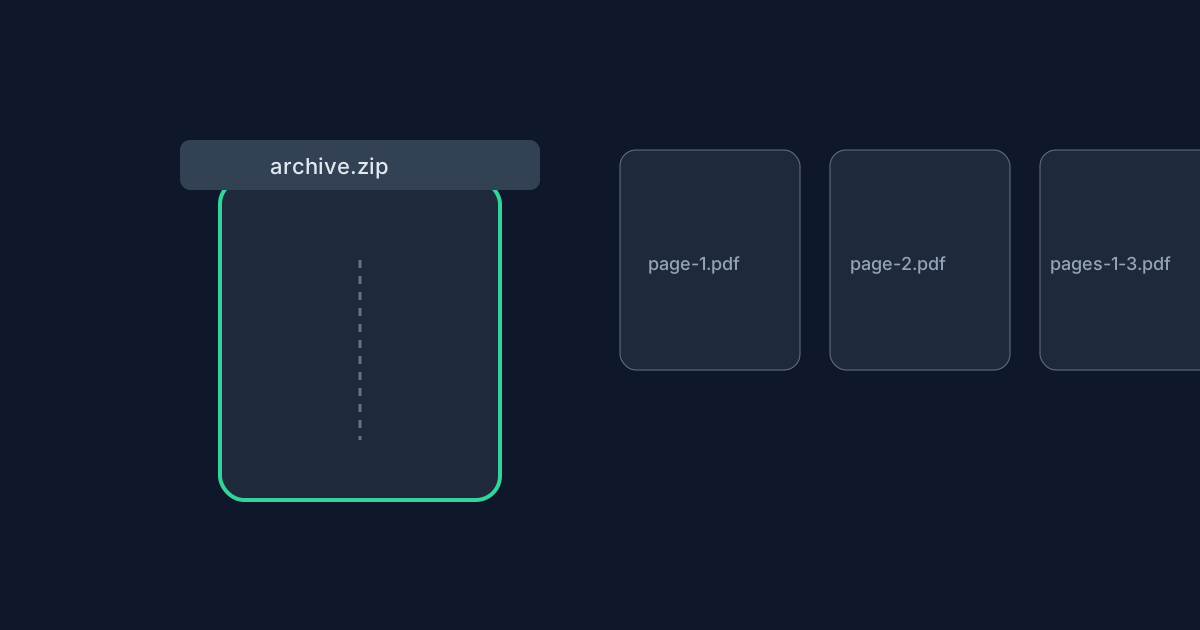
Every-page mode names entries page-1.pdf, page-2.pdf, and so on through the last page. The ZIP itself is typically named from your source stem plus -split-pages.zip—for example demo-split-pages.zip.
Filenames inside range ZIPs
Range groups become separate files. A single-page group uses page-N.pdf. A multi-page group spanning from A to B uses pages-A-B.pdf—for example pages-1-3.pdf. The ZIP name uses your stem plus -split-ranges.zip.
File order inside the ZIP follows the group order you entered. Confirm the first, middle, and last entries after unzipping.
Inspecting results and merging later
Open the ZIP locally before emailing it. Check that page counts and names match your ranges. If you need to recombine pieces afterward, use Merge PDF on the extracted PDFs—remember merge orders whole files, not pages inside a ZIP automatically.
Limits and privacy reminders
Source files remain capped at 25 MB and 200 pages. Extract still allows up to 100 selected pages; ranges allow up to 50 groups. Encrypted PDFs are unsupported. Splitting runs in the browser; contents are not uploaded to Looty Tools for this workflow.
Split PDF ZIP Downloads FAQ
- Why does Split every page download a ZIP?
- Because the mode creates one PDF per page. A ZIP is the package that holds those files together.
- Does Extract pages ever download a ZIP?
- No. Extract & download saves a single PDF built from your selection.
- What does pages-1-3.pdf mean?
- In Split by ranges, that file is the PDF for the group covering pages 1 through 3 of the source document.
- How are ZIP files named?
- Every-page ZIPs use a -split-pages.zip suffix on your sanitized filename stem. Range ZIPs use -split-ranges.zip.
- Can I merge ZIP contents later?
- Yes. Unzip the PDFs, then use Merge PDF at /tools/merge-pdf to concatenate the files you need in order.
- Which mode comparison should I read first?
- See /guides/extract-pdf-pages-vs-split-every-page for choosing among Extract, Split every page, and Split by ranges.
Related guides
- How to Split PDF PagesExtract page ranges, split every page, or create ZIP bundles with browser-based PDF splitting and the exact limits used by Looty Tools.
- Extract vs Split PDF ModesCompare Extract pages, Split every page, and Split by ranges. Learn which mode creates one PDF, which modes create ZIP files, and which option fits your workflow.
- How to Merge PDF FilesCombine multiple PDFs in your browser with file-level ordering, exact size limits, privacy notes, and tips for a clean merged document.


