PDF guides
Extract PDF Pages vs Split Every Page or by Ranges
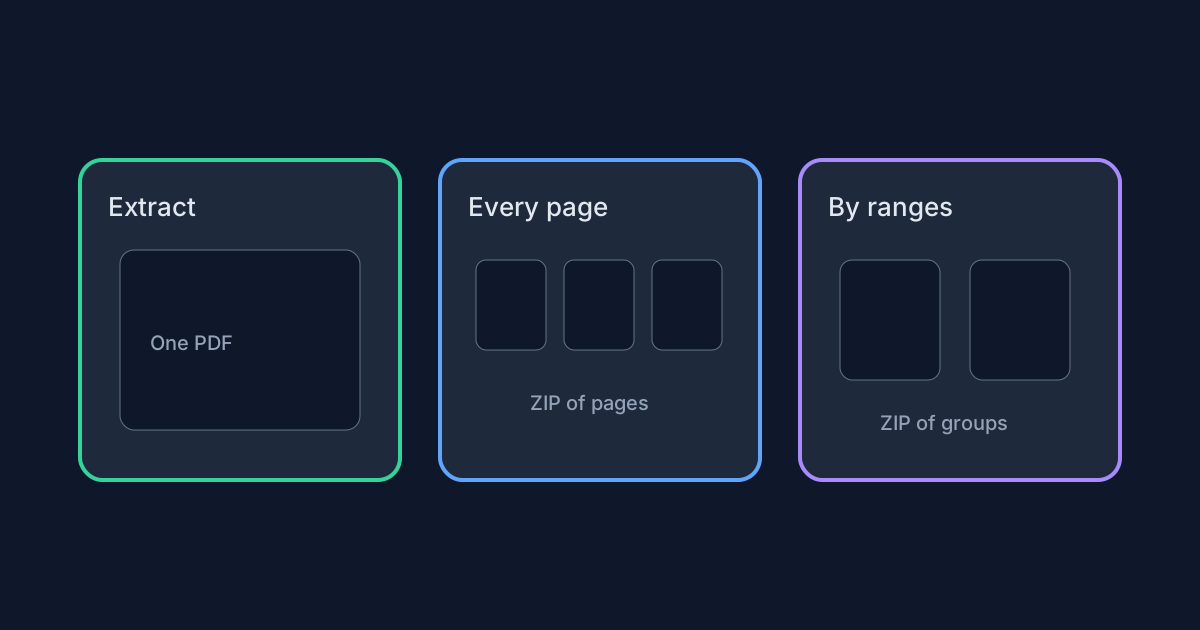
Split PDF offers three modes that look similar until you need the download. Extract builds one PDF. Split every page and Split by ranges build multiple PDFs and package them as a ZIP. This decision guide compares all three modes against real limits and outputs so you pick the right path before you click Extract & download or Split & download ZIP.
Ready to try the tool this guide describes?
Side-by-side comparison
Use this table as a quick chooser. All three modes share the same input caps: one PDF up to 25 MB and up to 200 pages. Password-protected files are unsupported in every mode.
| Mode | Best for | Output | Extra limit | Button |
|---|---|---|---|---|
| Extract pages | One attachment with only the pages you choose | One PDF | Up to 100 selected pages | Extract & download |
| Split every page | Each page as its own file | ZIP of one PDF per page | Whole document within 200 pages | Split & download ZIP |
| Split by ranges | Chapters or sections as separate files | ZIP of one PDF per range group | Up to 50 range groups | Split & download ZIP |
When to use Extract pages
Choose Extract when the recipient needs one attachment containing only the pages you list—for example pages 1-5, 8, 10-12 in a single file. Entered page order is preserved, so 5, 1, 3 produces those pages in that order in the output PDF.
Stay within 100 selected pages. Duplicates and reversed ranges such as 8-3 are rejected. Extract does not create a ZIP.
When to use Split every page
Choose Split every page when each sheet should become its own PDF—photo scans, single-page forms, or per-page distribution. The tool writes page-1.pdf, page-2.pdf, and so on into a ZIP named like your-file-split-pages.zip.
You do not enter ranges in this mode. The whole document (within the 200-page cap) becomes one file per page.
When to use Split by ranges
Choose Split by ranges when chapters or sections should become separate PDFs—for example 1-3, 4-6, 7. Each group becomes one output file inside a ZIP (up to 50 groups). Single-page groups use names like page-7.pdf; multi-page groups use pages-1-3.pdf style names.
Do not treat range groups like an extract list. In extract mode, 1-5, 8 is one file. In ranges mode, those tokens are separate outputs.
Shared syntax, quality, and privacy
Where ranges are required, use commas and hyphens such as 1, 3, 5-8. Pages are copied into new PDFs rather than rasterized, so you are rearranging page containers—not converting to images. Processing runs in the browser; PDF contents are not uploaded to Looty Tools for this workflow.
Extract vs Split PDF Modes FAQ
- How many Split PDF modes are there?
- Three: Extract pages, Split every page, and Split by ranges.
- Which modes download a ZIP?
- Split every page and Split by ranges download a ZIP. Extract pages downloads one PDF.
- Does extract keep the order I type?
- Yes. The output PDF follows the page order you enter, up to 100 pages.
- What are the shared input limits?
- The source PDF may be up to 25 MB and 200 pages. Extract selections allow up to 100 pages. Range mode allows up to 50 groups.
- Will splitting lower image quality?
- Pages are copied into new PDFs rather than rasterized in this workflow.
- Where do I run the tool?
- Open /tools/split-pdf. For ZIP naming details, see /guides/split-pdf-zip-download-explained.
Related guides
- How to Split PDF PagesExtract page ranges, split every page, or create ZIP bundles with browser-based PDF splitting and the exact limits used by Looty Tools.
- Split PDF ZIP DownloadsLearn when Split PDF downloads a ZIP, how page and range files are named, and how Extract & download differs from Split & download ZIP.
- How to Merge PDF FilesCombine multiple PDFs in your browser with file-level ordering, exact size limits, privacy notes, and tips for a clean merged document.


