PDF guides
How to Split a PDF or Extract Selected Pages
Sometimes you only need part of a PDF—one chapter, a signature page, or every sheet as its own file. The Looty Tools Split PDF utility covers extract, split-every-page, and split-by-ranges modes with browser-based processing and explicit limits. This guide explains the modes, the page-selection syntax, download buttons, privacy, and how to avoid range mistakes.
Ready to try the tool this guide describes?
Why split or extract pages
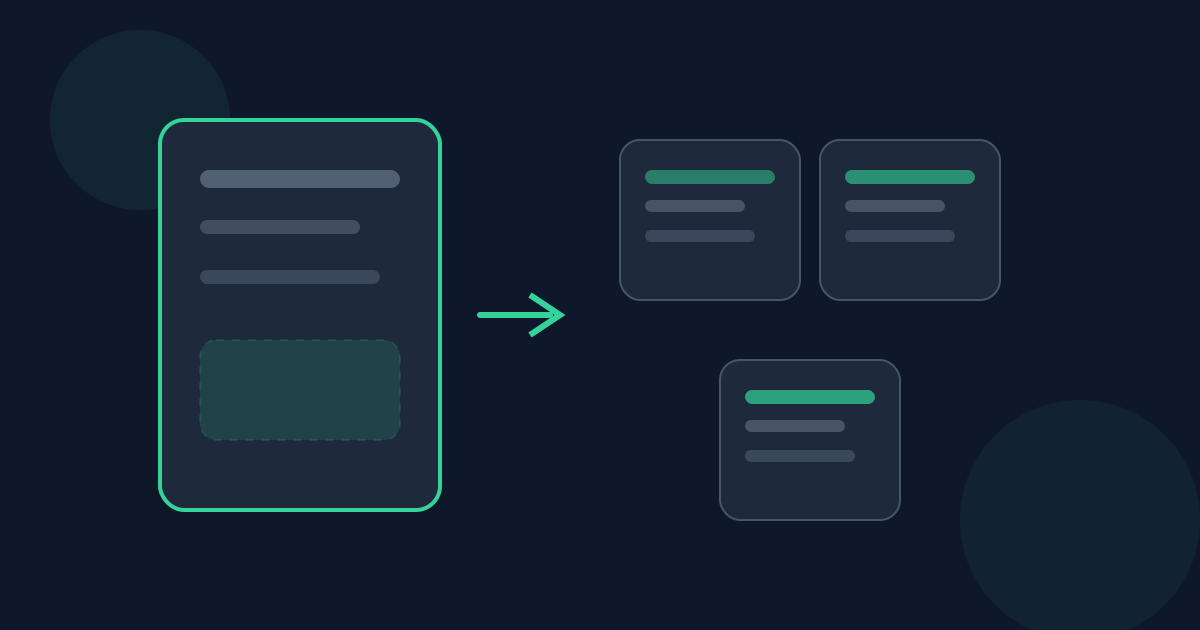
Large PDFs are convenient archives but poor attachments when the recipient only needs a section. Splitting also helps when different pages go to different people, or when you want each scanned photo as a separate PDF. Extracting builds one new PDF from selected pages; other modes produce multiple files packaged for download.
Choose split when the source document is otherwise fine and you simply need a smaller or reorganized set of pages—not when you need to redesign content.
Modes available
Extract pages builds a single PDF from the pages you list. Split every page creates one PDF per page. Split by ranges creates one PDF for each range group you enter. These modes share the same page-selection language for ranges and lists.
- Extract: one PDF from selected pages.
- Split every page: one PDF per page, delivered as a ZIP when you split.
- Split by ranges: one PDF per range group, delivered as a ZIP when you split.
Exact limits
The source PDF may be up to 25 MB and up to 200 pages. Extract mode can include up to 100 pages in the selection. Split by ranges allows up to 50 range groups. Files outside these limits should be reduced or processed in sections.
- File size: 25 MB maximum.
- PDF length: 200 pages maximum.
- Extract selection: up to 100 pages.
- Range groups: up to 50.
Page selection syntax
Describe pages with commas and hyphen ranges. For example, 1-5, 8, 10-12 selects pages 1 through 5, page 8, and pages 10 through 12. Ranges must run from a lower page number to a higher one. Pages outside the document are rejected.
In extract mode, duplicate page entries are not useful—keep the list clean. In ranges mode, each group becomes its own output file, so plan groups the way you want the ZIP contents organized.
Example syntax: 1-5, 8, 10-12.
How to split or extract on Looty Tools
Open the result before sharing. For ZIP downloads, confirm each file contains the pages you intended. If a range was inverted or a page number was mistyped, fix the selection and run the tool again.
- Open the Split PDF tool at /tools/split-pdf.
- Upload one PDF within the 25 MB and 200-page limits.
- Choose Extract pages, Split every page, or Split by ranges.
- Enter a valid selection when the mode requires it.
- Use Extract & download for extract mode, or Split & download ZIP for the split modes.
Privacy, mistakes, and expectations
Split PDF is designed to run locally in your browser, so your file is not uploaded to Looty Tools for this workflow. That supports private extraction of chapters or forms from larger packets.
Common mistakes include selecting more than 100 pages in extract mode, creating more than 50 range groups, or assuming split will OCR or unlock secured PDFs. The tool copies page content into new PDFs; it does not change security settings or recognize text in scans. Password-protected files need to be unlocked first.
Another frequent mix-up is treating range groups like extract lists. In extract mode, 1-5, 8 becomes one file containing those pages. In split-by-ranges mode, plan each group as its own output file so the ZIP matches how you will distribute the pieces.
After you download
For Extract & download, open the single PDF and confirm the page count matches your selection. For Split & download ZIP, unzip and check a file from the beginning, middle, and end of the set. If you plan to recombine pieces later, keep clear filenames before you merge again.
If you needed images rather than smaller PDFs, convert the extracted PDF with PDF to JPG after splitting. Splitting first keeps you under the 50-page raster limit more easily.
How to Split PDF Pages FAQ
- What is the difference between extract and split?
- Extract builds one PDF from the pages you select. Split modes create multiple PDFs—either one per page or one per range group—and download them as a ZIP.
- What are the file limits?
- The PDF may be up to 25 MB and 200 pages. Extract selections allow up to 100 pages, and range mode allows up to 50 range groups.
- How do I write page ranges?
- Use commas and hyphens, such as 1-5, 8, 10-12. Ranges must go from a lower page to a higher page.
- Which buttons download the result?
- Use Extract & download in extract mode, or Split & download ZIP when splitting every page or by ranges.
- Is splitting private?
- The tool is designed to process the PDF locally in your browser, so the file is not uploaded to Looty Tools for this workflow.
- Can I split a password-protected PDF?
- Unlock or remove the password first. Protected files are not supported for splitting in this tool.
- Does split every page keep original quality?
- Pages are copied into new PDFs rather than rasterized by default in this workflow. You are splitting page containers, not converting them to images.
- Which mode should I choose?
- Compare Extract, Split every page, and Split by ranges in /guides/extract-pdf-pages-vs-split-every-page. For ZIP filenames, see /guides/split-pdf-zip-download-explained.
Related guides
- Extract vs Split PDF ModesCompare Extract pages, Split every page, and Split by ranges. Learn which mode creates one PDF, which modes create ZIP files, and which option fits your workflow.
- Split PDF ZIP DownloadsLearn when Split PDF downloads a ZIP, how page and range files are named, and how Extract & download differs from Split & download ZIP.
- How to Merge PDF FilesCombine multiple PDFs in your browser with file-level ordering, exact size limits, privacy notes, and tips for a clean merged document.


