PDF guides
How to Merge PDF Files Online
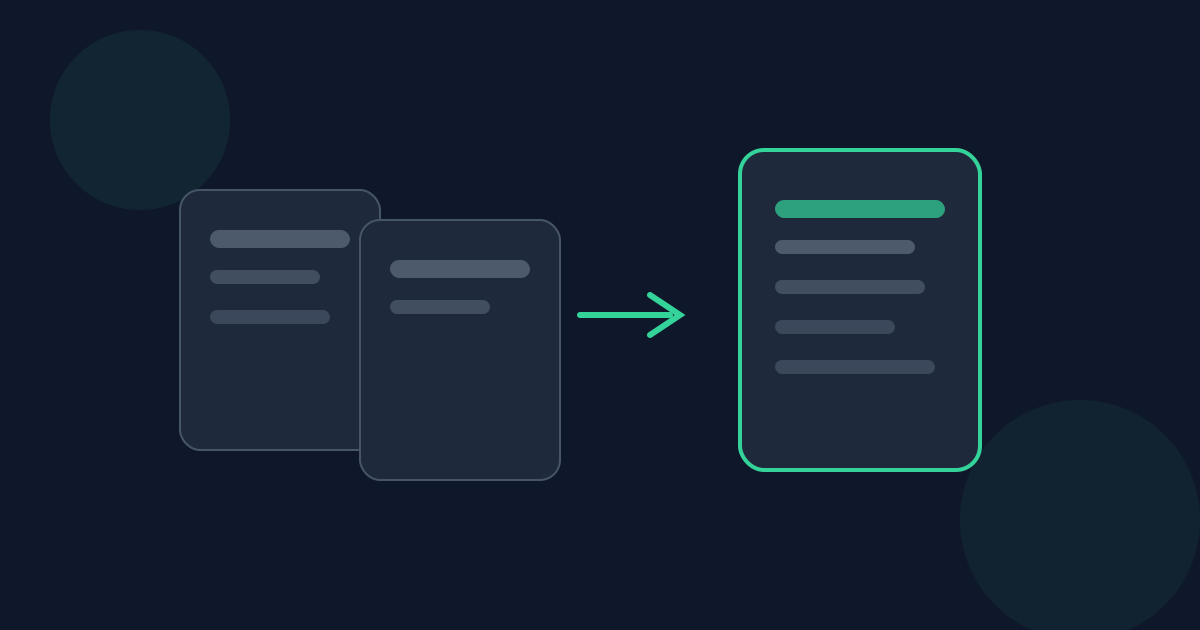
Merging PDFs is one of the most common document chores: combine scanned chapters, attach an appendix, or pack receipts into a single file before you send it. The Looty Tools Merge PDF utility does this in your browser with file-level ordering, clear size limits, and a direct Merge & download action. This guide covers when merging helps, exact limits, step-by-step use, privacy notes, and mistakes that produce messy results.
Ready to try the tool this guide describes?
The problem merge solves
Separate PDFs are fine while you are collecting material, but awkward when someone asks for one attachment. Email systems, school portals, and print shops often prefer a single document. Merging preserves each file’s pages in sequence so you can assemble a packet without reprinting or resaving everything in a desktop editor.
Merge is the right tool when whole files should follow one another. If you instead need to rearrange pages inside one PDF, delete a page, or rotate a sheet, use Organize PDF after merging—or organize first, then merge the cleaned files.
When to use Merge PDF
Use merge when you have at least two PDFs that should become one download. Typical cases include combining a cover letter with a portfolio, stacking monthly statements, or assembling worksheet packets. The tool orders files, not individual pages across files, so plan your sequence at the file level.
If you only need a subset of pages from a large PDF, split or extract first, then merge the smaller results. That keeps the final packet focused and easier to stay within size limits.
Exact limits
The Merge PDF tool accepts up to 20 PDF files. Each file may be up to 25 MB, and the combined selection may be up to 50 MB total. You need at least two files to merge. Password-protected or corrupt PDFs may fail inspection and should be unlocked or repaired before you try again.
- Minimum: 2 PDF files.
- Maximum: 20 PDF files.
- Per file: 25 MB.
- Combined total: 50 MB.
Ordering is file-level. Moving File A above File B moves all of A’s pages together; it does not interleave individual pages from different files.
How to merge PDFs on Looty Tools
After download, open the merged file and spot-check the boundaries between the original documents. If a section is out of order, return to the tool, adjust file order, and merge again. Because processing runs in your browser for this tool, you can iterate without uploading the packet to a remote merge service.
- Open the Merge PDF tool at /tools/merge-pdf.
- Add at least two PDF files that fit the size limits.
- Drag or otherwise reorder the file list so the packet reads in the correct sequence.
- Confirm the total page count looks right for your set.
- Select Merge & download to build the combined PDF and save it.
Privacy
Merge PDF is designed to process files locally in your browser. Your PDFs are not uploaded to Looty Tools for this workflow. That makes the tool suitable for many draft and internal documents, subject to your own policies.
Local processing still happens on the device in front of you. On a shared computer, download carefully and clear files when finished.
Common mistakes and better expectations
People often expect page-level shuffling inside the merge list. This tool concatenates whole files in order. For page-level control, use Organize PDF on individual files, or split pages out and merge the pieces you want.
Another common issue is hitting the 50 MB total after selecting many scans. Compress or split oversized sources first. Also remember that merging does not flatten forms, remove passwords, or OCR scanned images into text—it combines page content as PDF pages.
Name files before you merge when order matters and thumbnails look similar. A short rename such as 01-cover.pdf and 02-body.pdf makes the file list easier to sort correctly. After Merge & download, skim the page where each original file begins so a reversed pair does not reach your recipient.
- Do not expect per-page reordering across different files in Merge PDF.
- Stay under 20 files, 25 MB each, and 50 MB total.
- Unlock password-protected PDFs before merging.
- Preview the download before you send it to someone else.
Suggested workflow with related tools
A clean packet often takes more than one step. Split out only the chapters you need, organize rotations, merge the pieces, then add page numbers last. Keeping merge focused on file order prevents fighting the wrong tool for page-level edits.
When images are your source, convert them to PDF first with Images to PDF, then merge those PDFs if you have multiple sets. That path respects each tool’s limits and keeps HEIC handling in the image workflow where heic2any belongs.
How to Merge PDF Files FAQ
- How many PDFs can I merge at once?
- You can merge between 2 and 20 PDF files in one job, with a 25 MB limit per file and a 50 MB total limit.
- Can I reorder individual pages while merging?
- No. Merge PDF uses file-level order. To reorder pages inside a PDF, use the Organize PDF tool.
- Where do I run the merge?
- Use the Merge PDF tool at /tools/merge-pdf, then choose Merge & download when your file order is ready.
- Are my files uploaded when I merge?
- Merge PDF is designed to process files locally in your browser, so the files are not uploaded to Looty Tools for this workflow.
- What if one file is larger than 25 MB?
- Reduce that PDF’s size, split it into smaller PDFs, or remove heavy image pages before merging.
- Can I merge a PDF with images or Word files directly?
- This tool merges PDF files. Convert other formats to PDF first—for example with Images to PDF—then merge the resulting PDFs.
- Does merging change page size or orientation?
- Pages keep their existing sizes and orientations. The tool concatenates pages; it does not redesign the layout.
- Where can I learn more about order and limits?
- See /guides/merge-pdf-file-order-and-limits for Move up/down behavior and size caps, and /guides/merge-pdf-without-uploading for privacy details.
Related guides
- Merge PDF Order and LimitsLearn how Merge PDF orders whole files, how Move up and Move down affect the result, and how the 20-file, 25 MB per-file, and 50 MB combined limits work.
- Merge PDF Without UploadingMerge PDFs in your browser without uploading their contents to Looty Tools. Learn what stays local, what network requests may still occur, and how private browser-based merging works.
- How to Split PDF PagesExtract page ranges, split every page, or create ZIP bundles with browser-based PDF splitting and the exact limits used by Looty Tools.


