Image guides
Images to PDF Page Size, Orientation, Margins, and Order
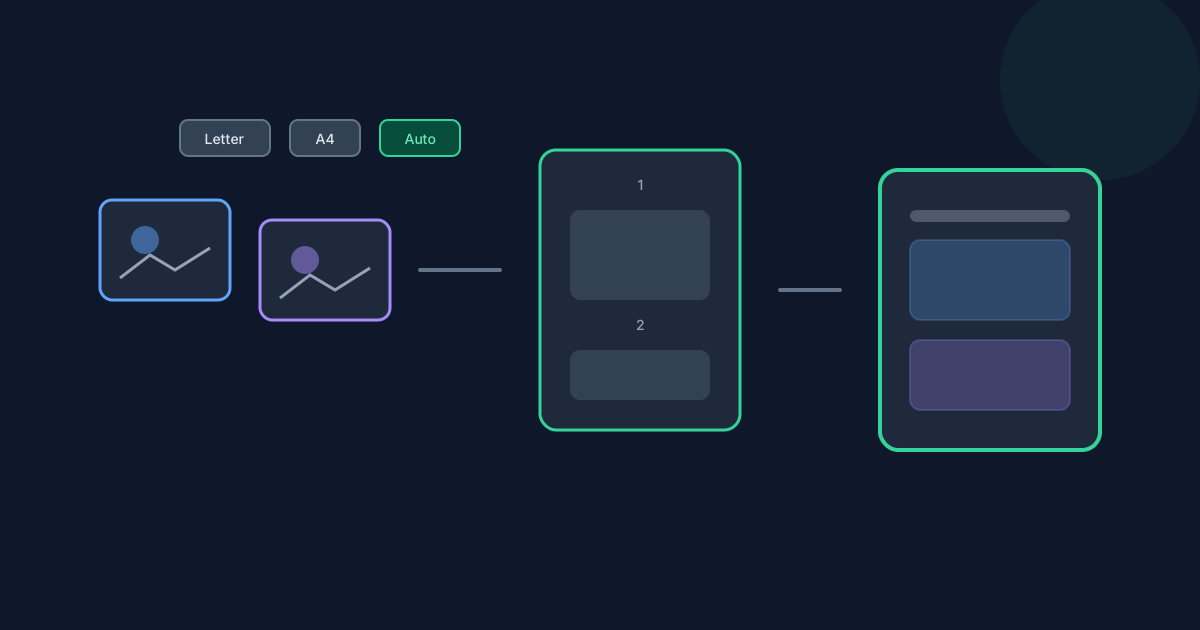
Images to PDF is not only “pick files and convert.” Page size, orientation, margins, and fit decide how each photo sits on the sheet, and Move up / Move down decide which image becomes page one. This guide focuses on those layout controls so your PDF matches Letter attachments, A4 packets, or image-shaped Auto pages—without retelling the full conversion tutorial.
Ready to try the tool this guide describes?
Supported formats and shared limits
Images to PDF accepts JPG/JPEG, PNG, WebP, HEIC, and HEIF. You can select up to 20 files, each up to 25 MB, with a 50 MB combined total. Each decoded image edge must be 8192 pixels or smaller. Processing runs in the browser; image contents are not uploaded to Looty Tools for this conversion.
Page size: Auto, Letter, and A4
Letter uses a fixed 612×792 point page. A4 uses approximately 595.28×841.89 points. Auto sizes each page from the image: the longest content edge is capped around 720 points, then margins are added. Under Auto, every image can produce a differently sized page that follows that image’s proportions.
| Page size | What it does | Best when |
|---|---|---|
| Auto | Page follows image proportions (content edge capped, then margins) | Photo packets where matching image shape matters more than a printer standard |
| Letter | Fixed US Letter page (612×792 pt) | US attachments, forms, and office print workflows |
| A4 | Fixed A4 page (~595.28×841.89 pt) | International print and A4 submission portals |
Orientation, margins, and fit
Orientation can be Auto, Portrait, or Landscape. Important: orientation is ignored when page size is Auto—the page already follows the image. For Letter or A4, Auto orientation chooses landscape when the image is wider than tall; otherwise portrait. You can also force Portrait or Landscape.
Margins are None (0 points), Small (36 points), or Medium (72 points). Fit Contain keeps the whole image visible inside the content box (letterboxing as needed). Fit Fill covers the content box and may crop edges. Prefer Contain when every pixel matters; use Fill only when covering the page is more important than showing the full frame.
- Orientation options: Auto, Portrait, Landscape.
- Orientation is ignored when page size is Auto.
- Margins: None 0 pt, Small 36 pt, Medium 72 pt.
- Contain: show the whole image.
- Fill: cover the page; edges may crop.
Page order and output naming
Use Move up and Move down to set PDF page order. There is no drag-to-reorder control on this tool—only those buttons. List order is page order. A normal raster image becomes one page; a multi-frame HEIC can become multiple pages from one file while still counting as one of the 20 selected files.
The download is typically named from the first image stem plus -images.pdf, or images.pdf when a safe stem is unavailable. Confirm order and a sample of orientations before you share the file.
Images to PDF Page Size and Order FAQ
- Does orientation work with Auto page size?
- No. When page size is Auto, orientation settings are ignored because each page already follows the image dimensions.
- What are the margin sizes in points?
- None is 0 points, Small is 36 points, and Medium is 72 points.
- What is the difference between Contain and Fill?
- Contain keeps the entire image visible. Fill covers the content area and may crop edges.
- Can I drag images to reorder them?
- No. Use Move up and Move down. There is no drag-to-reorder behavior on Images to PDF.
- Which formats and limits apply?
- JPG/JPEG, PNG, WebP, HEIC, and HEIF are supported. Caps are 20 files, 25 MB per file, 50 MB total, and 8192 pixels on each edge.
- Where is the HEIC deep dive?
- See /guides/heic-images-to-pdf-in-browser. For the general how-to, open /guides/how-to-convert-images-to-pdf or /tools/images-to-pdf.
Related guides
- How to Convert Images to PDFCombine JPG, PNG, WebP, and HEIC/HEIF images into one PDF with page settings, exact file limits, and accurate HEIC browser decoding notes.
- HEIC Images to PDF in BrowserLearn how HEIC and HEIF images are decoded locally, converted through JPEG, and added to a PDF without uploading the image contents for conversion.
- How to Convert PDF to JPGRasterize PDF pages to JPG or PNG with quality and resolution controls, ZIP downloads, and the current page and size limits.


