Image guides
How to Convert Images Into One PDF
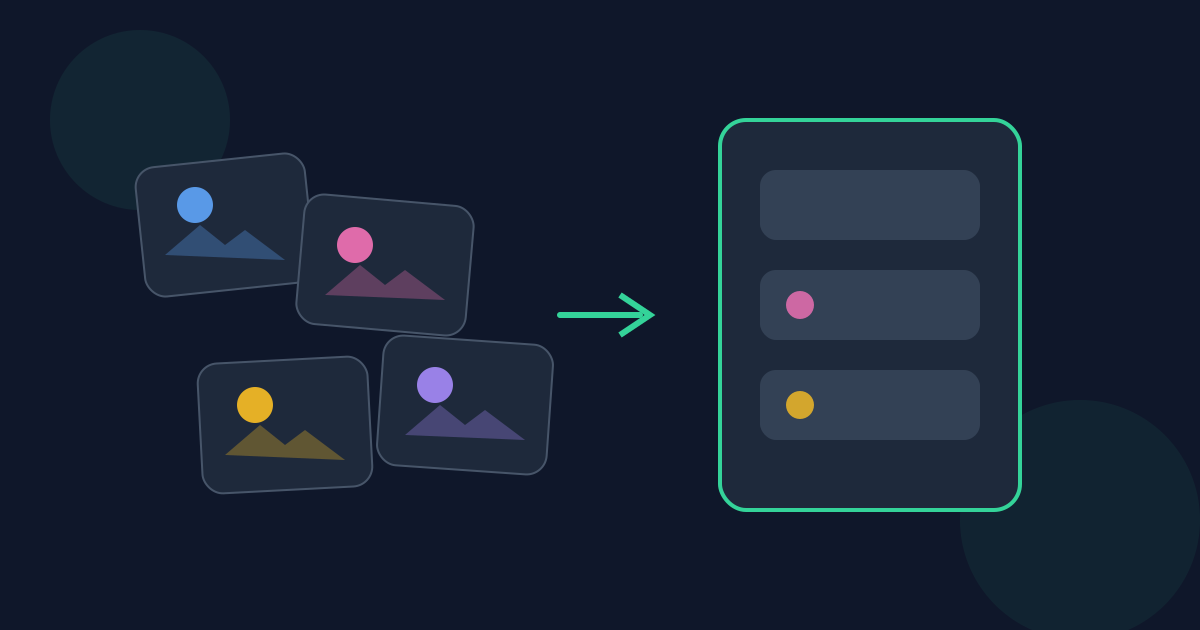
Turning a folder of images into one PDF is a classic handoff: photo evidence, worksheet scans, listing pictures, or phone photos that need a single attachment. The Looty Tools Images to PDF utility combines JPG, JPEG, PNG, WebP, and HEIC/HEIF files in your browser, including HEIC decoding with heic2any locally. This guide covers limits, steps, the Convert & download action, privacy, and quality expectations.
Ready to try the tool this guide describes?
The problem images-to-PDF solves
Images are easy to capture and hard to submit as a set. Portals that accept one PDF will reject a zip of photos. Emailing ten separate HEIC files frustrates recipients on desktop. Building a PDF gives you stable page order and a familiar document container.
This tool is for assembling images as pages, not for advanced layout design. Each image becomes page content according to the tool’s page settings.
When to use Images to PDF
Use it when you have supported images that fit the caps and you need one PDF download. It is especially handy for iPhone HEIC photos that must travel as a document, or for mixing PNG screenshots with JPG photos in a single packet.
- Supported inputs: JPG/JPEG, PNG, WebP, HEIC/HEIF.
- Up to 20 files.
- 25 MB per file.
- 50 MB total.
- Maximum dimension: 8192 pixels on either edge.
HEIC decoding in the browser
HEIC and HEIF support uses heic2any in the browser so decoding can stay on your device for this workflow. Multi-frame HEIC files can produce multiple PDF pages. If a HEIC file fails to decode, try exporting a JPG from your phone or photos app and convert that instead.
HEIC handling is designed for local browser decoding via heic2any; files are not uploaded to Looty Tools for this conversion path.
How to convert on Looty Tools
Open the PDF and skim page order before sending it. If one image dominates file size, resize or recompress that source and rebuild. Very large pixel dimensions may be rejected even when the file is under 25 MB.
- Open Images to PDF at /tools/images-to-pdf.
- Add up to 20 supported images within the per-file and total size limits.
- Reorder images so pages appear in the sequence you want.
- Confirm dimensions are within 8192 pixels on each edge.
- Select Convert & download to build and save the PDF.
Privacy
Images to PDF is designed so JPG, PNG, WebP, and HEIC processing run in your browser. HEIC decoding uses a local browser library, and files are not uploaded to Looty Tools for this workflow. That makes the tool suitable for personal photo packets and draft scans when local processing is preferred.
Mistakes and expectations
A PDF made from images is still a set of pictures. Text is not automatically OCR’d into selectable characters. Huge phone photos can exceed the 8192px edge limit even when the megabyte size looks fine. Transparent PNGs may appear differently depending on how pages are composed onto a background.
If you need the reverse direction—PDF pages as images—use PDF to JPG instead. If you already have multiple PDFs of images, merge those PDFs rather than reconverting every photo.
Watch the 20-file and 50 MB total caps when importing a whole camera roll burst. Select only the images you need, or build two PDFs and merge them afterward if the story truly needs more than twenty pages of photos.
Ordering and sharing tips
Page order is decided before Convert & download, so arrange images thoughtfully. Put a cover or label image first when recipients will skim quickly. For evidence or listing sets, keep a consistent left-to-right or chronological order so the PDF reads naturally.
After download, confirm orientation on a couple of pages. If a photo landed sideways, rotate that source image or run Organize PDF on the result before you share the packet.
How to Convert Images to PDF FAQ
- Which image formats are supported?
- JPG/JPEG, PNG, WebP, and HEIC/HEIF are supported inputs for Images to PDF.
- What are the file limits?
- You can add up to 20 images, each up to 25 MB, with a 50 MB total limit, and each image edge must be 8192 pixels or smaller.
- How does HEIC conversion work?
- HEIC/HEIF files are decoded in the browser with heic2any for this tool, so processing is designed to stay on your device.
- What button creates the PDF?
- Use Convert & download on the Images to PDF tool at /tools/images-to-pdf.
- Are my photos uploaded?
- The tool is designed to process images locally in your browser. Files are not uploaded to Looty Tools for this workflow.
- Can one HEIC create multiple pages?
- Yes. Multi-frame HEIC files can produce multiple PDF pages.
- Why was my image rejected for dimensions?
- If either edge is larger than 8192 pixels, resize the image and try again even if the file size is under 25 MB.
- Where can I learn page layout options and HEIC details?
- See /guides/images-to-pdf-page-size-and-order for page size, orientation, margins, fit, and order. See /guides/heic-images-to-pdf-in-browser for the HEIC decode path.
Related guides
- Images to PDF Page Size and OrderChoose the right page size, orientation, margins, image fit, and page order when converting JPG, PNG, WebP, HEIC, or HEIF images to PDF.
- HEIC Images to PDF in BrowserLearn how HEIC and HEIF images are decoded locally, converted through JPEG, and added to a PDF without uploading the image contents for conversion.
- How to Convert PDF to JPGRasterize PDF pages to JPG or PNG with quality and resolution controls, ZIP downloads, and the current page and size limits.


