PDF guides
How to Convert PDF Pages to JPG or PNG
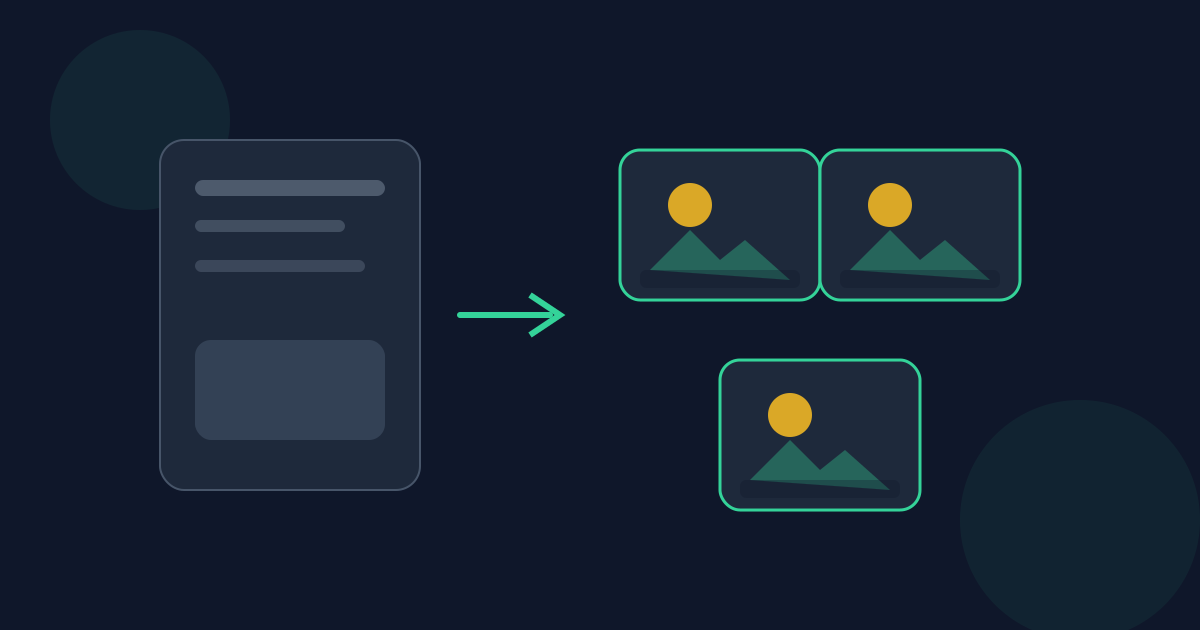
Converting PDF pages to JPG or PNG is useful when a platform wants images, when you need a quick preview, or when you want to drop a page into a slide or chat. The Looty Tools PDF to JPG utility rasterizes pages in your browser with quality and resolution controls, then lets you download pages individually or as a ZIP. This guide covers limits, settings, steps, privacy, and what rasterization can and cannot preserve.
Ready to try the tool this guide describes?
Why convert PDF pages to images
PDFs are excellent for documents, but many apps prefer images. Social posts, certain LMS uploads, design mockups, and messaging apps often handle JPG or PNG more smoothly than multi-page PDFs. Rasterizing also freezes the appearance of a page as pixels, which is helpful when you want a visual snapshot rather than an editable document.
Conversion is a one-way visual export for practical purposes. You are not creating a fully editable Word file; you are making pictures of pages.
When to use PDF to JPG
Use this tool when you need page images from a PDF up to 25 MB and 50 pages. Choose JPG for smaller photographic pages and PNG when you need sharper graphics or UI screenshots with less compression artifacting. PNG output is still rendered on an opaque white canvas—it does not preserve or create transparency. If you only need a few pages from a long PDF, split or extract first so the source fits the page limit.
Exact limits and output options
The source PDF may be up to 25 MB and 50 pages. Output formats are JPG and PNG. Rendered pages clamp to a longest edge of 4096 pixels so browser memory stays manageable. You can adjust quality for JPG-style output and choose a resolution scale appropriate for screen or clearer detail.
After conversion, download individual pages or grab everything as a ZIP when you need the full set.
- File size: 25 MB maximum.
- Pages: 50 maximum.
- Formats: JPG or PNG.
- Longest edge clamp: 4096 pixels.
- Downloads: per page or ZIP.
How to convert on Looty Tools
For email or web previews, a moderate resolution often looks fine and keeps files smaller. For print-like detail, increase resolution carefully and watch memory use on older devices. If conversion stalls, try fewer pages or a lower scale.
- Open the PDF to JPG tool at /tools/pdf-to-jpg.
- Upload a PDF within the 25 MB and 50-page limits.
- Choose JPG or PNG, then set quality and resolution to match your use case.
- Convert the pages using the tool’s convert action.
- Download pages individually or as a ZIP.
Privacy
PDF to JPG is designed to rasterize pages locally in your browser. Your PDF is not uploaded to Looty Tools for this workflow. That is helpful when pages contain personal or client information that should not travel to a remote converter.
Mistakes and expectations
Rasterization flattens vector text into pixels. Zooming an image far beyond the rendered resolution will look soft. Password-protected PDFs are not supported. Very complex pages may hit browser limits even under the published caps, especially at high resolution.
Converting to images also does not keep working form fields or extract text for editing. If you later need a PDF again from those images, use Images to PDF knowing you are rebuilding from pictures, not restoring the original PDF structure.
Pick quality and resolution for the destination. A classroom LMS preview rarely needs the same settings as a detailed diagram you will crop later. Higher settings produce larger ZIP downloads and more memory use during Convert all pages.
Working within the 50-page cap
If your PDF is longer than 50 pages, extract or split the section you need first, then convert that smaller file. The split tool allows longer sources (up to 200 pages) so you can carve out a convertible chunk without opening desktop software.
When you only need a handful of pages as images, extract those pages into one PDF and convert that extract. You avoid rendering dozens of unused pages and stay comfortably inside both tools’ limits.
How to Convert PDF to JPG FAQ
- What formats can I export?
- You can convert PDF pages to JPG or PNG, then download pages individually or as a ZIP.
- What are the size and page limits?
- The PDF may be up to 25 MB and up to 50 pages. Rendered output clamps the longest edge to 4096 pixels.
- Does conversion upload my PDF?
- No. The tool is designed to process the file locally in your browser.
- Should I choose JPG or PNG?
- JPG is usually smaller for photos and smooth gradients. PNG is often better for sharp UI screenshots and diagrams with less compression artifacting. In this tool, both formats render onto an opaque white background—PNG is not transparent.
- Where are the format and resolution deep dives?
- Compare formats in /guides/pdf-to-png-vs-jpg. For scale, quality, and limits, see /guides/pdf-to-jpg-resolution-and-limits.
- Why is there a 4096px edge limit?
- Clamping the longest edge helps keep browser canvas memory use predictable while still producing high-detail page images for most everyday needs.
- Can I convert a 100-page PDF?
- Not in one pass with this tool’s 50-page limit. Split the PDF into sections of 50 pages or fewer, then convert each section.
- Will the images be searchable text?
- No. The output is raster images. Any text becomes pixels unless you run OCR in a separate tool afterward.
Related guides
- PDF to PNG vs JPGCompare PNG and JPG when converting PDF pages to images. Learn how file size, image quality, text clarity, white backgrounds, and JPG quality settings affect the output.
- PDF to JPG Resolution and LimitsUnderstand PDF to JPG scale, quality, pixel dimensions, the 4096-pixel canvas limit, and the 25 MB and 50-page limits before converting PDF pages.
- How to Split PDF PagesExtract page ranges, split every page, or create ZIP bundles with browser-based PDF splitting and the exact limits used by Looty Tools.


