Image guides
How HEIC Images Are Converted to PDF in Your Browser
iPhone photos often arrive as HEIC or HEIF, then fail on desktops that expect JPG attachments. Images to PDF accepts those files and decodes them locally with heic2any before placing JPEG frames onto PDF pages. This guide explains that HEIC-specific path—multi-frame pages, quality trade-offs, failure modes, and what the tool never claims—rather than repeating the full Images to PDF tutorial.
Ready to try the tool this guide describes?
How HEIC reaches the PDF
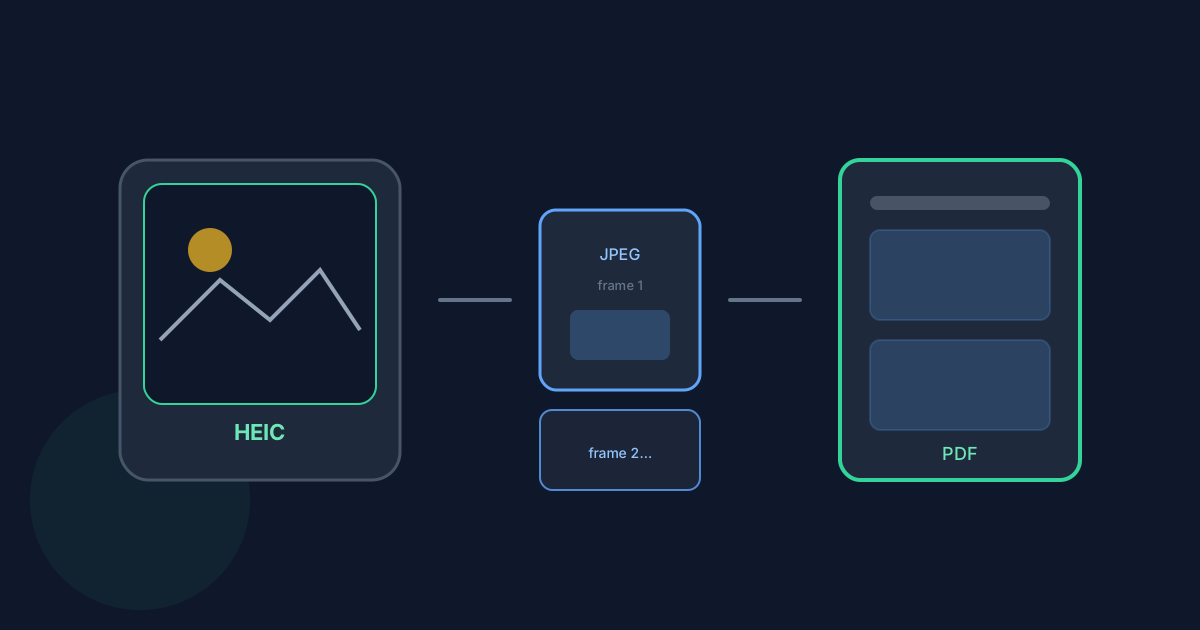
HEIC and HEIF inputs are decoded with heic2any in the browser. Decoded frames are converted to JPEG, then those JPEG bytes are embedded into the PDF with pdf-lib. The tool does not embed native HEIC bitstreams into the PDF, and it does not promise lossless HEIC preservation or original camera metadata in the download.
Because frames become JPEG before placement, transparency and exact original compression are not preserved. That is expected for this browser path, not a temporary bug.
Multi-frame HEIC and mixed selections
A multi-frame HEIC can produce one PDF page per decoded frame. One selected file can therefore create multiple pages while still counting as a single slot toward the 20-file maximum. When you mix HEIC with JPG, PNG, or WebP, Move up and Move down still control file order; multi-frame HEIC expands into consecutive pages at that file’s position.
- Maximum 20 selected files.
- Maximum 25 MB per file.
- Maximum 50 MB combined.
- Maximum 8192 pixels on either decoded edge.
Failures, memory, and unsupported types
Corrupt, incomplete, or unsupported HEIC data can fail decoding even when the extension looks correct. Large bursts can also exhaust browser memory within the published size caps. If decoding fails, export a JPG from your photos app and convert that instead.
GIF, TIFF, AVIF, and BMP are not supported inputs for Images to PDF. Convert those elsewhere or use a tool that lists them explicitly. Processing for supported Images to PDF inputs is designed to stay in the browser without uploading image contents to Looty Tools for conversion.
Do not assume every HEIC variant will decode. Browser-only heic2any support is practical, not universal.
HEIC Images to PDF in Browser FAQ
- Does Images to PDF embed HEIC natively in the PDF?
- No. HEIC/HEIF frames are decoded with heic2any and placed as JPEG content in the PDF.
- Can one HEIC file create multiple PDF pages?
- Yes. Multi-frame HEIC files produce one PDF page per decoded frame.
- Are HEIC conversions lossless?
- No. Frames are converted through JPEG for this workflow, so exact original compression and metadata are not preserved.
- Which image types are unsupported?
- GIF, TIFF, AVIF, and BMP are not supported by Images to PDF. Use JPG/JPEG, PNG, WebP, HEIC, or HEIF instead.
- Are my HEIC files uploaded for conversion?
- No. Decoding and PDF creation are designed to run in your browser for this tool. Image contents are not uploaded to Looty Tools for conversion.
- Where are layout controls documented?
- See /guides/images-to-pdf-page-size-and-order for page size, orientation, margins, fit, and Move up/down order. The overview is /guides/how-to-convert-images-to-pdf.
Related guides
- How to Convert Images to PDFCombine JPG, PNG, WebP, and HEIC/HEIF images into one PDF with page settings, exact file limits, and accurate HEIC browser decoding notes.
- Images to PDF Page Size and OrderChoose the right page size, orientation, margins, image fit, and page order when converting JPG, PNG, WebP, HEIC, or HEIF images to PDF.
- Browser-Based File PrivacyUnderstand local browser processing, when files stay on your device, practical privacy checks, and how Looty Tools discloses different processing models.


