PDF guides
How to Remove PDF Margins
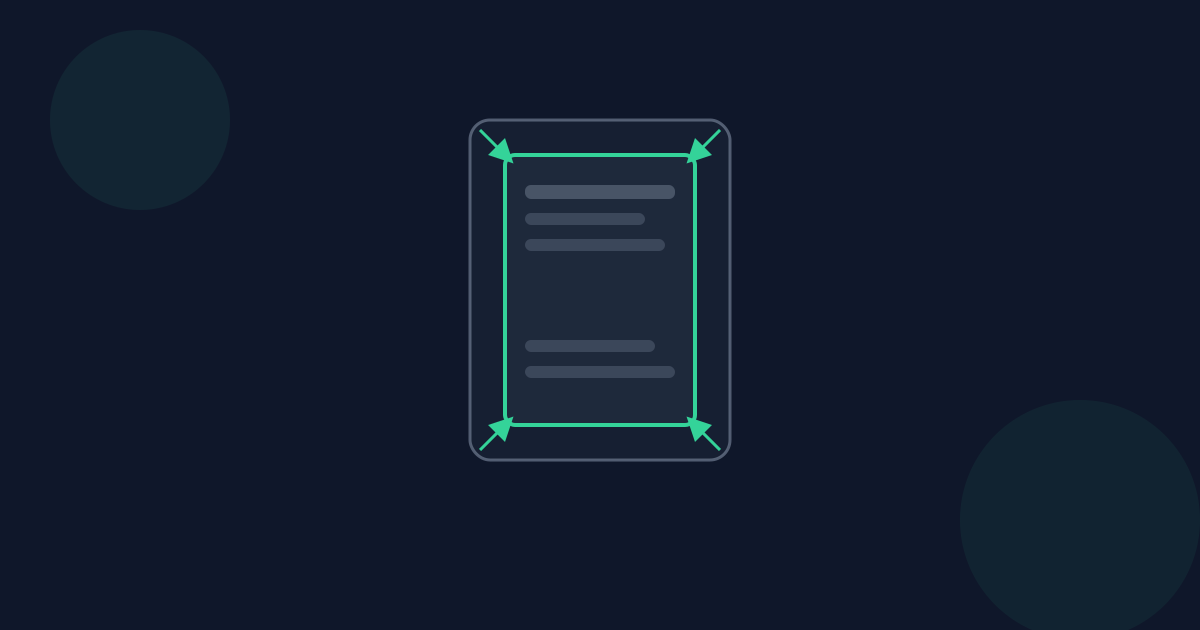
Scanned and printed PDFs often have wide blank margins. Crop PDF removes them with a percentage-based crop that works consistently across every page.
Ready to try the tool this guide describes?
Trimming margins with quick presets
Presets set all four margins at once, but the selection stays fully adjustable afterward.
- Open /tools/crop-pdf and load your PDF.
- Select a quick margin preset (Small, Medium, or Large) to trim an even amount from every edge.
- Fine-tune by dragging the selection handles if a preset trims too much or too little.
- Choose "All pages" and select Apply & download.
Why margins are stored as percentages
A document scanned from different source paper sizes, or with a mix of portrait and landscape pages, does not have one "correct" margin in points. Storing the selection as a margin percentage lets the same trim apply proportionally to every page, instead of stamping one fixed rectangle that would misalign on differently sized pages.
Privacy
Margin removal happens locally in your browser. Your file is never uploaded to Looty Tools.
How to Remove PDF Margins FAQ
- Will trimming margins resize the page dimensions everyone sees?
- Yes — the visible page area shrinks to match your selection, which is what most viewers and printers use to lay out the page.
- My scanned pages are different sizes. Will margins still line up?
- Yes. Margins are calculated as a percentage of each page individually, so mixed page sizes trim proportionally rather than misaligning.
- Can I remove margins from just the first page?
- Yes, choose "This page only" instead of "All pages" before applying.
- Does removing margins reduce the file size much?
- Not significantly on its own — cropping changes the visible area, not the underlying content. Use Compress PDF if file size is the goal.
- What is the difference between removing margins and cropping to content?
- Crop PDF does not auto-detect text or image boundaries — you choose the area visually or via a percentage preset.
Related guides
- How to Crop a PDFTrim a PDF to a specific area in your browser: drag a selection over the page, choose a page or apply it to the whole document, then download the cropped file.
- CropBox vs Page SizeUnderstand the difference between a PDF page’s MediaBox (its full canvas) and its CropBox (the visible area), and why cropping does not delete content.
- How to Compress a PDFShrink a PDF in your browser: choose Low, Balanced, or High compression, and understand exactly what each level trades off before you download.


