PDF guides
How to Crop a PDF Online
Crop PDF trims a PDF to a specific area directly in your browser: drag a selection over the page, choose whether to apply it to one page or every page, then download the cropped file.
Ready to try the tool this guide describes?
Step-by-step cropping
Apply & download stays disabled until you have made a crop selection larger than the full, uncropped page.
- Open /tools/crop-pdf and choose or drop a PDF (up to 25 MB, 300 pages).
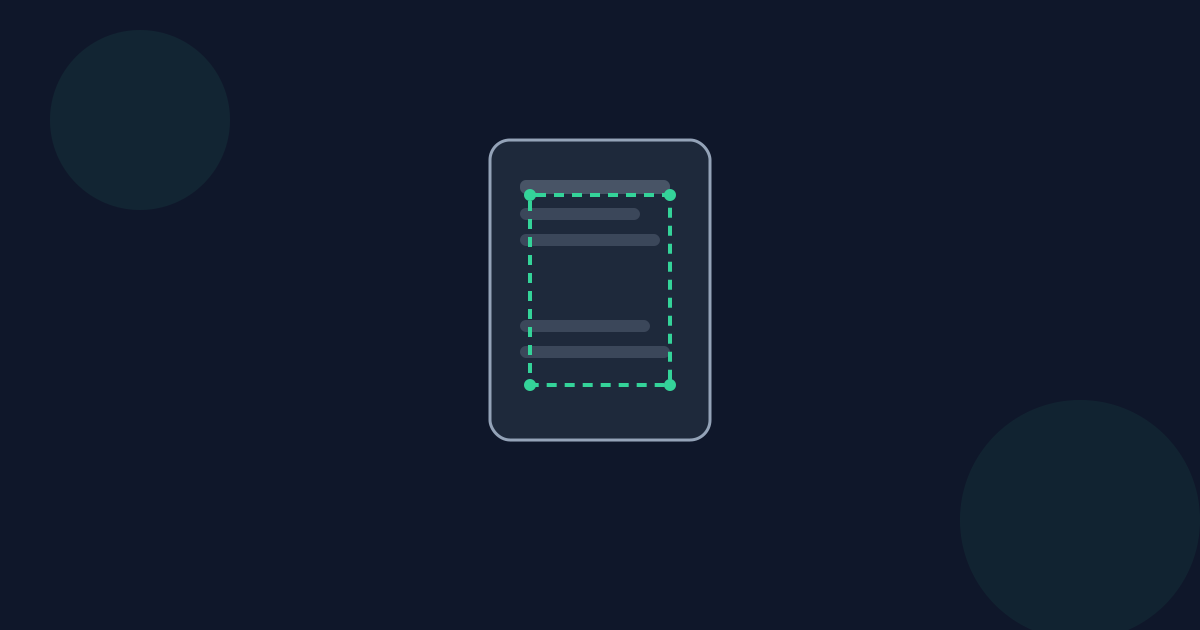
- Drag the corner handles over the page preview to select the area to keep, or pick a quick margin preset.
- Choose "This page only" or "All pages".
- Select Apply & download.
What cropping actually does
Crop PDF changes the page's visible area (its CropBox) rather than deleting content from the page. That is the standard way PDF viewers and printers decide what to show, and it is why crop selections can be undone by re-cropping to a larger area.
Crop PDF is not a content-removal tool. If you need to permanently delete sensitive content, use Redact PDF instead.
Privacy
Cropping happens locally in your browser. Your file is never uploaded to Looty Tools.
How to Crop a PDF FAQ
- Can I crop just one page instead of the whole document?
- Yes. Choose "This page only" before selecting Apply & download, and only the page you are previewing is affected.
- What happens to pages with a different size or orientation?
- Your selection is stored as a percentage of each page, not a fixed box, so applying it to all pages trims the same proportional amount regardless of page size or orientation.
- Does Crop PDF work on rotated pages?
- Yes. The crop is calculated relative to how the page actually displays, so rotated pages crop correctly.
- Is cropped content still inside the PDF file?
- The visible area changes, but cropping does not guarantee removal of underlying content — see the CropBox vs page size guide for details.
- What is the maximum file size?
- Crop PDF accepts one PDF up to 25 MB and 300 pages.
Related guides
- How to Remove PDF MarginsTrim the blank margins around a scanned or printed PDF using a percentage-based crop that works consistently across every page, even mixed page sizes.
- CropBox vs Page SizeUnderstand the difference between a PDF page’s MediaBox (its full canvas) and its CropBox (the visible area), and why cropping does not delete content.
- How to Rotate a PDF PageRotate one page or an entire PDF in your browser: select pages, rotate 90° or 180°, and reset before exporting a corrected copy.


