PDF guides
How to Compress a PDF File Online
Compress PDF shrinks a file directly in your browser, with three levels that trade file size against text selectability. This guide walks through the workflow, what each level actually does under the hood, and how to read the before-and-after result.
Ready to try the tool this guide describes?
Step-by-step compression
You can change the level and run the tool again on the same file without re-selecting it — the file stays loaded until you clear it or choose a new one.
- Open /tools/compress-pdf and choose or drop a PDF (up to 25 MB, up to 300 pages).
- Pick a compression level: Low compression / higher quality, Balanced, or High compression / smaller file.
- Select Compress & download.
- Review the original size, compressed size, and percent saved shown after processing.
What each level does
Low compression rebuilds the PDF losslessly using pdf-lib: it copies every page into a fresh document and lets pdf-lib strip unused objects and use compact cross-reference streams. Text and visible page content stay selectable where the source PDF already supported it. Because this is a structural rebuild rather than an image re-encode, the size reduction is often modest — sometimes negligible on a PDF that is already well-optimized.
Balanced and High compression take a different approach: every page is rendered to a canvas and re-saved as a JPEG image, then rebuilt into a new PDF with one image per page. Balanced uses a higher render scale and JPEG quality; High uses a lower scale and quality for the smallest possible file. Both remove text selectability, search, and any interactive PDF features (form fields, links, bookmarks, tags) — the page becomes a picture of itself.
- Low: lossless, keeps text selectable, smallest guaranteed size drop.
- Balanced: converts pages to images, moderate quality and size.
- High: converts pages to images, smallest size, most visible quality loss.
Reading the before-and-after result
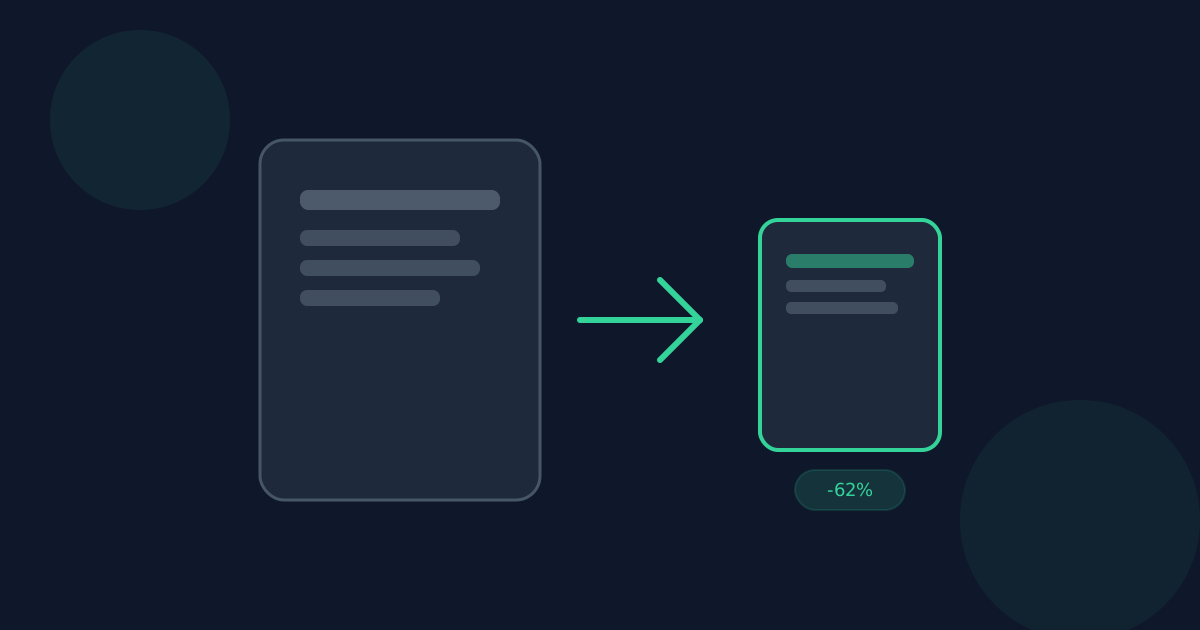
After compressing, Looty Tools compares the new file size against the original. If the reduction is at least 2%, it is treated as a genuine success: the file downloads automatically and you see the original size, compressed size, and percent saved.
If the reduction is under 2% — or the output is not smaller at all — the tool does not download automatically and does not call it a success. Instead it explains that the PDF was not meaningfully reduced and offers a secondary "Download anyway" action if you want the generated file regardless.
Rebuilding or rotating a signed PDF at any compression level can invalidate an existing digital signature.
Privacy
Compression runs entirely in your browser using pdf-lib and pdf.js. Your PDF is not uploaded to Looty Tools servers.
How to Compress a PDF FAQ
- Which level should I start with?
- Start with Balanced for a good size/quality tradeoff. Use Low if you need the text to stay selectable and searchable. Use High only when file size matters more than quality or text selection.
- Why did Low compression barely change the file size?
- Low compression only removes structural overhead — it cannot re-encode images. A text-heavy or already-optimized PDF may see little to no reduction at that level.
- Will my compressed PDF still be searchable?
- Only at Low compression. Balanced and High convert every page into an image, so the text is no longer selectable or searchable.
- Are my files uploaded?
- No. Compression runs locally in your browser and does not upload your file to Looty Tools servers.
- What is the maximum file size?
- Compress PDF accepts one PDF up to 25 MB and up to 300 pages.
Related guides
- Compression Levels ExplainedCompare Low, Balanced, and High PDF compression: how each one shrinks a file, what it costs in text selectability, and which to pick for your document.
- Why Won't My PDF Shrink?Understand why some PDFs barely shrink with compression, how to tell a genuine size reduction from a false one, and what to try next.
- How to Organize PDF PagesRearrange PDF pages locally in your browser—reorder, rotate, duplicate, delete, and reset—with current file and page limits.


