Image guides
What Happens to WebP Transparency in JPG
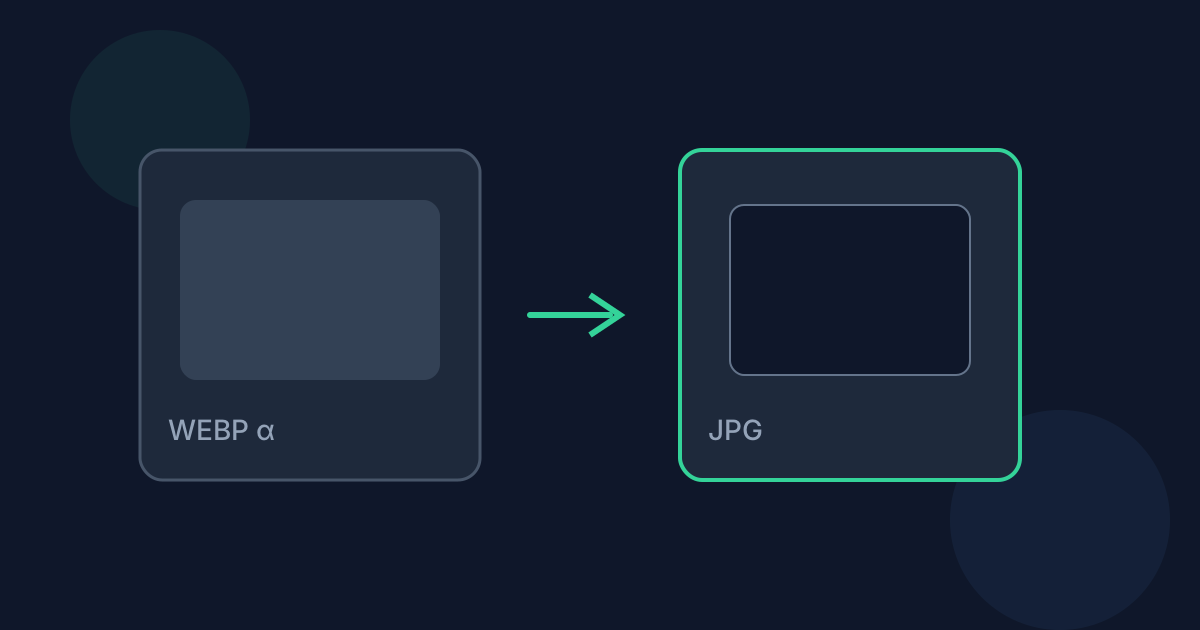
Transparent WebP graphics look fine on checkerboard previews, but JPG cannot store alpha. Understanding flattening helps you avoid surprise white boxes around logos and stickers.
Ready to try the tool this guide describes?
Why white is painted first
Looty Tools fills the canvas with #ffffff before drawing the WebP. That explicit step avoids relying on transparent-canvas defaults, which can encode as black or inconsistent JPEG backgrounds across browsers.
Soft edges and partial alpha
Semi-transparent pixels blend against white. Soft shadows and glow effects often look brighter after conversion than they did on a dark page background.
When to keep WebP or use PNG instead
If you need transparency, keep WebP or convert to PNG with a tool that preserves alpha. JPG is for opaque stills and broad compatibility.
WebP Transparency in JPG FAQ
- Can I choose a different flatten color?
- Not in the current WebP to JPG tool. Flattening uses white.
- Does animation survive?
- No. Only the first frame is converted to JPG.
- Where do I convert?
- Use /tools/webp-to-jpg.
- Are files uploaded?
- No. Conversion runs locally in the browser.
- Does quality affect flattening?
- Quality changes JPEG compression, not the white flatten color.
Related guides
- Convert WebP to JPGConvert a WebP image to JPG locally: choose the file, set JPEG quality, and download without uploading. Animated WebP uses the first frame only.
- WebP vs JPGCompare WebP and JPG for web delivery, transparency, and when converting between them is the practical choice.
- PNG Transparency in JPGUnderstand what happens to transparent PNG pixels when you convert to JPG, including white-background flattening.


