Image guides
How PNG Transparency Changes When You Convert to JPG
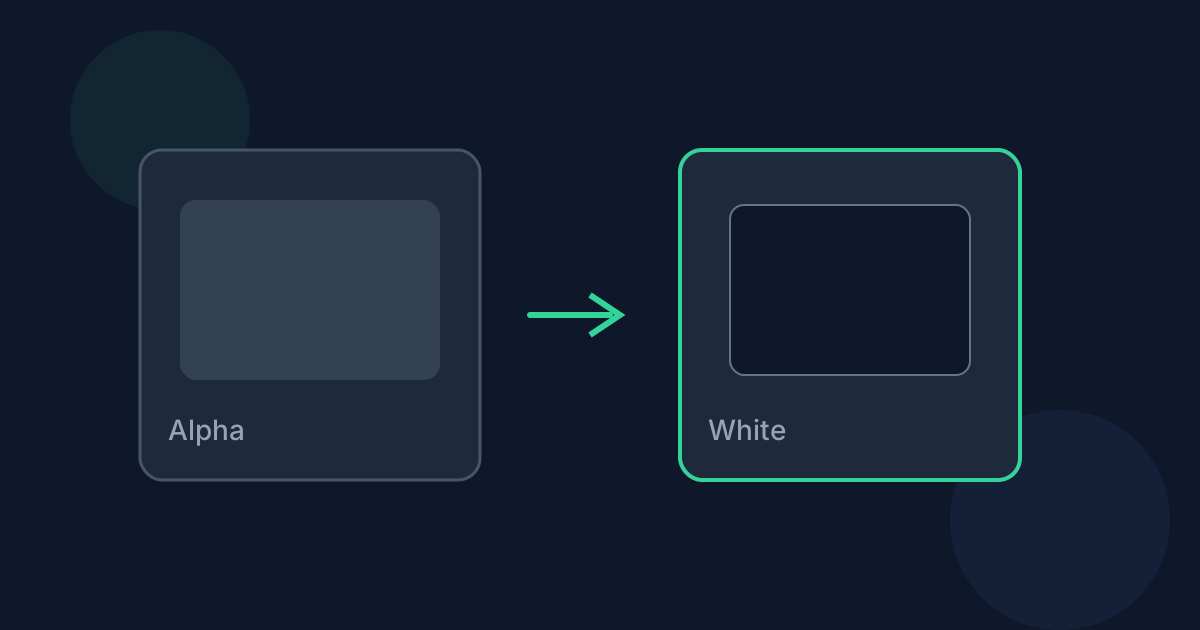
Transparent PNG edges look clean on any background. JPG has no alpha channel, so conversion must pick an opaque fill. Looty Tools flattens onto white.
Ready to try the tool this guide describes?
Why transparency disappears
JPEG stores color for every pixel without an alpha channel. Soft shadows and cutouts cannot remain “see-through” after conversion.
White flattening
Before encoding, the dedicated PNG to JPG converter paints a white canvas, then draws the PNG. Semi-transparent pixels blend against white, not black or checkerboards.
Design tips
If you need transparency later, keep a PNG master. Convert copies for destinations that require JPG.
PNG Transparency in JPG FAQ
- Can I choose a different background color?
- Not in the current PNG to JPG tool. Transparent pixels flatten to white.
- Will soft edges look dirty?
- Anti-aliased edges blend with white. On dark destinations, you may notice a light fringe.
- Does PNG keep transparency if I skip conversion?
- Yes. Leave the file as PNG when transparency matters.
- Is flattening done before encode?
- Yes. The canvas is filled white before the image is drawn and encoded as JPEG.
- Where do I convert?
- Use /tools/png-to-jpg.
Related guides
- Convert PNG to JPGConvert a PNG image to JPG locally: choose the file, set JPEG quality, and download without uploading the image.
- PNG vs JPGCompare PNG and JPG for photos, graphics, transparency, file size, and everyday sharing decisions.
- Convert JPG to PNGConvert a JPG or JPEG image to PNG locally in your browser without uploading the file.


