File & Data
How to Split a Large CSV for Import Limits
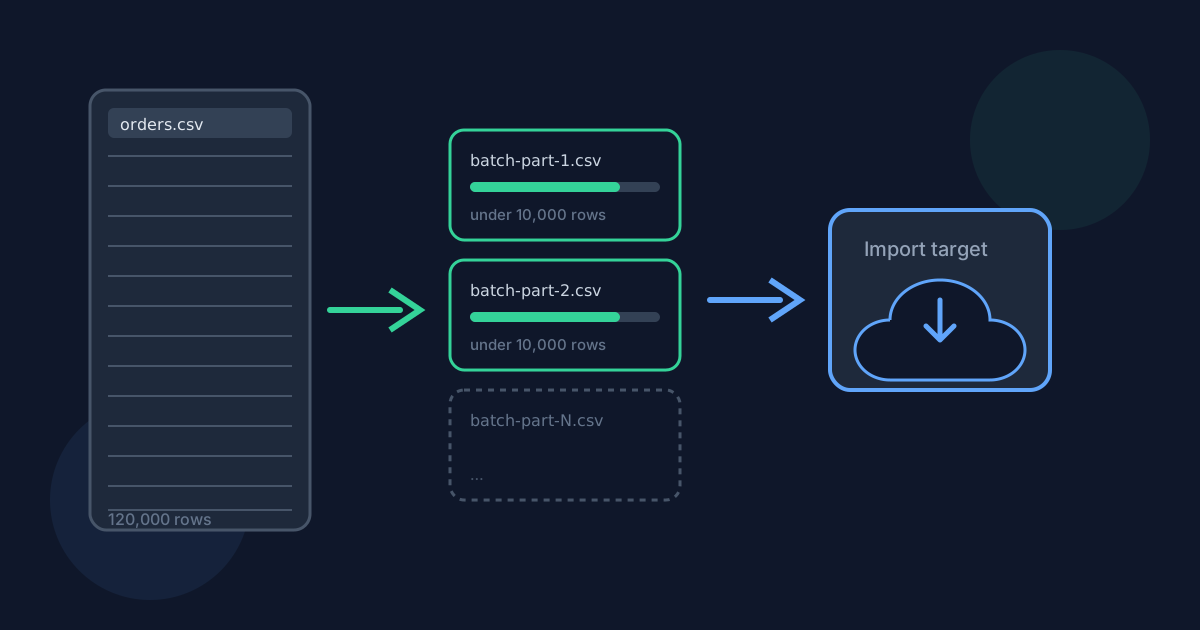
CRMs, ad platforms, and bulk-import tools often cap how many rows a single CSV upload can contain. When an export is larger than that cap, the practical fix is to split it into batches that each stay under the limit while keeping the same header and column layout. This guide walks through using Rows per file mode in Looty Tools Split CSV to build import-ready batches.
Ready to try the tool this guide describes?
Why import limits force a split
A bulk importer that accepts, say, 10,000 rows per upload will reject a 120,000-row export outright, or truncate it in ways that are hard to notice until records go missing. Splitting the export into batches under that ceiling, each with the same header row, lets you run the import multiple times instead of restructuring the source data.
Choosing a rows-per-file value
Set Rows per file to a number safely under the target system’s stated limit, not exactly at it—some importers count the header row toward the cap, and leaving headroom avoids an off-by-one rejection.
| Target import limit | Suggested rows per file |
|---|---|
| 1,000 rows | 900 |
| 10,000 rows | 9,000 |
| 50,000 rows | 45,000 |
Building the batches
- Open Split CSV at /tools/split-csv and choose the large export.
- Confirm "First row contains headers" is checked so every batch keeps the column headers the importer expects.
- Select Rows per file and enter a value under the target system’s limit.
- Download the ZIP and import each batch-part file in order.
After the batches are created
Each batch file is independent: it can be opened, spot-checked, or re-imported on its own without affecting the others. If an import fails partway through, only the batches after that point need to be retried.
Keep the original export until every batch has been confirmed in the target system, since re-splitting with a different rows-per-file value is simpler than reconstructing a partial import.
Split Large CSV for Import Limits FAQ
- Should the rows-per-file value match the import limit exactly?
- No. Use a value comfortably under the stated limit. Some importers count the header row toward the cap, and leaving headroom avoids a batch being rejected by one row.
- Will every batch include the column headers?
- Yes, as long as "First row contains headers" stays checked. Each batch file repeats the header row so it can be imported on its own with the correct columns.
- What if the importer also has a file-size limit, not just a row limit?
- Rows per file controls row count, not byte size. If a file-size cap is tighter than the row cap allows, lower the rows-per-file value until the resulting parts fit both limits.
- Can I use Number of files instead for an import limit?
- You can, but Rows per file is usually a better fit for a row-count limit because you set the cap directly instead of working backward from a file count to a row count.
- Where should I read next about CSV splitting?
- See /guides/how-to-split-a-csv-file for the general workflow and /guides/split-csv-without-uploading for privacy details.
Related guides
- How to Split a CSV FileSplit a CSV file into smaller CSV files locally in your browser: choose rows per file or number of files, keep the header row, and download one file or a ZIP.
- Split CSV Without UploadingLearn how browser-based CSV splitting keeps table data on your device, what still leaves the machine, and how local splitting differs from upload services.
- Preserve Leading Zeros in CSV to ExcelKeep ZIP codes, account IDs, and other padded values intact when converting CSV to Excel by enabling preserve-as-text mode before download.


