File & Data
How to Preserve Leading Zeros in CSV to Excel
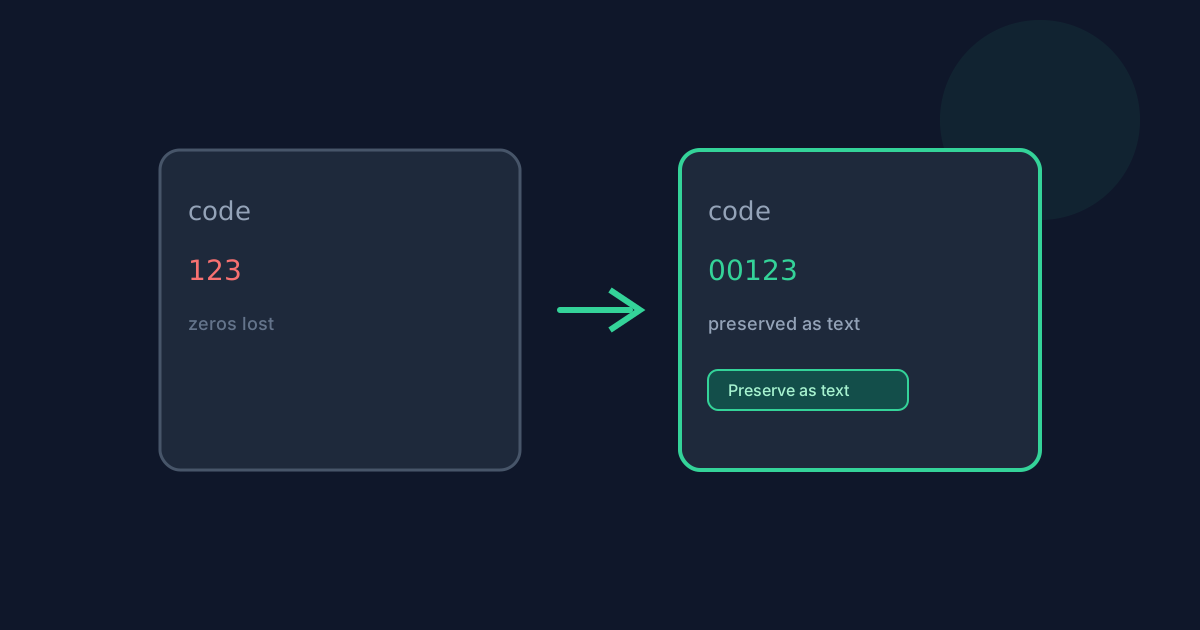
Values such as 00123, 000045, or short fractions can look correct in a CSV editor and then change after an Excel import. Looty Tools includes a Preserve values as text option so those cells stay strings in the downloaded workbook. This guide explains when to enable it and what still changes when it is off.
Ready to try the tool this guide describes?
Why leading zeros disappear
Spreadsheet engines often treat digit-only fields as numbers. Excel then drops insignificant leading zeros. Date-like fragments such as 1-2 or 3/4 may also be interpreted as dates depending on locale and parser settings.
CSV itself has no strong type system—everything is text until a converter decides otherwise.
Use Preserve values as text
With the option enabled, SheetJS reads the CSV with raw string values so leading zeros and many date-like strings remain unchanged in the workbook.
- Open /tools/csv-to-excel and choose your CSV.
- Enable Preserve values as text before converting.
- Confirm the preview still shows padded values such as 00123.
- Convert to Excel and open the .xlsx to verify the cells remain text.
When to leave the option off
If you want ordinary numbers and booleans typed for formulas and charts, leave Preserve values as text disabled. SheetJS then applies its normal inference. Review the preview first if your file mixes IDs and numeric columns.
- On: keep IDs, ZIP-style codes, and many date-like strings as text.
- Off: allow normal number and boolean detection where supported.
- Header-row preference does not by itself preserve leading zeros.
Quick verification tips
After download, check a known padded cell in Excel. If it still shows the leading zeros and left-aligns like text, preservation worked. If you need both typed numbers and padded IDs in one file, split columns before conversion or keep the whole sheet as text and convert selected columns later in Excel.
Preserve Leading Zeros in CSV to Excel FAQ
- Does Auto-detect change leading zeros?
- Delimiter detection only chooses the separator. Leading-zero behavior is controlled by Preserve values as text.
- Will 1-2 or 3/4 stay unchanged?
- With Preserve values as text enabled, those strings remain text. With it disabled, SheetJS may interpret some of them as dates or numbers.
- How do I keep ZIP codes and account IDs intact?
- Enable Preserve values as text before converting, confirm the preview still shows padded values, then download the .xlsx and verify the cells in Excel.
- When should I leave Preserve values as text off?
- Leave it off when you want ordinary numbers and booleans typed for formulas and charts. Review the preview first if your file mixes IDs and numeric columns.
- Where else should I read about preserving CSV text values?
- See /guides/how-to-convert-csv-to-excel for the full workflow and /guides/csv-to-excel-without-uploading for privacy details.
Related guides
- How to Convert CSV to ExcelConvert a CSV file to an Excel .xlsx workbook locally: choose delimiters, preview rows, set worksheet options, and download without uploading.
- CSV to Excel Without UploadingLearn how browser-based CSV to Excel keeps table data on your device, what still leaves the machine, and how local conversion differs from upload services.
- Browser-Based File PrivacyUnderstand local browser processing, when files stay on your device, practical privacy checks, and how Looty Tools discloses different processing models.


