File & Data
How to Split a CSV File
A CSV file that is too big to email, too big for a spreadsheet app to open comfortably, or too big for another system to accept in one piece needs to become several smaller CSV files. Looty Tools Split CSV does that entirely in your browser, with a choice of how the split is measured and whether a header row travels with every part. This guide walks through the workflow, the two split modes, and the limits to plan around.
Ready to try the tool this guide describes?
When Split CSV helps
Use this tool when a single CSV export needs to become several smaller files—for a system with a row-count import cap, for emailing pieces under an attachment limit, or simply to make a huge export easier to open and review.
The tool reads the file once in the browser, divides its rows, and writes each piece back out as a standalone CSV file with the same delimiter, quoting, and line-ending style as the original.
Supported inputs and limits
Choose one .csv file up to 25 MB. A split cannot generate more than 200 output files; requesting settings that would exceed that ceiling is rejected with a message rather than silently capped.
- Supported extension: .csv
- Maximum file size: 25 MB
- One file per split
- Maximum output files per split: 200
How to split on Looty Tools
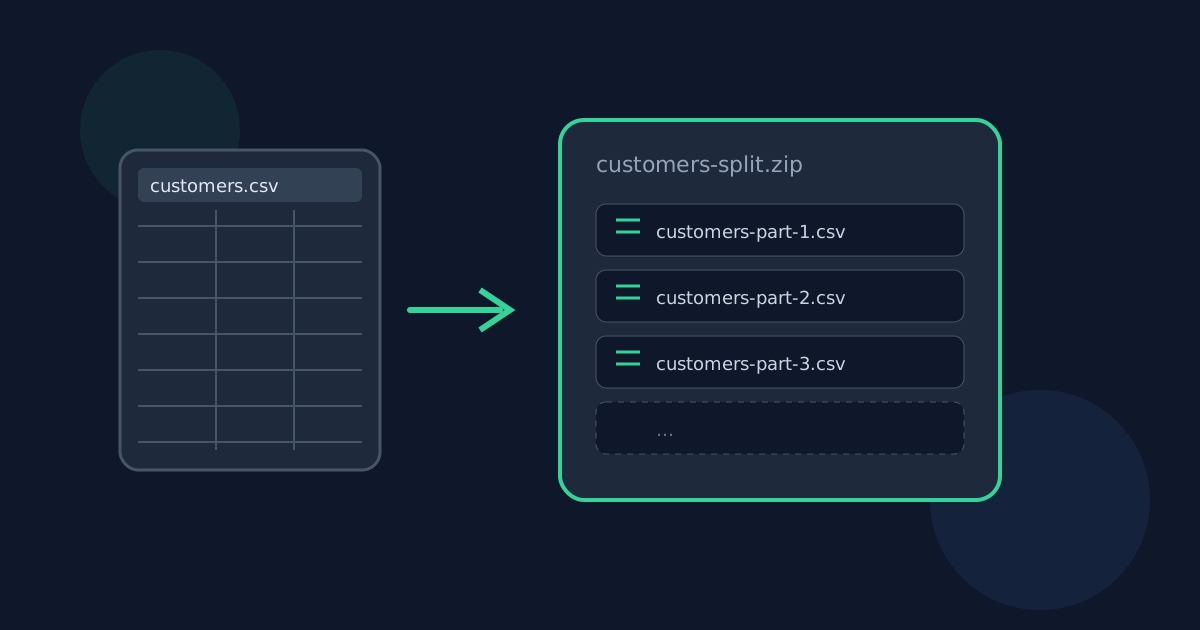
A split that produces one output file downloads a single .csv file directly. A split that produces two or more output files downloads one ZIP containing each part.
- Open Split CSV at /tools/split-csv.
- Choose or drop a .csv file.
- Leave "First row contains headers" checked, or uncheck it for a file with no true header row.
- Pick Rows per file or Number of files and set the value.
- Review the proposed output filenames, then select Split to download.
Rows per file vs Number of files
Rows per file is the right choice when a target system enforces a maximum row count per import: set that maximum and every part except the last one will hit it exactly.
Number of files is the right choice when you need an exact file count—for example, splitting one export into a fixed number of pieces to divide among teammates. Rows are spread as evenly as possible and no output file is left empty.
How to Split a CSV File FAQ
- Do I need spreadsheet software installed to split a CSV?
- No. Splitting runs in the browser and downloads plain .csv files (or a ZIP of them) that you can open later in any spreadsheet app or text editor.
- Can I split more than one CSV file at once?
- Not in this release. Split one CSV file at a time.
- Does splitting change my data values?
- No. Rows are copied from the original file text rather than parsed and rewritten, so cell content is not re-typed or reformatted during a split.
- What happens to the last file when rows do not divide evenly?
- In Rows per file mode, the final file holds whatever remains after the earlier files are filled, so it can be smaller than the others. In Number of files mode, the extra rows are spread one at a time across the earliest files so every file stays within one row of the rest.
- Where should I read next about splitting CSV files?
- See /guides/split-csv-without-uploading for privacy details and /guides/split-large-csv-for-import-limits for a row-cap walkthrough. Open the tool at /tools/split-csv when you are ready.
Related guides
- Split CSV Without UploadingLearn how browser-based CSV splitting keeps table data on your device, what still leaves the machine, and how local splitting differs from upload services.
- Split Large CSV for Import LimitsBreak a large CSV into row-capped batches that fit another system’s import limit, using rows-per-file splitting, a preserved header row, and predictable batch filenames.
- Browser-Based File PrivacyUnderstand local browser processing, when files stay on your device, practical privacy checks, and how Looty Tools discloses different processing models.


