PDF guides
PDF to JPG Resolution, Scale, Quality, and Limits
“Higher resolution” in PDF to JPG means choosing a render scale multiplier—1×, 1.5×, or 2×—not typing a custom DPI. Pair that with JPG quality and the hard 25 MB / 50-page / 4096-pixel caps, and you can predict when a conversion will look sharp versus when it will tax browser memory. This guide focuses on those constraints.
Ready to try the tool this guide describes?
Scale is a render multiplier, not DPI
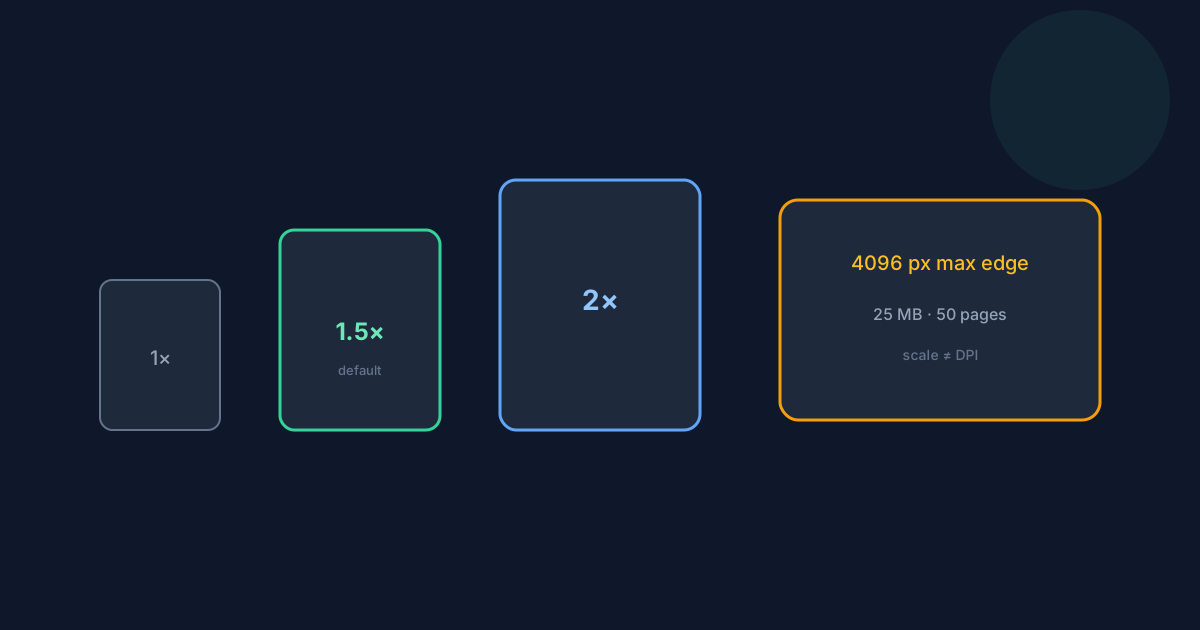
The tool offers three scales: 1× Standard, 1.5× High (default), and 2× Maximum. These multiply the render viewport used to draw each page to a canvas. There is no custom DPI field, and this guide does not invent DPI equivalents for those presets.
Higher scale usually increases pixel dimensions, sharpness, browser memory use, processing time, and download size. On very large page boxes, the longest canvas edge is capped at 4096 pixels, which can reduce the effective scale so the clamp is respected—even if you selected 2×.
- Scales: 1×, 1.5× (default), 2×.
- Not custom DPI.
- Longest rendered edge capped at 4096 pixels.
- Clamp may lower effective scale on huge pages.
JPG quality versus PNG
JPG quality runs from 50% to 100% in 5% steps, defaulting to 90%. Lower quality shrinks files but can soften text. PNG does not use the JPG quality slider; it stores a lossless encoding of the already-rendered page image on an opaque white background.
Input limits and the 50-page workflow
You may convert one PDF up to 25 MB and 50 pages. All pages are rendered—there is no page picker. If the source is longer, use Split PDF (up to 200 pages) to carve sections of 50 pages or fewer, then convert each section. Password-protected PDFs are unsupported.
Mobile browsers and older devices feel memory pressure first at 2× on dense scanned pages. Prefer 1× or 1.5× when testing on phones, and watch for stalls during Convert all pages.
Processing is browser-only. PDF contents are not uploaded to Looty Tools for this conversion. Output images are not OCR’d.
PDF to JPG Resolution and Limits FAQ
- Is 2× the same as a fixed DPI value?
- No. The presets are render multipliers, not DPI settings. The tool has no custom DPI field.
- What is the default scale?
- 1.5× High.
- What does the 4096-pixel limit do?
- It caps the longest rendered canvas edge. On very large pages, effective scale may be reduced to stay under that cap.
- What are the file limits?
- One PDF, up to 25 MB and 50 pages.
- When should I use Split PDF first?
- When the source exceeds 50 pages, or when converting only a section would save time and memory. Open /tools/split-pdf, then convert the smaller PDF.
- Where is the format comparison?
- See /guides/pdf-to-png-vs-jpg. The general how-to is /guides/how-to-convert-pdf-to-jpg.
Related guides
- How to Convert PDF to JPGRasterize PDF pages to JPG or PNG with quality and resolution controls, ZIP downloads, and the current page and size limits.
- PDF to PNG vs JPGCompare PNG and JPG when converting PDF pages to images. Learn how file size, image quality, text clarity, white backgrounds, and JPG quality settings affect the output.
- How to Split PDF PagesExtract page ranges, split every page, or create ZIP bundles with browser-based PDF splitting and the exact limits used by Looty Tools.


