PDF guides
How to Organize a PDF with More Than 100 Pages
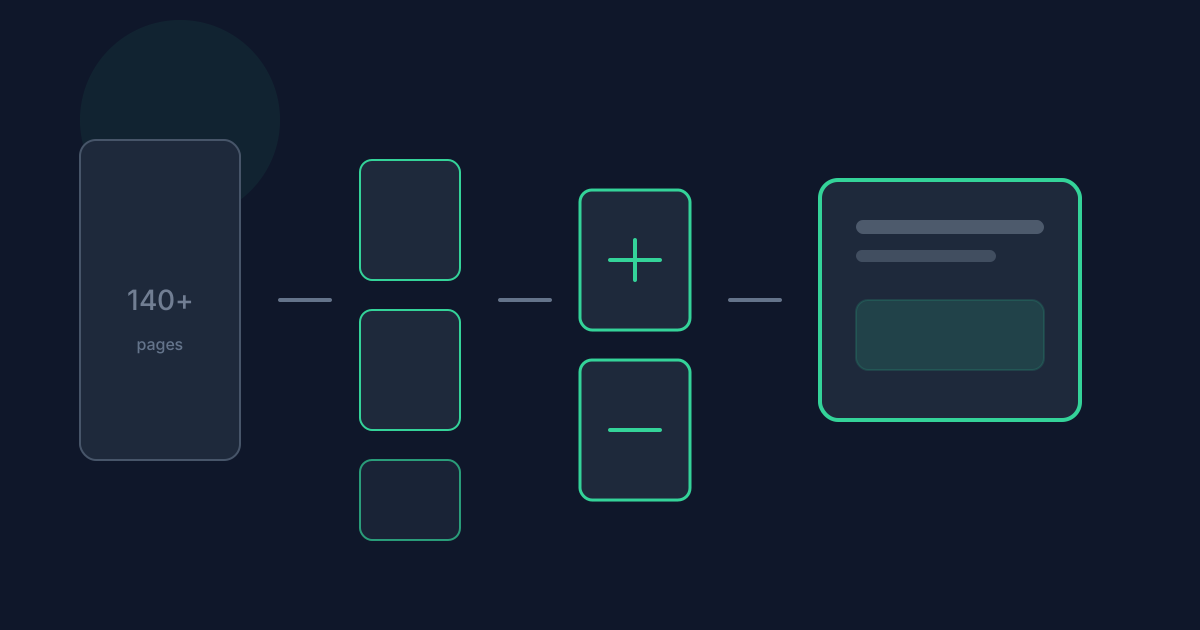
Organize PDF stops at 100 pages for a practical reason: browser memory and page-preview work scale with every thumbnail. That does not mean a 140-page scan is stuck forever. It means you treat the job as Split → Organize → Merge instead of pretending Organize PDF can open the whole file at once. This guide walks that honest workaround with the limits of each tool.
Ready to try the tool this guide describes?
The real caps across three tools
Organize PDF accepts one PDF up to 25 MB and up to 100 pages. It does not accept more than 100 pages—there is no hidden override. Split PDF accepts one PDF up to 25 MB and up to 200 pages, and can emit range groups as separate PDFs in a ZIP. Merge PDF has no explicit page-count limit, but still requires 2–20 files, 25 MB per file, and 50 MB combined.
The 100-page Organize PDF ceiling exists because arranging pages depends on loading the document and rendering previews in your browser. Large documents are safer when split into sections first.
- Organize PDF: 1 file, 25 MB, 100 pages maximum.
- Split PDF: 1 file, 25 MB, 200 pages maximum.
- Merge PDF: 2–20 files, 25 MB each, 50 MB total, no explicit page-count cap.
Recommended Split → Organize → Merge workflow
Pick ranges that match chapters or scan batches, not random chunks. Keep filenames and list order aligned so you do not merge section 3 before section 2. After organizing, spot-check the first and last page of each section before the final merge.
- Open Split PDF at /tools/split-pdf and choose Split by ranges for logical sections—for example 1-40, 41-80, 81-120.
- Download the ZIP, then unzip so each range is its own PDF with a clear name such as pages-1-40.pdf.
- Open each section in Organize PDF at /tools/organize-pdf (each must stay at or under 100 pages).
- Reorder, rotate, duplicate, or delete pages as needed, then download each corrected section.
- Open Merge PDF at /tools/merge-pdf, add the corrected sections in order, and Merge & download the final packet.
Avoiding omissions, duplicates, and dead ends
When you write ranges, cover every page you still need and avoid overlapping groups that would duplicate pages after merge. Reversed ranges and invalid syntax are rejected by Split PDF—fix them before you download. After merge, open the combined PDF and confirm section boundaries.
This workflow will not work if the source exceeds Split PDF’s 200-page limit, if size caps are exceeded (25 MB per file / 50 MB merge total), or if the PDF is encrypted or password-protected. Unlock or reduce the file first. Organize PDF still cannot OCR, edit page text, remove passwords, or accept more than 100 pages directly.
If the document is far beyond browser limits or needs professional redaction, use desktop PDF software instead of stretching this chain.
Privacy and processing model
Split, Organize, and Merge for these tools are designed to run in the browser. PDF contents are not uploaded to Looty Tools for those conversion workflows. You still load page assets and may send usage events with tool IDs—not the PDF binary contents.
Organize PDF Over 100 Pages FAQ
- Can Organize PDF open a 150-page file?
- No. Organize PDF accepts at most 100 pages. Split the document into sections of 100 pages or fewer, organize each section, then merge.
- Why is there a 100-page Organize PDF limit?
- Browser memory and page-preview work grow with every page. The limit keeps arranging and downloading predictable in a browser tab.
- What if my PDF has more than 200 pages?
- Split PDF also stops at 200 pages. Reduce or split the file with desktop software first, or handle the document outside this browser workflow.
- Which Split mode should I use?
- Split by ranges is usually best for chapter-style sections. Split every page creates one PDF per page and is rarely ideal for reassembly.
- Does Merge PDF have a page-count limit?
- Merge PDF has no explicit page-count cap, but still enforces 2–20 files, 25 MB per file, and 50 MB combined.
- Where do I start?
- Read /guides/how-to-organize-pdf-pages and /guides/organize-pdf-before-merging, then use /tools/split-pdf, /tools/organize-pdf, and /tools/merge-pdf in that order for oversized files.
Related guides
- How to Organize PDF PagesRearrange PDF pages locally in your browser—reorder, rotate, duplicate, delete, and reset—with current file and page limits.
- Organize PDF Before MergingLearn when to organize PDF pages before merging files, when to organize afterward, and how page-level ordering differs from whole-file merge order.
- How to Split PDF PagesExtract page ranges, split every page, or create ZIP bundles with browser-based PDF splitting and the exact limits used by Looty Tools.


