PDF guides
How to Reorder, Rotate, Duplicate, or Delete PDF Pages
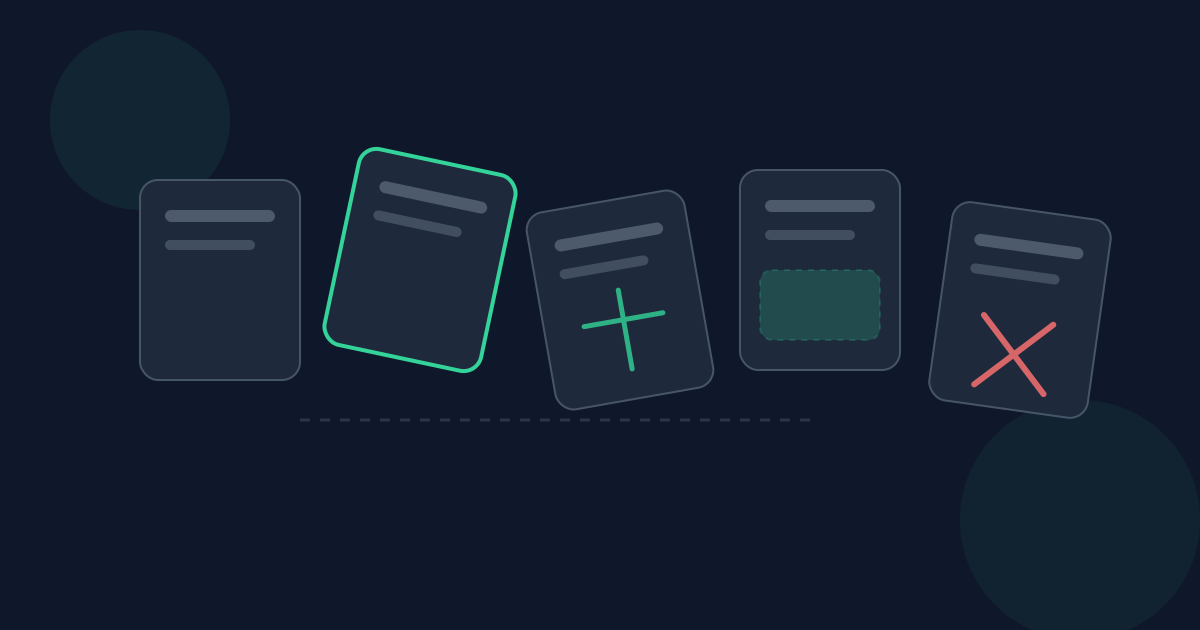
A PDF can be almost right and still unusable: one page upside down, a blank sheet in the middle, or chapters in the wrong order. Organize PDF on Looty Tools lets you reorder, rotate, duplicate, delete, and reset pages in the browser before you download a cleaned file. This guide covers when to organize, the 25 MB and 100-page limits, step-by-step actions, privacy, and realistic expectations.
Ready to try the tool this guide describes?
The problem organize solves
Scanning and exporting often produce correct content in the wrong structure. Phone scans arrive rotated. Exported slide decks include leftover slides. A merged packet needs one page moved without rebuilding the whole merge. Organize PDF focuses on page structure rather than rewriting text.
Use it when the words and images on each page are fine, but the sequence, orientation, or page set needs cleanup.
When to use Organize PDF
Organize is ideal after scanning, before sharing a review copy, or between merge and page-numbering steps. If you need pages from a huge document, split first so the file fits the organize limits. If you need whole files concatenated, merge first, then organize the combined result if page-level fixes remain.
- Reorder pages by dragging or arranging the page list.
- Rotate pages that imported sideways or upside down.
- Duplicate a page when you need a repeated sheet.
- Delete blank or unwanted pages.
- Reset to undo in-progress arrangement and return toward the original structure as the tool allows.
Exact limits
Organize PDF accepts one PDF up to 25 MB with up to 100 pages. Larger archives should be split into sections, organized separately, and merged again if needed.
- File size: 25 MB maximum.
- Page count: 100 pages maximum.
How to organize pages on Looty Tools
Check the first and last pages plus any section boundaries before you send the file. Rotation mistakes are easy to miss on thumbnails, so open the download once in a full viewer when the document matters.
- Open the Organize PDF tool at /tools/organize-pdf.
- Upload a PDF within the 25 MB and 100-page limits.
- Reorder, rotate, duplicate, or delete pages as needed.
- Use reset if you want to clear your arrangement work and start the layout over.
- Download the organized PDF when the preview order looks correct.
Privacy
Organize PDF is designed to process your file locally in the browser. The PDF is not uploaded to Looty Tools for this workflow. That supports cleanup of internal drafts and personal scans on your own device.
Mistakes and expectations
Organizing does not crop content, compress images, OCR scans, or fix corrupt files. Deleting a page removes it from the output; it does not redact sensitive text on pages you keep. Duplicating a page copies the full page—useful for worksheets, less useful if you meant to clone only an image.
If you need page numbers after rearranging, add them last with the Add Page Numbers tool so numbering matches the final order. If you need images instead of a PDF, convert with PDF to JPG after the structure is settled.
Thumbnails help, but they can hide small issues. A 90-degree rotation looks obvious; a single blank scan between chapters is easier to miss. Scroll the full page list before you download, especially on packets close to the 100-page cap.
Fitting organize into a longer document job
When a source is larger than 100 pages, split it into sections first, organize each section, then merge the cleaned sections if you still need one file. That sequence respects the organize limit without forcing desktop software for a structural cleanup.
For mixed photo and document packets, convert images to PDF, organize those pages, and only then merge with other PDFs. Keeping each tool inside its published limits is usually faster than fighting one oversized upload.
How to Organize PDF Pages FAQ
- What can Organize PDF do?
- You can reorder, rotate, duplicate, and delete pages, and use reset to clear arrangement work, then download the updated PDF.
- What are the limits?
- The PDF may be up to 25 MB and up to 100 pages.
- Is organizing done on my device?
- Yes. The tool is designed to process the PDF locally in your browser without uploading it to Looty Tools for this workflow.
- Can I edit the text on a page?
- No. Organize PDF changes page structure and orientation. It does not provide a text editor for page contents.
- Should I organize before or after merging?
- Either can work. Organize individual files before merging when each source needs cleanup, or organize the merged result when only the final packet needs page fixes—while staying within the 100-page limit.
- What does duplicate do?
- Duplicate inserts another copy of a selected page into the page list so the output PDF contains that page more than once.
- Will deleted pages stay in the file somehow?
- Deleted pages are removed from the organized output you download. For highly sensitive redaction needs, use dedicated redaction tools rather than relying on page deletion alone when content remains on other pages.
- Where are the workflow guides for merging and large PDFs?
- See /guides/organize-pdf-before-merging for organize-versus-merge decisions, and /guides/organize-pdf-over-100-pages for Split → Organize → Merge when a file exceeds 100 pages.
Related guides
- Organize PDF Before MergingLearn when to organize PDF pages before merging files, when to organize afterward, and how page-level ordering differs from whole-file merge order.
- Organize PDF Over 100 PagesOrganize a PDF larger than 100 pages by splitting it into sections, arranging each section, and merging the corrected files back together in your browser.
- How to Merge PDF FilesCombine multiple PDFs in your browser with file-level ordering, exact size limits, privacy notes, and tips for a clean merged document.


