PDF guides
How to Add Page Numbers to Only Part of a PDF
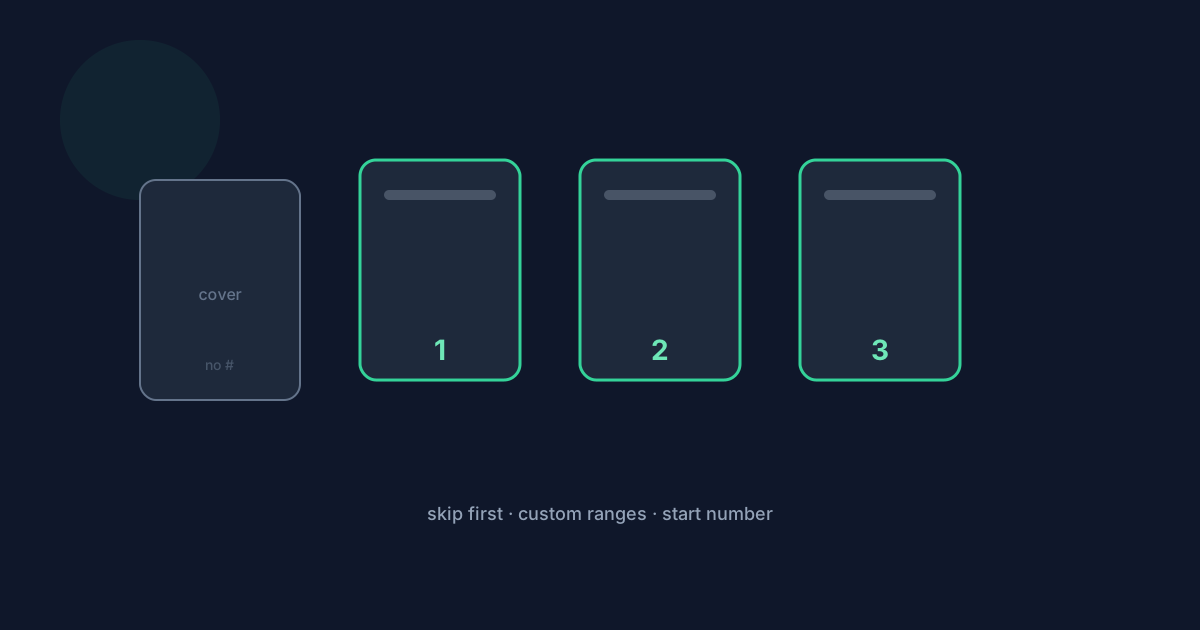
Sometimes only part of a PDF should show numbers: a cover stays blank, an appendix needs its own sequence, or front matter is skipped. Add Page Numbers supports All pages, Skip first page, and Custom ranges. This guide is selection-first—how those modes work with start numbers, sorted ranges, and the limits that still apply.
Ready to try the tool this guide describes?
Selection modes
All pages stamps every page. Skip first page leaves page 1 unnumbered and stamps from page 2 onward—it fails on a one-page PDF because no page remains to number. Custom ranges use syntax such as `1-5, 8, 10-12`. Custom selections are processed in ascending page order even if you type tokens out of order.
- Invalid range syntax is rejected.
- Out-of-range page numbers are rejected.
- Duplicates are rejected.
- Reversed ranges such as 8-3 are rejected.
- At least one page must remain selected.
Start numbers and Page X of Y
The start number is independent of the physical PDF page index. Example: select pages 3–10 and start at 1 so the first stamped page shows 1 (or Page 1). If you use Page X of Y, Y remains the full document page count—not the length of your selection—so a subset can still read “Page 1 of 40.”
Practical examples
Leave a cover unnumbered with Skip first page. Number only an appendix with a custom range such as 21-30. After front matter on pages 1–2, select 3-20 and start at 1 so visible numbering begins with the body. Preview shows only the first 30 document pages, but export applies to the full valid selection. The download is typically named like your-file-numbered.pdf.
Limits and privacy
The source may be one PDF up to 25 MB and 100 pages. Processing runs in the browser; PDF contents are not uploaded to Looty Tools for this workflow. Encrypted and password-protected PDFs are unsupported—unlock them first.
Number Only Part of a PDF FAQ
- Why does Skip first fail on a one-page PDF?
- Skipping the only page leaves zero pages to number. Use All pages or a custom selection that includes at least one page.
- Are custom ranges sorted?
- Yes. Valid custom selections are applied in ascending page order.
- Can the start number differ from the PDF page index?
- Yes. Start number controls the visible sequence and is independent of the physical page number.
- Does Page X of Y use the selected count for Y?
- No. Y is always the full document page count.
- What size and page caps apply when numbering a subset?
- One PDF, up to 25 MB and 100 pages. Preview shows the first 30 document pages.
- Where are formats and positions documented?
- See /guides/pdf-page-number-formats-and-positions. Open the tool at /tools/add-page-numbers-to-pdf.
Related guides
- How to Add Page Numbers to a PDFAdd customizable page numbers with position, format, ranges, font size, color, and margin—processed locally with current limits.
- PDF Page Number Formats and PositionsCompare PDF page-number formats and six placement options, then choose the right margin, font size, color, and starting number for your document.
- How to Organize PDF PagesRearrange PDF pages locally in your browser—reorder, rotate, duplicate, delete, and reset—with current file and page limits.
Open the tool
Jump into Add Page Numbers when you are ready to process your files.


