PDF guides
HTML to PDF's Rasterized Output, Explained
Every PDF that comes out of the Looty Tools HTML to PDF tool is, technically, a sequence of pictures — not a text document. That is a deliberate tradeoff, not an accident, and it has real consequences for what you can do with the resulting file. This guide explains the actual pipeline, why it works this way, and who it is — and is not — right for.
Ready to try the tool this guide describes?
The actual pipeline
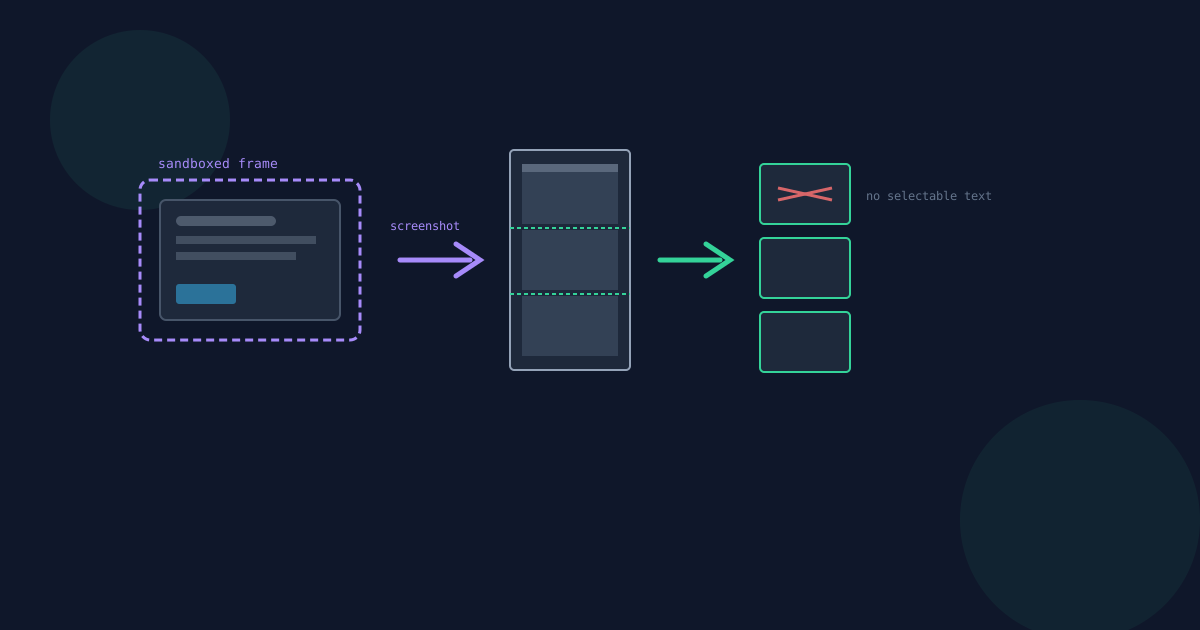
- Your HTML is sanitized — scripts and inline event handlers are stripped so nothing in the document can execute.
- The sanitized HTML is written into an isolated, sandboxed, same-origin iframe — never the main Looty Tools page — so pasted CSS, like a rule targeting the page body, cannot visually or functionally affect anything outside that frame.
- That frame is rendered and captured as a single tall screenshot image.
- The screenshot is sliced into page-sized image strips, and each strip becomes one page of the output PDF.
What this means: no selectable text, no clickable links
Because every page of the output PDF is an image rather than real embedded text, you cannot select or search text in the resulting PDF, and links are not clickable — a link renders as styled text but has no active target once it is baked into a page image. If a fully text-based, searchable, accessible PDF is what you actually need, this is the wrong output format for the job; see "who this is right for" below.
Why this tradeoff was chosen
- It avoids sending your HTML to a server — the entire render happens in your own browser tab, so the document’s content never has to leave your machine to be processed.
- It avoids requiring a heavy headless-browser backend, the kind a server-rendered "print to PDF" service typically needs — the whole pipeline runs on ordinary client-side JavaScript.
- It can run entirely inside the browser tab you already have open, with no separate service to depend on.
What "processed locally" does and does not mean
Your HTML itself is processed locally in your browser and is never uploaded to Looty Tools. But "processed locally" is not the same claim as "no network activity at all": if your HTML references external images, web fonts, or stylesheets by URL, your browser will still make its own ordinary requests to fetch those resources while rendering the frame — the same way it would for any webpage that references external assets.
This tool can run entirely without any outside network request, but only when the HTML is genuinely self-contained: inline CSS, and images or fonts embedded as data URIs rather than linked externally. Do not assume "no upload to Looty Tools" means "zero network activity" if your document links out to other hosts.
Who this is right for — and who it is not
Right for: visual documents you just need to save or print as-is — receipts, formatted reports, one-off visual snapshots where a picture-perfect look matters more than editable or searchable text.
Not right for: anything that needs to remain a searchable, screen-reader-accessible, or archival text document. For that, export directly from whatever authored the original content — a word processor, a reporting tool, a CMS — rather than routing it through a rasterized conversion. See also html-to-pdf-supported-elements-and-image-limits for what specifically does and does not survive the render.
HTML to PDF Rasterized Output FAQ
- Can I select or copy text from the PDF this tool produces?
- No. Every page is a rendered image, not real text, so there is nothing for your browser or PDF reader to select or copy as text.
- Are the links in my PDF clickable?
- No. Links render as styled text within the page image, but they are not active or clickable in the resulting PDF.
- Does this tool send my HTML to a server?
- No. Your HTML is rendered and rasterized entirely in your own browser tab and is never uploaded to Looty Tools.
- Does this mean the tool works completely offline?
- Not necessarily. If your HTML references external images, fonts, or stylesheets by URL, your browser will still fetch those over the network while rendering. It can run with zero outside network activity, but only when the HTML is fully self-contained.
- Why is the output an image instead of real text and clickable links?
- Rendering to an image lets the tool isolate untrusted CSS safely, avoid a server-side headless-browser backend, and run entirely in your browser tab — tradeoffs made deliberately in exchange for losing selectable text and clickable links.
- When should I use a different tool to make a PDF?
- When you need the result to stay a searchable, accessible, or archival text document — export directly from the application that authored the original content instead of rasterizing HTML.
Related guides
- How to Convert HTML to PDFTurn pasted or uploaded HTML into a downloadable PDF in your browser, and why this is a paste-or-upload tool rather than a website-fetching tool.
- HTML to PDF Supported ElementsA practical reference for what reliably renders in HTML to PDF's output, what gets stripped for safety, how CORS-blocked images behave, and the exact file-size, character, and page limits.
- PDF to HTML Headings & TablesThe detection rules behind PDF to HTML's markup: how a font-size ratio decides heading levels, what the per-page section boundaries are for, and why extracted text is always HTML-escaped.


