PDF guides
How PDF to HTML Detects Headings and Tables
PDF to HTML does not just dump extracted text onto a page — it makes a best-effort decision about which lines are headings, which lines form a table, and where one original PDF page ends and the next begins, then expresses those decisions as real HTML markup. This guide explains the actual rules behind that markup, not just what the output looks like.
Ready to try the tool this guide describes?
Heading levels come from a font-size ratio, not an absolute size
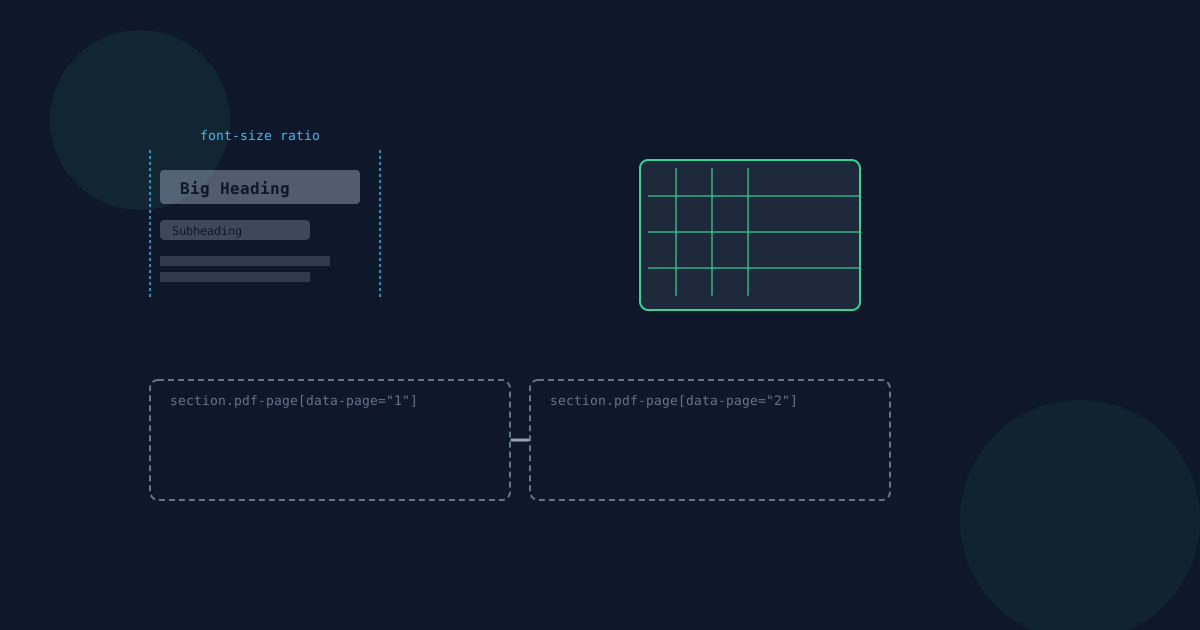
A PDF does not store a label saying "this line is a heading" — there is no equivalent of an HTML heading tag inside the file format itself. Instead, PDF to HTML looks at each single, isolated, short line’s font size relative to the page’s own body-text size — the most common font size found on that page. A line noticeably larger than that ratio becomes a top-level heading, a moderately larger line becomes a secondary heading, and a slightly larger line becomes a smaller heading; everything at or near body size becomes an ordinary paragraph.
Because the threshold is relative to each page’s own body text rather than a single fixed point size, a document set in an unusually large or unusually compact typeface is still judged sensibly, since it is compared against its own baseline rather than one hardcoded number that would fit some documents and not others.
Table detection: consecutive lines with recurring column positions
Table detection looks for several consecutive lines whose text lines up at the same interior horizontal positions across the page — not merely lines that happen to share a left margin, which ordinary justified paragraphs already do. Requiring a recurring interior column position specifically avoids turning normal prose into a false table.
When a region of the page matches that pattern closely enough, it is rebuilt as a real HTML table with row and cell markup reflecting the detected grid. When a region does not match closely enough — an irregular layout, merged cells, an inconsistent number of columns per row — the same lines fall back to being rendered as ordinary paragraph markup instead of a broken or half-empty table.
What the per-page sections are for
Each PDF page’s blocks are wrapped in their own labeled section, tagged with the original page number. This preserves the source PDF’s page boundaries as real structure in the HTML document, so you — or your own CSS — can style each page distinctly, add print page-break rules between sections, jump straight to a specific original page using its page number, or paginate the HTML yourself. A single flat block of markup with no page structure would not give you any of that.
Why extracted text is HTML-escaped
Every piece of extracted text is HTML-escaped before it is written into the document — characters like &, <, >, and " are converted to their safe HTML equivalents. This is a correctness and safety measure, not a fidelity loss: if the source PDF genuinely contains a literal "<" or "&" character (a comparison symbol, an ampersand in a company name), escaping it ensures that character displays correctly as itself in a browser instead of being misread as the start of a tag or an HTML entity, which could otherwise garble the page or break its markup.
PDF to HTML Headings & Tables FAQ
- How does PDF to HTML decide what counts as a heading?
- It compares each short, isolated line’s font size to the page’s own body-text size. Larger ratios become higher-level headings; text near body size stays a paragraph.
- Are the heading levels always accurate?
- They are a best-effort, ratio-based guess, not a guarantee that they match the document author’s original intent — most documents come through correctly, but always worth a quick review.
- How does table detection work?
- It looks for several consecutive lines with recurring interior column positions, not just a shared left margin, and rebuilds matching regions as a real HTML table.
- What happens when a table is not detected?
- The same lines are rendered as ordinary paragraph markup instead of a broken or incomplete table.
- What are the per-page sections in the output for?
- They preserve each original PDF page as its own labeled section, so you can style, paginate, or jump to a specific page using your own CSS.
- Why is my PDF’s text HTML-escaped, like & instead of &?
- It is a correctness and safety measure so literal characters like & or < display correctly in a browser instead of being misread as markup — it is not a loss of formatting.
Related guides
- How to Convert PDF to HTMLTurn a text-based PDF into a standalone HTML page in your browser, and see when publishing it as real markup — not an embedded PDF viewer — is the right call.
- Why Scanned PDFs Can't Convert to HTMLWhy real extractable text matters specifically for web-published HTML — accessibility, on-page search, and copy-paste — and why scanned PDFs are rejected rather than embedded as an image.
- PDF to Word Table ReconstructionHow PDF to Word detects simple, regularly-gridded tables and rebuilds them as real Word tables on a best-effort basis, and when a table comes through as plain text instead.


