PDF guides
How to Convert HTML to PDF Online
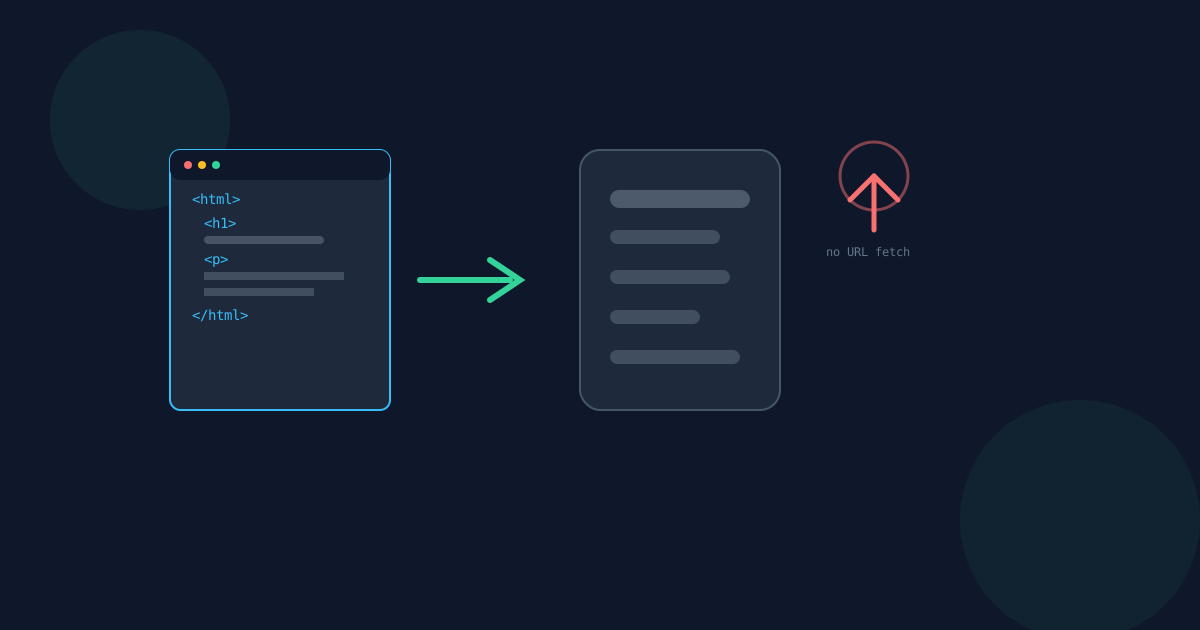
The Looty Tools HTML to PDF converter takes HTML you provide — pasted directly or uploaded as a file — and turns it into a downloadable PDF, entirely in your browser. This guide covers both input paths, what actually renders, and addresses the most common point of confusion up front: this tool does not go fetch a live webpage for you.
Ready to try the tool this guide describes?
Two ways to provide HTML
- Paste HTML directly into the tool’s editor.
- Upload an .html or .htm file.
How to convert HTML to PDF on Looty Tools
- Open the HTML to PDF tool at /tools/html-to-pdf.
- Paste your HTML into the editor, or upload an .html or .htm file.
- Select Convert to PDF.
- Download the resulting PDF.
What renders
- Headings, paragraphs, and lists.
- Tables.
- Basic inline styling and colors.
- Links, rendered as styled text (not clickable — see html-to-pdf-rasterized-output-explained).
- Images hosted on the same origin or on a CORS-permitting host.
This is not a URL-fetch tool
HTML to PDF does not go and download a live webpage for you when you type in a URL, and that is a deliberate limitation rather than a missing feature. Browser CORS security means a client-side, browser-only tool has no safe, reliable way to reach out and fetch an arbitrary external website’s HTML directly — the same cross-origin protections that stop a malicious webpage from silently reading another site’s content also stop a legitimate client-side tool from fetching one on your behalf.
Instead of asking for a URL, the tool asks for the actual HTML: view a page’s source, or use your browser’s "Save Page As" to save a .html file, then paste or upload that source here.
How to Convert HTML to PDF FAQ
- Can I just paste in a URL to convert a live webpage?
- No. Browser security (CORS) prevents a client-side tool from fetching an arbitrary external webpage. Instead, view the page’s source or save it as an .html file in your browser, then paste or upload that here.
- What HTML elements are supported?
- Headings, paragraphs, lists, tables, basic inline styling and colors, links (rendered as styled but non-clickable text), and same-origin or CORS-permitting images.
- Is my HTML uploaded anywhere?
- Your HTML is processed locally in your browser and is not uploaded to Looty Tools. See html-to-pdf-rasterized-output-explained for the precise network-activity details when your HTML references external resources.
- What is the maximum size or length I can convert?
- Uploaded files are limited to 5 MB, pasted or file HTML input is limited to 500,000 characters, and the resulting PDF is limited to 50 pages.
- Will links be clickable in the resulting PDF?
- No. Every page of the output is an image, so links render as styled text but are not clickable. See html-to-pdf-rasterized-output-explained.
- How do I get the HTML source of a webpage to paste in?
- Use your browser’s View Page Source option, or Save Page As and choose the HTML file format, then paste or upload that source into the tool.
Related guides
- HTML to PDF Rasterized OutputThe actual rendering pipeline behind HTML to PDF — sanitized HTML rendered in a sandboxed frame, then screenshotted into page images — and what that means for text selection, links, and network activity.
- HTML to PDF Supported ElementsA practical reference for what reliably renders in HTML to PDF's output, what gets stripped for safety, how CORS-blocked images behave, and the exact file-size, character, and page limits.
- How to Convert PDF to HTMLTurn a text-based PDF into a standalone HTML page in your browser, and see when publishing it as real markup — not an embedded PDF viewer — is the right call.


