File & Data
How to Convert XML to CSV in Your Browser
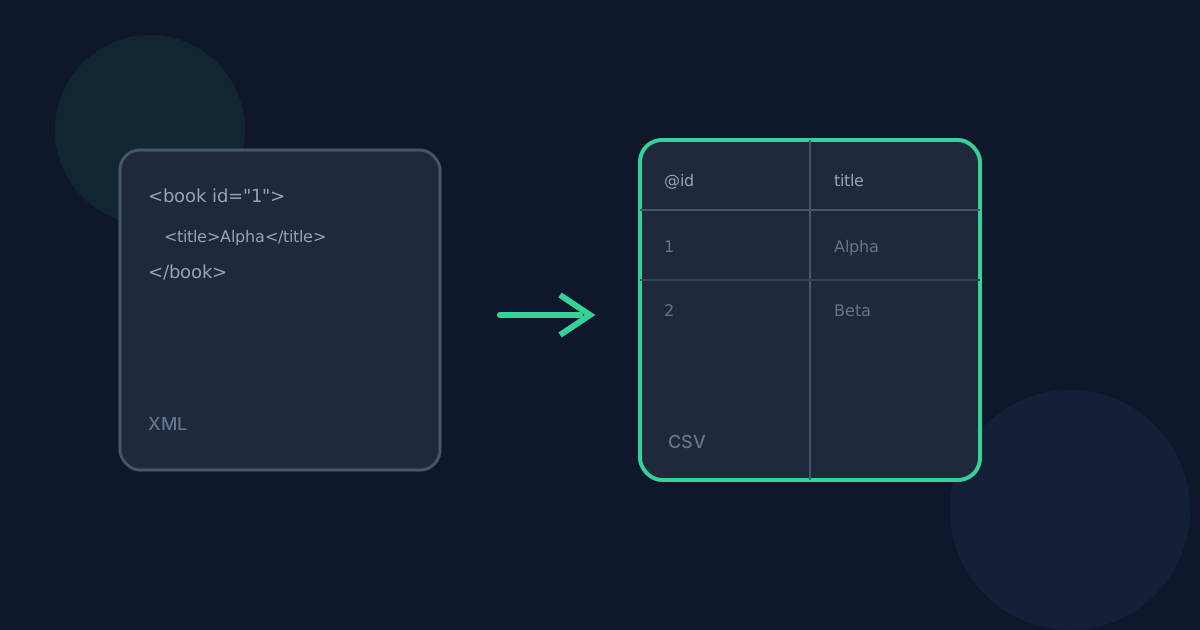
CSV is the most portable way to move tabular data between spreadsheets, databases, and import tools, but source data often arrives as XML instead. Looty Tools XML to CSV converts a .xml file or pasted XML into a downloadable .csv file entirely in your browser, reusing the same repeated-record detection and flattening rules as XML to Excel. This guide covers the workflow, record-group selection, and the limits to plan around.
Ready to try the tool this guide describes?
When XML to CSV helps
Use this tool when an API export, product feed, or configuration file is XML but the destination — a spreadsheet, a database import, or a CSV-only tool — expects comma-separated rows and columns instead.
The result is one CSV file with a header row and one data row per detected record, ready to open in Excel, Google Sheets, or any CSV-aware import tool.
Supported inputs and limits
Provide XML either as a .xml file up to 25 MB or as pasted text up to the same 25 MB limit. XML must be UTF-8 encoded, or declare no encoding at all — files that declare a different encoding, such as UTF-16 or ISO-8859-1, are rejected with a clear error instead of being decoded incorrectly. Documents with a DOCTYPE or DTD declaration are also rejected, for security.
- Supported extension: .xml
- Maximum input size: 25 MB (file or pasted text)
- Maximum nesting depth: 50 levels
- Maximum output: 50,000 data rows and 500 columns
- Maximum generated CSV size: 50 MB
- One XML input per conversion
How to convert on Looty Tools
Uploaded files download as the original basename with a .csv extension (catalog.xml becomes catalog.csv). Pasted XML always downloads as converted.csv, since there is no source filename to reuse.
- Open XML to CSV at /tools/xml-to-csv.
- Choose or drop a .xml file, or switch to Paste XML and paste your text, then select Use this XML.
- Review the automatically detected record group. If more than one repeating element group was found, choose the one you want from the list.
- Review the table preview and the download filename.
- Select Convert to CSV to download the .csv file.
What to expect in the output
The tool automatically finds the most likely repeated element — ranked by how many records it has, how many fields each record carries, and how shallow it sits in the document — and turns it into rows. If no repeated group exists, it falls back to treating the whole document (or a single wrapper child) as one row. Every CSV value is written as plain text, so leading zeros and large identifiers are never reinterpreted as numbers, and values are escaped to guard against spreadsheet formula injection when the file is opened in Excel or Sheets.
How to Convert XML to CSV FAQ
- Do I need to install anything to convert XML to CSV?
- No. Conversion runs in the browser and downloads a .csv file directly. No desktop software or browser extension is required.
- Can I paste XML instead of choosing a file?
- Yes. Switch to Paste XML, paste your text, and select Use this XML to load it the same way a file would be loaded.
- What if my XML has more than one repeating element?
- The tool lists every detected record group with its record and column counts, and pre-selects the highest-ranked one. Choose a different group from the list before converting if you want a different set of rows.
- Can I convert multiple XML files at once?
- Not in this release. Convert one XML input at a time.
- Where should I read next about XML to CSV?
- See /guides/xml-to-csv-without-uploading for privacy details and /guides/how-nested-xml-flattens-into-csv-columns for how attributes, nested elements, and repeated children become columns. Open the tool at /tools/xml-to-csv when you are ready.
Related guides
- XML to CSV Without UploadingSee how browser-based XML to CSV conversion keeps XML data on your device, what still leaves the machine, and how local conversion differs from upload services.
- Nested XML to CSV ColumnsUnderstand how XML attributes, nested elements, repeated children, mixed text, and namespaces become predictable CSV column names such as address.city and phone[2].
- How to Convert XML to ExcelConvert XML with repeating records into an Excel .xlsx workbook locally: choose a record group, preview columns, and download without uploading.


