File & Data
How to Convert XML to CSV Without Uploading It
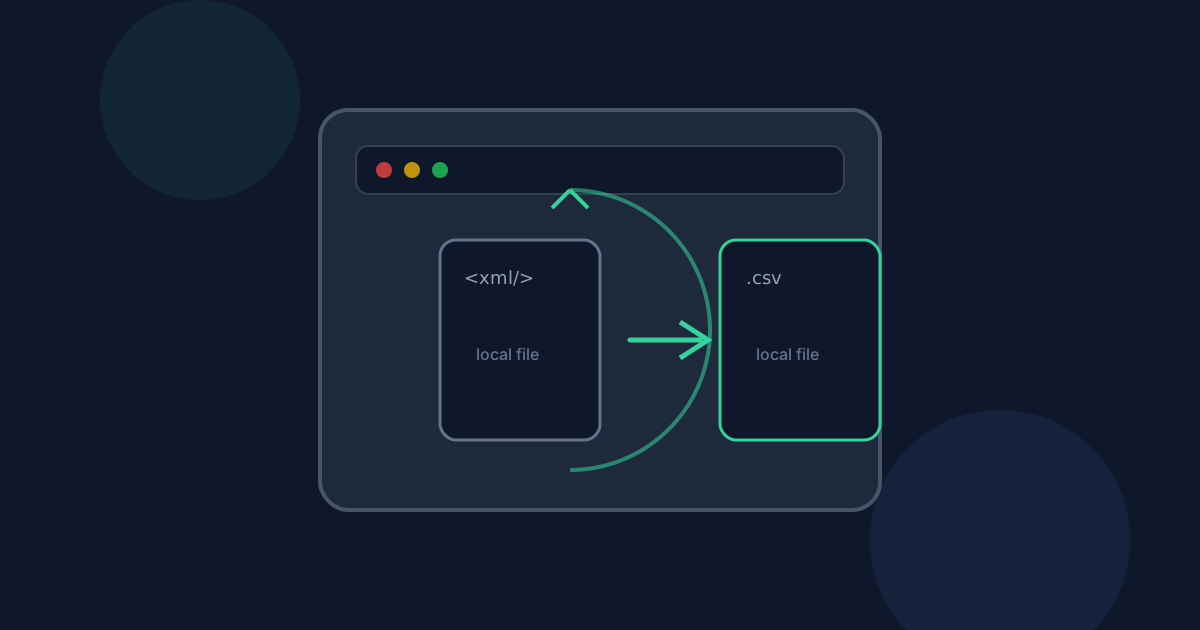
Many online XML-to-CSV converters ask you to upload the file to a remote server. Looty Tools XML to CSV is built for local conversion: XML stays in the browser while parsing, record detection, and CSV generation all happen on your device. This guide explains what that means in practice, for both uploaded files and pasted text.
Ready to try the tool this guide describes?
What “without uploading” means here
When you choose a .xml file or paste XML text, the browser reads or holds the content in memory. Parsing, record detection, flattening, and CSV generation run client-side, and the download is a local Blob. There is no Looty Tools conversion endpoint that receives your XML contents for this workflow.
Your XML is processed locally in your browser and is not uploaded to our servers, whether you choose a file or paste text.
What can still leave the device
Page assets, analytics, and account requests can still use the network as on any website. Successful-use analytics may record that the tool was used after a successful download. They do not include filenames, pasted text, or XML contents.
If you later email, sync, or upload the downloaded .csv file, that step is outside this conversion path.
How local conversion compares to upload services
Upload-based converters send the full XML payload to a remote worker, which can be convenient for very large server-side jobs but expands the trust boundary — your data leaves the device before it comes back as CSV. Browser-only conversion keeps the XML on-device and is limited by browser memory instead.
- Local: XML content stays in the browser during parsing and CSV generation.
- Upload services: the provider receives and temporarily stores the XML payload.
- Very large or deeply nested XML documents may still strain a low-memory device even when privacy is preferred.
How to convert privately on Looty Tools
- Open /tools/xml-to-csv on a modern browser.
- Choose a .xml file locally, or paste XML text directly into the tool.
- Review the record group and table preview on your device.
- Download the .csv file from the browser.
XML to CSV Without Uploading FAQ
- Is XML uploaded to Looty Tools for conversion?
- No. Parsing, record detection, and CSV generation run in your browser for both file uploads and pasted text. There is no conversion endpoint that receives your XML contents for this workflow.
- Does pasting XML behave differently from uploading a file, privacy-wise?
- No. Both input methods are processed the same way, entirely in the browser. Pasted text is never sent anywhere to be parsed.
- Does usage tracking include my XML contents?
- Successful-use analytics may record that the tool was used after a successful download. They do not include filenames, pasted text, or XML contents.
- Can I use the tool offline after the page loads?
- The tool’s scripts must load in the browser first. Once the page is available, parsing and CSV generation run locally without needing the network for the conversion itself.
- Where can I learn the XML to CSV conversion workflow?
- See /guides/how-to-convert-xml-to-csv for the step-by-step workflow and /guides/how-nested-xml-flattens-into-csv-columns for how the output is structured.
Related guides
- How to Convert XML to CSVConvert a .xml file or pasted XML into a downloadable CSV table locally: choose the repeating record group, review the preview, and download without uploading.
- Nested XML to CSV ColumnsUnderstand how XML attributes, nested elements, repeated children, mixed text, and namespaces become predictable CSV column names such as address.city and phone[2].
- Browser-Based File PrivacyUnderstand local browser processing, when files stay on your device, practical privacy checks, and how Looty Tools discloses different processing models.


