File & Data
How to Convert XML to Excel in Your Browser
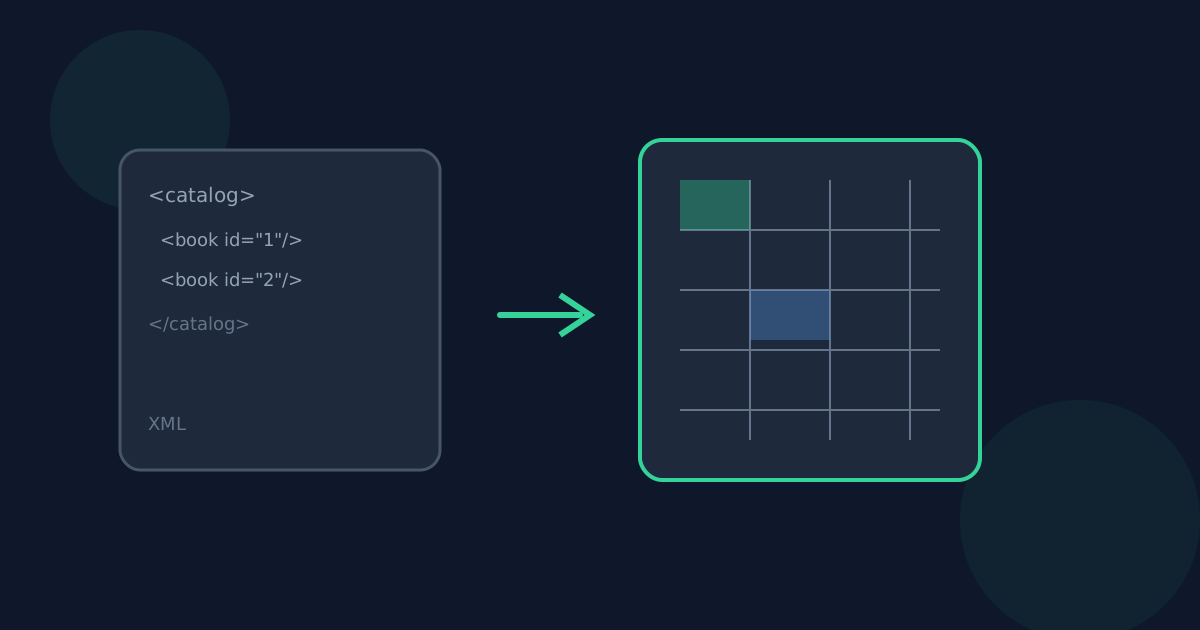
XML is a common way to exchange structured records, but spreadsheets are often easier to filter, share, and analyze. Looty Tools XML to Excel converts a .xml file into a real .xlsx workbook entirely in your browser. This guide covers record detection, preview checks, and the limits to plan around.
Ready to try the tool this guide describes?
When XML to Excel helps
Use this tool when you have XML exports—product catalogs, feeds, configuration dumps, or API-style documents—and need a worksheet without installing desktop converters.
The result is a single worksheet workbook. Highly irregular trees without repeating records or meaningful leaf values may be unsupported.
Supported inputs and limits
Choose one .xml file up to 25 MB. Empty files, malformed XML, and conversions that would exceed 50,000 data rows or 500 columns are rejected with a clear error. Data is never silently truncated.
- Supported extension: .xml
- Maximum file size: 25 MB
- Maximum data rows: 50,000
- Maximum columns: 500
- One file per conversion
How to convert on Looty Tools
Repeated sibling elements under the same parent are ranked by count, field richness, and depth. The top candidate is selected by default, and you can switch groups to rebuild the preview.
- Open XML to Excel at /tools/xml-to-excel.
- Choose or drop a .xml file.
- Review the detected record group, row and column counts, and preview table.
- If more than one repeating group is listed, select which group becomes worksheet rows.
- Set the worksheet name and optional auto-size columns setting.
- Select Convert to Excel to generate and download the .xlsx file.
What to expect from the table
Each selected record becomes one data row. Attributes become @ columns, nested elements use dotted paths, and repeated same-name children are indexed as phone, phone[2], and so on.
When no repeating group exists, a single structured root or child can become a one-row worksheet if it has meaningful attributes or leaf values.
How to Convert XML to Excel FAQ
- Do I need Microsoft Excel installed to convert XML?
- No. Conversion runs in the browser and downloads an .xlsx file you can open later in Excel, Sheets, or similar apps.
- Can I convert multiple XML files at once?
- Not in this release. Convert one XML file at a time.
- What if several repeating groups are detected?
- The tool lists each candidate with its path, record count, and column count. Choose the group that matches the rows you need; the preview updates when you change selection.
- What happens when XML has no repeating records?
- If the root or a single structured child has meaningful attributes or leaf values, the tool builds a one-row worksheet. Otherwise it shows an unsupported-structure message.
- Where should I read next about XML to Excel?
- See /guides/xml-to-excel-without-uploading for privacy details and /guides/nested-xml-attributes-to-excel-columns for column naming. Open the tool at /tools/xml-to-excel when you are ready.
Related guides
- XML to Excel Without UploadingLearn how browser-based XML to Excel keeps document data on your device, what still leaves the machine, and how local conversion differs from upload services.
- Nested XML and Attributes to ColumnsSee how nested XML elements, attributes, mixed content, and repeated same-name children become stable spreadsheet column names when converting to Excel.
- Browser-Based File PrivacyUnderstand local browser processing, when files stay on your device, practical privacy checks, and how Looty Tools discloses different processing models.


