PDF guides
How to Convert PDF to HTML Online
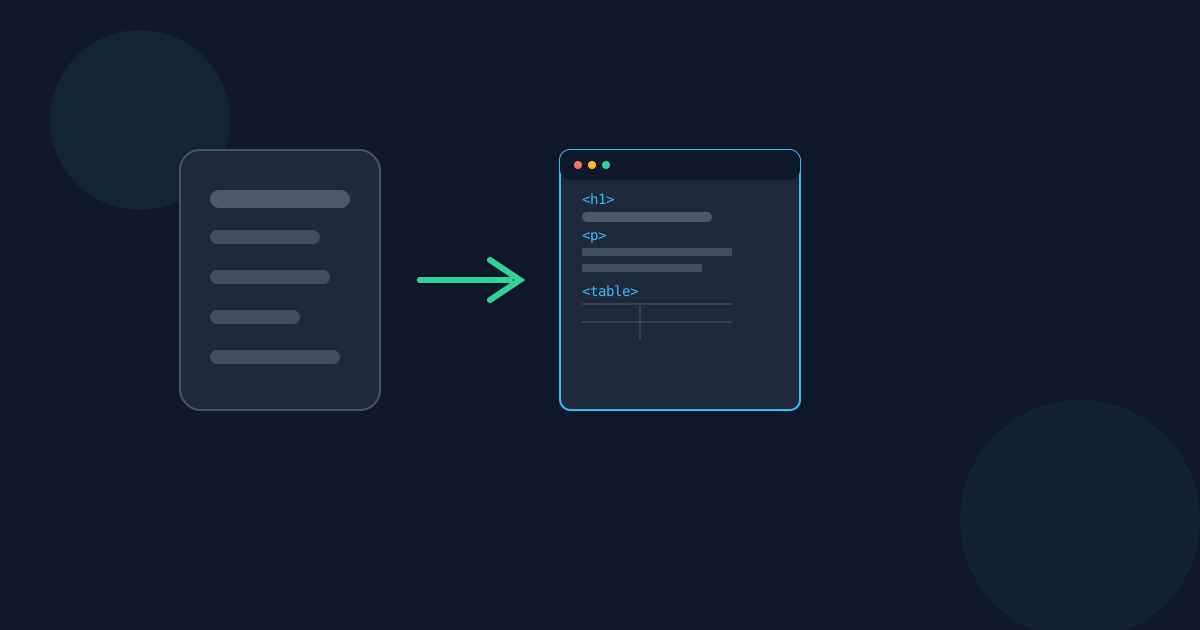
A PDF is built to be printed or viewed as a fixed page, not to live on the web as a real webpage. The Looty Tools PDF to HTML converter takes a PDF’s extractable text and rebuilds it as a standalone HTML document — real headings, paragraphs, and tables you can style, edit, or publish — entirely in your browser. This guide covers the steps, and the situations where HTML output actually beats plain text or an embedded PDF viewer.
Ready to try the tool this guide describes?
How to convert PDF to HTML on Looty Tools
- Open the PDF to HTML tool at /tools/pdf-to-html.
- Choose or drop a PDF file.
- The tool checks the PDF for extractable text before offering to convert.
- Select Convert to HTML.
- Download the resulting .html file.
When HTML output is the right choice
- Pasting content into a CMS or blog post. Real heading, paragraph, and table markup drops into a CMS editor far more cleanly than a PDF or a wall of plain text ever could.
- Further styling with your own CSS. Because the output uses semantic tags and a "pdf-page" section per original page, you can target it directly with your own stylesheet instead of starting from a blank page.
- Publishing PDF content to the web as a real webpage instead of an embedded PDF viewer. An embedded viewer forces a visitor to load a PDF renderer and scroll a fixed-size page; a real HTML page resizes to the screen, is searchable by the browser, and indexes like any other webpage.
What gets reconstructed
- Headings, detected from font size relative to the page’s body text (see pdf-to-html-headings-and-tables-explained).
- Paragraphs, grouped from the PDF’s underlying text positions.
- Simple, regularly-gridded tables, rebuilt as real HTML tables on a best-effort basis.
- Page boundaries, preserved as a labeled section for each original PDF page.
Limits
- Maximum file size: 25 MB.
- Maximum pages: 50.
- Scanned or image-only PDFs are rejected — this tool does not perform OCR (see pdf-to-html-scanned-pdf-limitations).
How to Convert PDF to HTML FAQ
- What kind of PDFs does this work on?
- Text-based PDFs that already contain real, extractable text — for example documents exported from Word, Google Docs, or a website.
- What HTML structure do I actually get?
- A standalone HTML document using semantic heading, paragraph, and table tags, with each original PDF page wrapped in its own labeled section.
- Does it work on scanned documents?
- No. Scanned or image-only PDFs have no extractable text and are detected and rejected with a clear message. See pdf-to-html-scanned-pdf-limitations.
- Is my PDF uploaded anywhere?
- No. Conversion runs locally in the browser, so the PDF is not uploaded to Looty Tools.
- What is the maximum PDF size?
- The maximum file size is 25 MB, with up to 50 pages.
- Can I style the output with my own CSS?
- Yes. The output uses semantic markup and a labeled section per original page, so it is straightforward to target with your own stylesheet.
Related guides
- PDF to HTML Headings & TablesThe detection rules behind PDF to HTML's markup: how a font-size ratio decides heading levels, what the per-page section boundaries are for, and why extracted text is always HTML-escaped.
- Why Scanned PDFs Can't Convert to HTMLWhy real extractable text matters specifically for web-published HTML — accessibility, on-page search, and copy-paste — and why scanned PDFs are rejected rather than embedded as an image.
- How to Convert PDF to TextTurn a text-based PDF into a plain .txt file in your browser, and see when plain text — not Word or HTML — is actually the right output format for the job.


