Work, pay & shifts
Decimal Hours in Excel and Google Sheets
Spreadsheets store a time as a fraction of a day, so 7:30 is really 0.3125 — which is why multiplying a time by an hourly rate gives a nonsensical answer. Converting between those time values and decimal hours takes one multiplication or division by 24. This guide covers both directions in Excel and Google Sheets, totals over 24 hours, and how to avoid results like 7:60.
Ready to try the tool this guide describes?
How spreadsheets store time
In both Excel and Google Sheets, one whole day is 1. Noon is 0.5, 6:00 AM is 0.25, and 7:30 is 7.5 ÷ 24 = 0.3125. The cell format decides whether you see 0.3125 or 7:30, but the stored number is the same.
Time to decimal hours
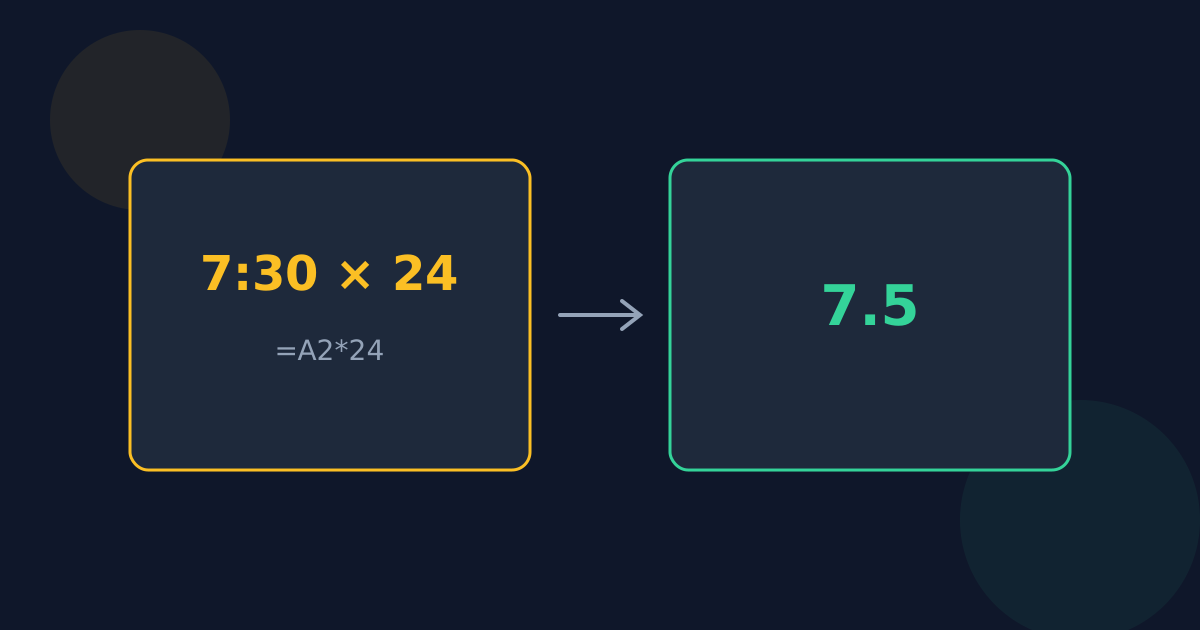
- With a time such as 7:30 in A2, enter =A2*24 in another cell.
- Format that cell as a number, not a time; it shows 7.5.
- To round to 2 places for a timesheet, use =ROUND(A2*24, 2).
Decimal hours to time
With decimal hours such as 7.75 in A2, =A2/24 gives the day fraction; format it with the custom format [h]:mm to show 7:45. If the decimal doesn’t land on a whole minute, round the minutes first with =ROUND(A2*60, 0)/1440, so the display can’t show a rounding surprise.
Totals over 24 hours
The ordinary h:mm format wraps at 24 hours, so a weekly total of 41 hours 30 minutes displays as 17:30. The custom format [h]:mm — square brackets around the h — keeps counting hours past 24 and shows 41:30.
Formula reference
| Task | Formula (value in A2) | Example |
|---|---|---|
| Time to decimal hours | =A2*24 | 7:30 → 7.5 |
| Decimal hours to time | =A2/24, formatted [h]:mm | 7.75 → 7:45 |
| Decimal hours to whole minutes | =ROUND(A2*60, 0) | 7.999 → 480 |
| Whole minutes to h:mm text | =TEXT(A2/1440, "[h]:mm") | 480 → 8:00 |
| Hours part of whole minutes | =INT(A2/60) | 465 → 7 |
| Minutes part of whole minutes | =MOD(A2, 60) | 465 → 45 |
Decimal Hours in Spreadsheets FAQ
- How do I convert a time to decimal hours in Excel?
- Multiply it by 24 and format the result as a number: =A2*24 turns 7:30 into 7.5.
- Why does my weekly total show 17:30 instead of 41:30?
- The h:mm format wraps every 24 hours. Use the custom format [h]:mm to show hours past 24.
- How do I turn decimal hours into hours and minutes in Google Sheets?
- Divide by 24 and format the cell as [h]:mm (or use the Duration format): 7.75/24 shows 7:45.
- Why does =A2*24 show a time instead of a number?
- The result cell kept a time format. Change it to a number format.
- How do I avoid results like 7:60?
- Round to whole minutes first, =ROUND(A2*60, 0), then split that into hours and minutes.
Related guides
Open the tool
Jump into Decimal Hours to Hours & Minutes Converter when you are ready to process your files.