PDF guides
Printing an EPUB as PDF: Fonts, Margins, and Page Size
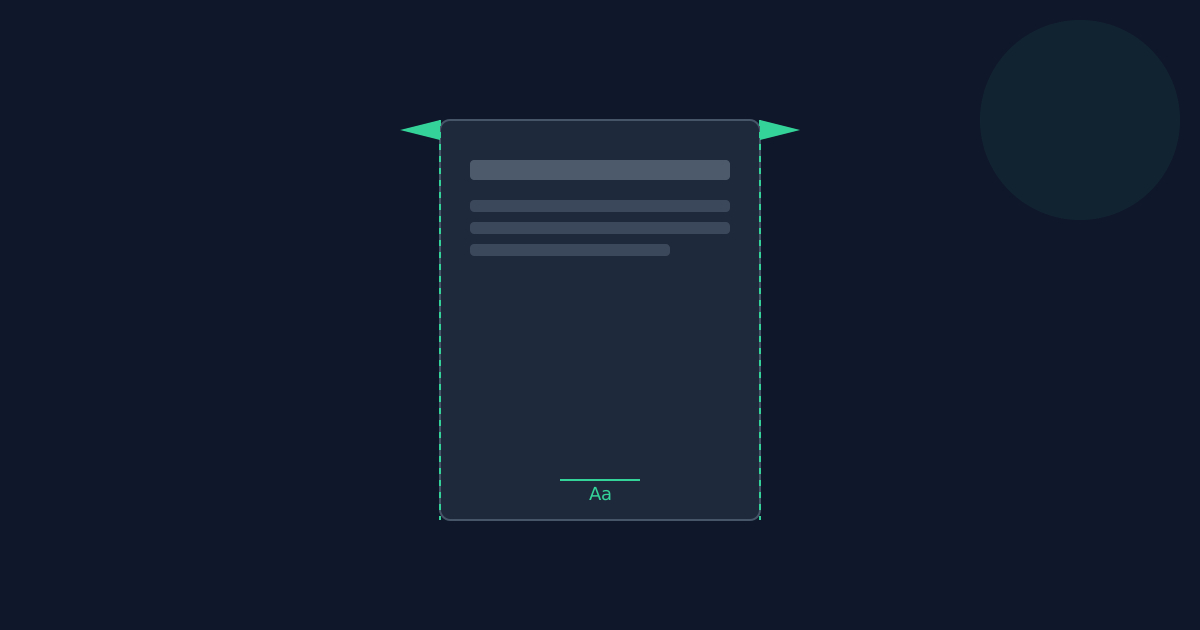
Printing an EPUB starts with three choices this tool makes for you: page size, margins, and which font actually renders the text. This guide explains exactly what each one does.
Ready to try the tool this guide describes?
Page size
Letter or A4, selectable before converting.
Margins and indentation
A fixed roughly 0.75 inch page margin applies throughout. Any CSS margin-left, padding-left, or margin declared on a paragraph in the EPUB’s own stylesheet becomes extra left indentation, clamped to a maximum so a malformed stylesheet can’t break the page layout.
Fonts in the output PDF
The PDF embeds a bundled Unicode font family — regular, bold, italic, and bold-italic — rather than any font the EPUB itself declares or embeds. The EPUB’s own font-weight and font-style CSS select which of those four styles renders each run of text, but a specific font-family the EPUB requests is not applied.
Font size handling
A font-size declared in px, pt, em, rem, or percent is resolved to an absolute PDF point size relative to its inherited size, clamped to a sane range so an extreme declared value can’t produce unreadable or broken output.
EPUB to PDF: Fonts and Page Size FAQ
- Can I pick a different font for the output?
- No — the tool always uses its bundled Unicode font, in whichever weight and style the EPUB’s own CSS requests (regular, bold, italic, or bold-italic).
- Why doesn’t my book’s custom font show up in the PDF?
- Custom font embedding from the EPUB is intentionally out of scope — the output always uses the bundled font family instead.
- What page sizes are supported?
- Letter and A4.
- Does the converter respect text alignment from the EPUB?
- Yes — left, right, and center alignment declared in the EPUB’s CSS are applied.
- What happens with an extremely large declared font size?
- It’s clamped to a sane maximum rather than producing broken or unreadable pages.
Related guides
- EPUB to PDF: Fixed vs ReflowableWhy converting a reflowable EPUB into a fixed-layout PDF is inherently lossy, what this converter actually preserves, and when it is (and isn’t) the right tool.
- EPUB Chapter StructureHow an EPUB’s manifest and spine define chapter order, and exactly how that structure determines the page breaks and page order in the converted PDF.


