PDF guides
Why Scanned PDFs Can't Convert to HTML (No OCR)
HTML is not just another output format — it is meant to become a real webpage, and that raises the stakes for whether the underlying content is genuine text or just a picture of text. This guide explains why PDF to HTML specifically depends on the source PDF having real extractable text, and why it refuses to convert a scanned PDF into an HTML page rather than quietly wrapping an image in the output.
Ready to try the tool this guide describes?
A screen reader cannot read pixels
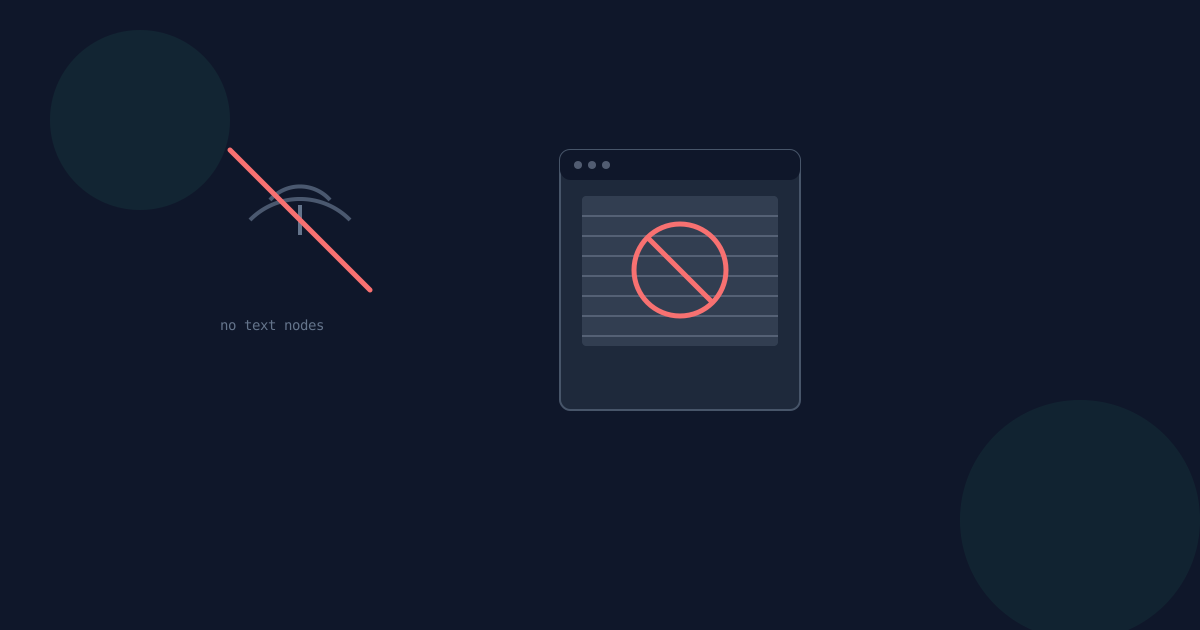
If PDF to HTML "succeeded" on a scanned PDF by embedding the page as a picture, a screen reader visiting the resulting HTML page would have nothing to read aloud — the words exist only as pixel patterns, not as real text nodes in the page. That would produce an HTML page that is technically online but inaccessible to assistive technology, which undermines one of the main reasons to convert a PDF into a webpage in the first place.
On-page search and copy-paste also depend on real text
A visitor pressing Ctrl+F on a real HTML page expects to find any word that is visibly on the page. An image of a page produces zero matches, no matter how the search term is spelled. The same is true of copy-paste — selecting "text" that is actually a picture either selects nothing or grabs the whole image. Search engines indexing the page behave the same way: there is no text to index, which defeats another real reason someone converts a PDF into a webpage.
Why the tool rejects scanned PDFs instead of embedding an image
Rather than producing an HTML file whose only real content is an embedded picture — technically an HTML page, but one that fails every check above — PDF to HTML samples a PDF’s pages up front and checks for extractable text and image coverage. When a PDF has almost no extractable text and is mostly covered by images, the conversion stops before it starts, with a clear message shown instead of a misleadingly "successful" but unusable result. PDF to HTML does not perform OCR — a true scanned PDF with no text layer is simply not a match for this tool.
What to do instead
Not sure whether a given PDF actually has extractable text? See pdf-to-text-scanned-pdf-limitations for a quick, do-it-yourself check you can run in any PDF viewer before uploading anything. If the PDF genuinely is a scan with no text layer, you will need a dedicated OCR tool to recognize the text first, or the original source document if one is still available.
Why Scanned PDFs Can't Convert to HTML FAQ
- Why does a converted HTML page need real text instead of an image of a page?
- Accessibility, on-page search, copy-paste, and search-engine indexing all depend on real text nodes in the page — an embedded image of text fails all four.
- Would a screen reader be able to read a scanned PDF converted to HTML?
- Not if the result were just an embedded image — there would be no text for it to read. That is exactly why PDF to HTML rejects scanned PDFs instead.
- Can I search the text on a resulting page if the source PDF was scanned?
- No — an image has no searchable text, which is why the conversion is stopped up front rather than producing a page that looks fine but cannot be searched.
- Does PDF to HTML perform OCR?
- No. It only converts PDFs that already contain real, extractable text.
- How do I know if my PDF has real extractable text before converting it?
- See pdf-to-text-scanned-pdf-limitations for a quick selection-and-search check you can run yourself in any PDF viewer.
- What if I just need an image of my PDF online, not real text?
- PDF to PNG or PDF to JPG produce page images directly and make no claim about extractable text, which is the more honest tool for that specific need.
Related guides
- How to Convert PDF to HTMLTurn a text-based PDF into a standalone HTML page in your browser, and see when publishing it as real markup — not an embedded PDF viewer — is the right call.
- PDF to HTML Headings & TablesThe detection rules behind PDF to HTML's markup: how a font-size ratio decides heading levels, what the per-page section boundaries are for, and why extracted text is always HTML-escaped.
- Why Scanned PDFs Can't Convert to TextA checklist for telling whether your PDF has real extractable text before you upload it, and why PDF to Text rejects true scanned PDFs instead of guessing.


