PDF guides
Merge PDF File Order and Size Limits
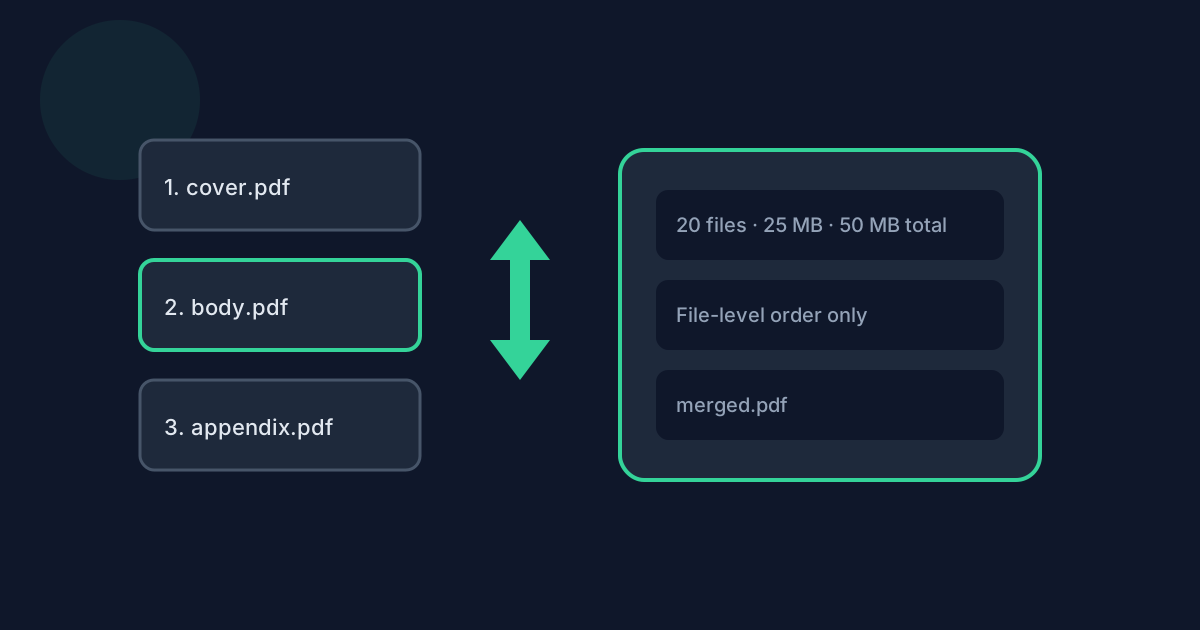
Merge PDF concatenates whole files in list order. That is powerful when you assemble a packet, and frustrating when you expect page-level shuffling. This guide focuses on how Move up and Move down shape the finished document, how Remove and Clear differ, and how the 2–20 file count plus 25 MB / 50 MB size caps stop oversized jobs—without repeating the full merge tutorial.
Ready to try the tool this guide describes?
File-level order is not page-level order
Each row in the merge list is one PDF. Moving that row moves every page inside that file together. Pages already inside File A keep their internal sequence; Merge PDF does not interleave page 2 of File A with page 1 of File B.
If you need individual pages from different documents mixed together, extract or organize those pages into the files you want first, then merge the prepared PDFs. Organize PDF reorders pages inside one document; Merge PDF only orders whole documents.
Move up, Move down, Remove, and Clear
After you add PDFs, the numbered list shows merge order from top to bottom. Use Move up or Move down to change a file’s position. Use Remove to drop one file while keeping the rest. Use Clear to empty the entire selection and start over.
The tool also shows each file’s size and page count, plus a running total of bytes and pages. There is no separate page-count ceiling—only file count and size limits—so a packet can grow tall in pages while still fitting under 50 MB if the files are light.
- Move up / Move down: change which whole file comes first.
- Remove: delete one file from the list.
- Clear: reset the entire selection.
- Pages inside each PDF keep their original internal order.
When to use Organize PDF around a merge
Organize before merging when one source has upside-down scans or a wrong chapter order. Organize after merging when the combined packet needs a final page shuffle. Do not expect Merge PDF itself to provide those page controls.
Exact count and size limits
You need at least two PDFs and may select up to twenty. Each file can be up to 25 MB. All selected files together must stay at or under 50 MB. There is no explicit maximum page count on Merge PDF.
Jobs still fail when compressed scans push the combined size over 50 MB even if each file looks “small.” Reduce image-heavy PDFs, split oversized sources, or remove unused files before merging again.
- Minimum: 2 PDF files.
- Maximum: 20 PDF files.
- Per file: 25 MB.
- Combined total: 50 MB.
- Page-count cap: none (size and file count still apply).
Password-protected or encrypted PDFs are unsupported. Unlock them before merging. Corrupt files fail inspection and should be repaired elsewhere.
Output and processing model
A successful merge downloads one file named merged.pdf. Processing runs in the browser with pdf-lib; PDF contents are not uploaded to Looty Tools for this workflow. For privacy details beyond limits and ordering, read the companion guide on merging without uploading.
Merge PDF Order and Limits FAQ
- Does Move up change only one page?
- No. Move up and Move down move the entire PDF file in the list. Every page in that file moves with it.
- Is there a maximum number of pages I can merge?
- Merge PDF does not enforce a separate page-count limit. You are still limited to 2–20 files, 25 MB per file, and 50 MB combined.
- What is the difference between Remove and Clear?
- Remove deletes one file from the list. Clear empties the whole selection so you can start again.
- Can Merge PDF interleave pages from two PDFs?
- No. It concatenates whole files. Use Split or Organize PDF to prepare page sets, then merge the resulting PDFs.
- What download do I get?
- One PDF named merged.pdf. Open it and check the boundaries between the original files before you send it.
- Where is the general merge how-to?
- Start at /guides/how-to-merge-pdf-files, or open the tool at /tools/merge-pdf.
Related guides
- How to Merge PDF FilesCombine multiple PDFs in your browser with file-level ordering, exact size limits, privacy notes, and tips for a clean merged document.
- Merge PDF Without UploadingMerge PDFs in your browser without uploading their contents to Looty Tools. Learn what stays local, what network requests may still occur, and how private browser-based merging works.
- How to Organize PDF PagesRearrange PDF pages locally in your browser—reorder, rotate, duplicate, delete, and reset—with current file and page limits.


