Image guides
How to Convert TIFF to JPG in Your Browser
TIFF files from scanners and print workflows are often large and can hold multiple pages, but this converter only ever produces one JPG from the first page — understanding that limit matters before you rely on it for a multi-page document. This guide covers what happens during decoding, what is lost, and when JPG output actually fits your workflow.
Ready to try the tool this guide describes?
How TIFF becomes JPG
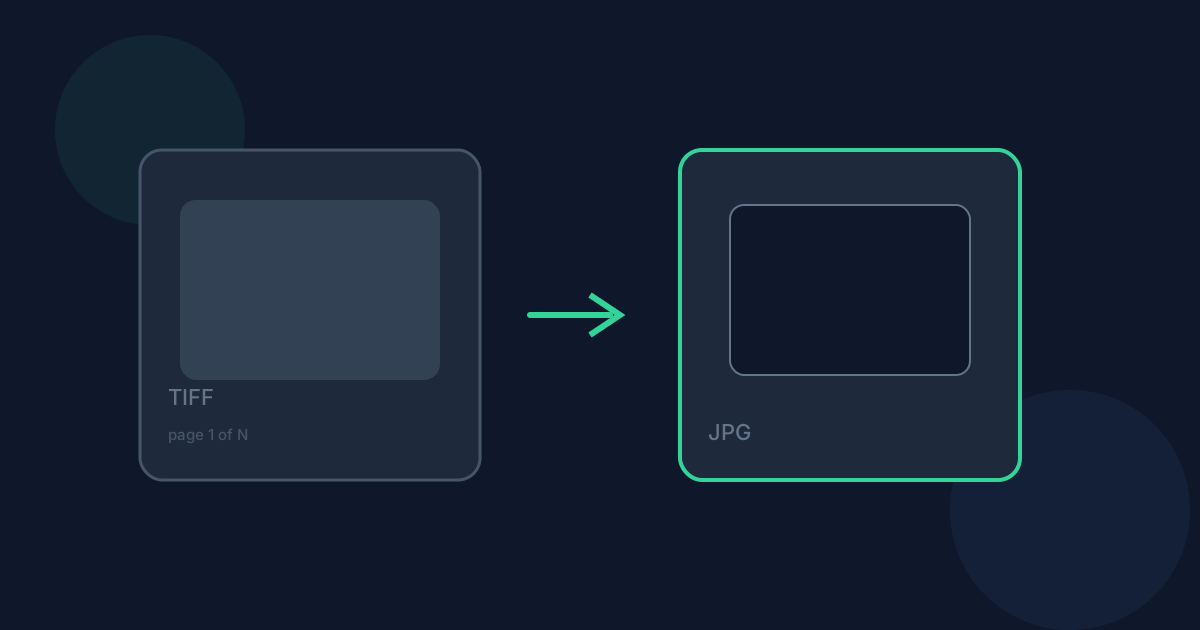
A browser-side TIFF decoding library reads the first image (the first IFD) out of the file — later pages in a multi-page TIFF are never read at all — then that single page is re-encoded as a JPEG at your chosen quality, 90% by default.
What changes when you convert
Only page one survives. A multi-page scan needs a different workflow if you need every page, since nothing beyond the first is extracted or included in the download. TIFF’s often-uncompressed or losslessly-compressed data is now lossily re-encoded, trading some fine detail for a much smaller file — fine for sharing, not for a second-generation archival copy. Any alpha channel present in the source is flattened onto white, since JPEG has none.
When JPG is the right choice — and when it isn’t
JPG is right when you have a single-page TIFF, or only need its first page, and want a small, universally viewable file for sharing or web use. It is the wrong tool if you need every page of a multi-page scan preserved — nothing is dropped by choice, but only one page comes out either way, so plan around that limit rather than being surprised by it.
Limitations and privacy
The source TIFF must be 25 MB or smaller with a maximum of 8,192 pixels per side. Some uncommon TIFF compression schemes or corrupted files cannot be decoded by the browser-side library. Conversion runs locally in your browser; the file is not uploaded to Looty Tools servers.
Convert TIFF to JPG FAQ
- What happens to pages after the first in a multi-page TIFF?
- They are never read or included. This version of the tool only decodes and converts the first page (the first IFD).
- Can I recover full quality by converting back to TIFF later?
- No. JPEG’s compression discards detail permanently; converting the resulting JPG to another format cannot restore it.
- Does scanner-typical TIFF compression cause decode failures?
- Most standard scanner output decodes fine. Some uncommon or corrupted TIFF compression schemes cannot be read by the browser-side decoder.
- What are the file size and dimension limits?
- Up to 25 MB per file, with a maximum of 8,192 pixels on either side.
- Can I convert to PNG instead?
- Yes, use TIFF to PNG when you need lossless output or need to keep transparency rather than have it flattened onto white.
Related guides
- TIFF vs JPGCompare TIFF and JPG for lossless quality, file size, software compatibility, and when converting TIFF to JPG is the better choice.
- TIFF to JPG Without UploadingLearn how Looty Tools converts TIFF to JPG privately in your browser using a local TIFF decoder, with no file upload.
- Convert TIFF to PNGConvert a TIFF image to PNG locally: choose the file and download a lossless PNG. Only the first TIFF page is converted.