Image guides
How to Convert Images Without Uploading Them
Browser-local tools can convert images without sending file contents to a conversion server. This guide explains what that means for Image Converter and related image workflows on Looty Tools.
Ready to try the tool this guide describes?
What stays on your device
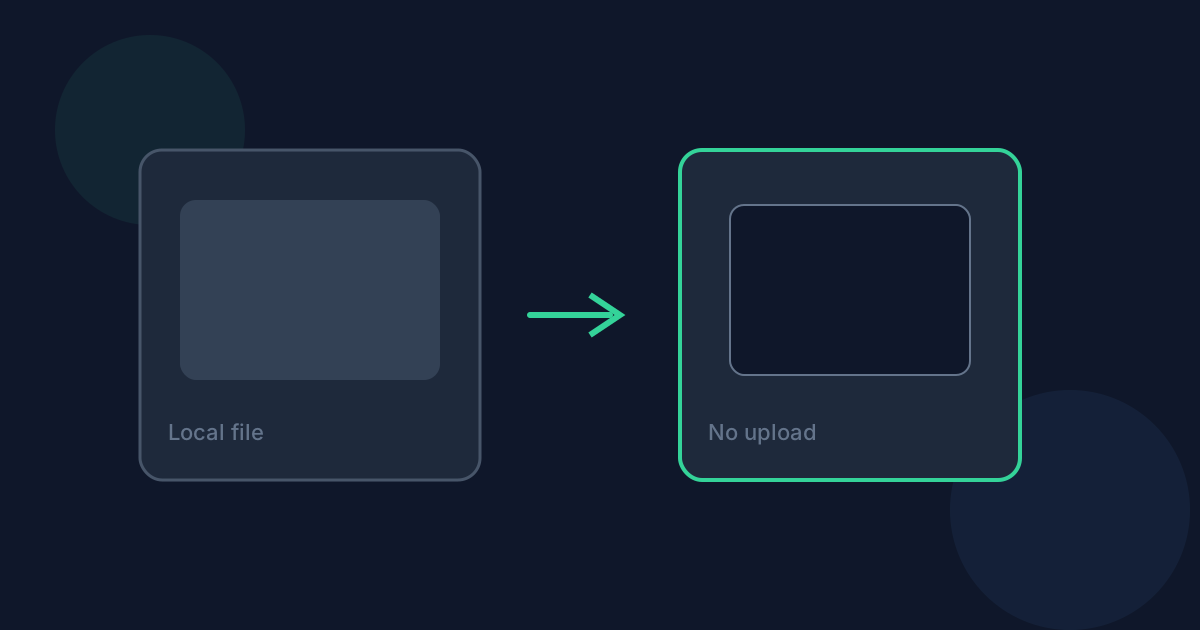
Image Converter reads the file you choose, decodes and re-encodes it in the browser, and triggers a download. There is no Looty Tools conversion endpoint that receives your image contents for this workflow.
What still happens in the browser
JavaScript must run. Large images may use significant memory. Some formats require browser decoding support. Those limits are local resource and capability limits, not upload limits.
Related private image tools
App Store Screenshot Resizer also processes screenshots locally. Images to PDF can include HEIC among other formats when you need a multi-page PDF instead of a single converted image.
Convert Images Without Uploading FAQ
- Are images uploaded?
- No. Image Converter processes files locally in your browser for conversion.
- Does local processing mean unlimited size?
- No. Very large images can still fail due to browser memory or decoding limits.
- Is analytics the same as uploading my photo?
- Successful-use tracking records that a conversion completed. It does not upload the image contents for conversion.
- Do screenshots stay private too?
- Yes. App Store Screenshot Resizer also runs locally in the browser.
- Where do I start?
- Open /tools/image-converter for format conversion or /tools/app-store-screenshot-resizer for App Store presets.
Related guides
- Convert HEIC to JPGConvert an iPhone HEIC or HEIF photo to JPEG locally: choose the file, pick JPEG output, and download without uploading the image.
- HEIC vs JPEG vs PNGCompare HEIC, JPEG, and PNG for photos, transparency, file size, and compatibility so you can choose the right Image Converter output.
- Browser-Based File PrivacyUnderstand local browser processing, when files stay on your device, practical privacy checks, and how Looty Tools discloses different processing models.
Open the tool
Jump into Image Converter when you are ready to process your files.


