Text & writing
Find and Replace Mistakes: Partial Words and Case
Replace All changes every match at once, which is exactly what makes it useful — and why a small oversight can quietly damage a whole document. These are the mistakes that come up most often, with a simple way to avoid each one.
Ready to try the tool this guide describes?
Matching inside longer words
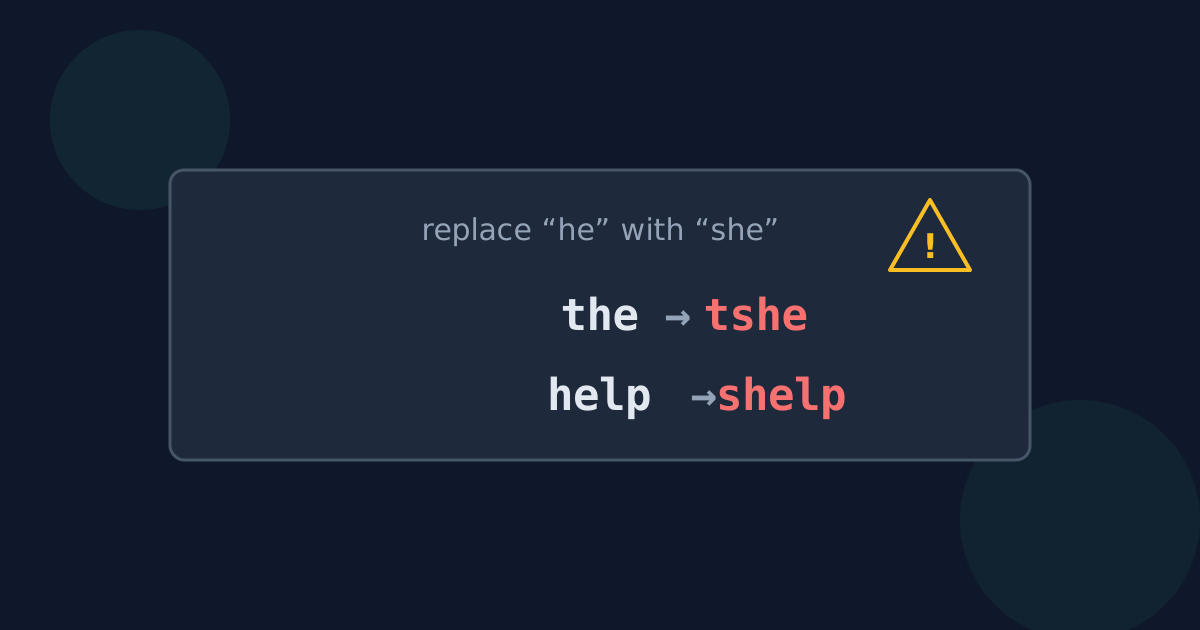
Replacing “he” with “she” also turns “the” into “tshe” and “help” into “shelp”. Replacing “art” catches “start” and “party”. Use a whole-words option, or include the surrounding spaces in the search, so only the standalone word is changed.
Losing capitalization
With case matching turned off, “color” finds “Color”, “color”, and “COLOR” — but all three are replaced with the replacement exactly as typed, so a capitalized word at the start of a sentence can become lowercase. Run separate replacements for each capitalization, or check sentence starts afterwards.
Swapping two words
Replacing “left” with “right” and then “right” with “left” turns everything into “left”. Swap through a placeholder that appears nowhere else: left → ##TEMP##, right → left, then ##TEMP## → right.
Running the same replacement twice
A replacement that contains the search text is safe once but compounds when repeated: “cat” → “cats” run twice gives “catss”. After a replacement, check the count before running it again.
Text that looks the same but is not
If a search finds nothing, copy the exact text from the document into the Find box instead of typing it.
- Curly quotes (’ “ ”) versus straight quotes (' ").
- A non-breaking space versus an ordinary space.
- An en dash (–) versus a hyphen (-).
Find and Replace Mistakes FAQ
- How do I stop Replace All from changing parts of words?
- Turn on a whole-words option, or search with spaces around the word.
- How do I swap two words everywhere?
- Use a temporary placeholder: replace the first word with the placeholder, the second with the first, then the placeholder with the second.
- Why does my search find nothing when the word is clearly there?
- The text probably uses a different character that looks the same, such as a curly apostrophe or non-breaking space. Copy it from the document into the search box.
- Why did my capital letters disappear?
- Case-insensitive replace inserts the replacement exactly as typed. Replace each capitalization separately if it matters.
- How can I check a replacement worked?
- Compare the number of replacements with what you expected, and scan a few changed lines before copying the result.
Related guides
- Literal vs. Regex ReplaceWhy a full stop can match every character, what $1 does in a replacement, and when plain-text find and replace is safer than regular expressions.
- Find and Replace in Word and DocsShortcuts, options, and special codes for find and replace in Word, Google Docs and Sheets, Excel, and VS Code, including line breaks and wildcards.
Open the tool
Jump into Find and Replace Text when you are ready to process your files.