Text & writing
How to Compare Drafts, Lists, and Config Files
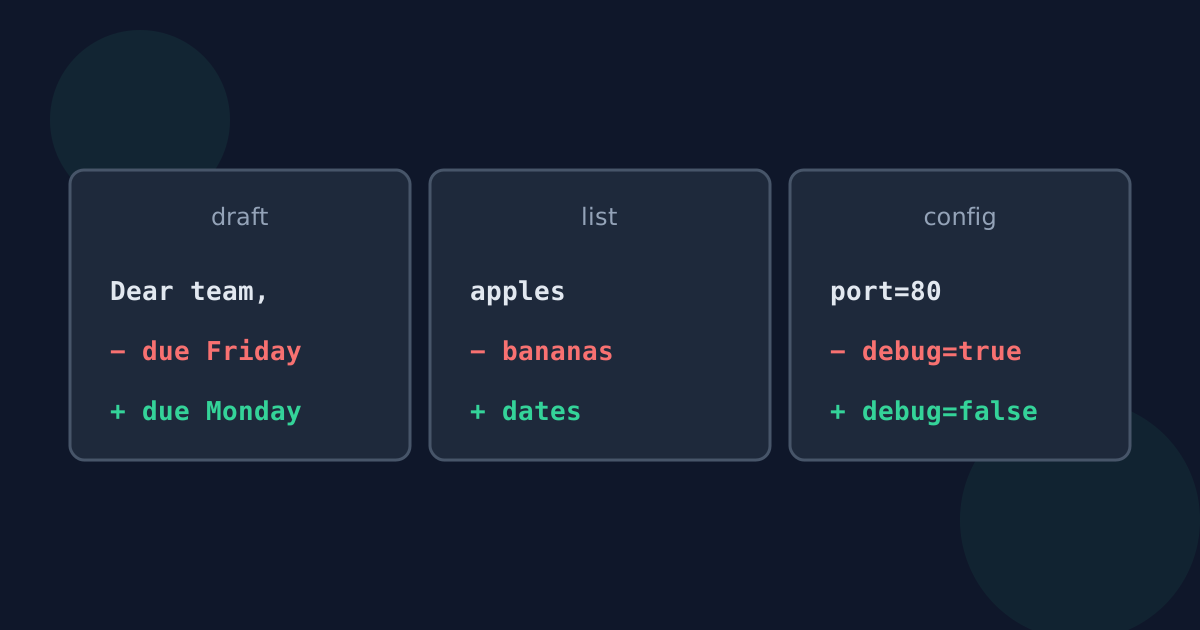
Comparing two versions of a text is useful far beyond proofreading. The same approach catches edits in contracts, finds changed items in lists, and reveals exactly which settings differ between two configuration files. This guide covers practical workflows for the most common cases.
Ready to try the tool this guide describes?
Drafts, contracts, and articles
- Paste the earlier version as the original and the newer one as the changed text.
- Use word comparison so individual edits stand out.
- Read the removed and added words together — a changed number, date, or “not” can matter more than a rewritten sentence.
When a document’s tracked changes have been accepted, or edits were made without tracking, comparing the plain text of both versions is a reliable way to see everything that changed.
Lists and exports
For lists of names, products, or keywords, sort both lists the same way and remove duplicates first; then use line comparison. Lines marked removed are only in the old list, and lines marked added are only in the new one. Without sorting, items that merely changed position show up as removed and added.
Configuration and settings files
- Use line comparison, since each line is usually one setting.
- Watch for invisible differences: trailing spaces, tabs versus spaces, and line endings.
- Remove secrets such as passwords or API keys before pasting configuration into any tool, even one that runs in your browser.
Making noisy comparisons readable
- Normalize spacing first when only the words matter, so extra spaces do not show as changes.
- Compare section by section when two long texts differ a lot.
- Swap the two versions if you want to read the change in the other direction.
Compare Drafts, Lists, Configs FAQ
- How do I compare two versions of a contract?
- Paste the plain text of both versions and use word comparison, then read every removed and added word, paying special attention to numbers, dates, and negatives.
- How do I find items added to or removed from a list?
- Sort both lists the same way, remove duplicates, and compare them line by line. Added lines are new items and removed lines are missing items.
- Why does my list comparison show everything as changed?
- The items are probably in a different order. Sort both lists first so only real additions and removals show.
- Is it safe to paste configuration files into a comparison tool?
- Remove passwords, keys, and tokens first as a habit. A browser-only tool does not upload the text, but secrets should not be copied around unnecessarily.
- Why do identical-looking lines show as different?
- They probably differ in invisible characters such as trailing spaces or tabs.
Related guides
- How Text Comparison WorksThe idea behind diff tools: the longest common subsequence, the Myers algorithm, line versus word pieces, and what a text comparison cannot show.
- Word Diff vs. Line DiffWhen to compare text word by word and when line by line, with examples of how the same edit looks in each view and what trips each one up.
Open the tool
Jump into Text Difference Checker when you are ready to process your files.