PDF guides
SVG to PDF: Vector vs. Raster, and Why It Matters
An SVG is vector artwork — shapes and text described mathematically, so they stay perfectly sharp at any zoom level. This guide explains what it means that Looty Tools’ SVG to PDF converter rasterizes that artwork instead of embedding it as vector paths, and when that distinction actually matters.
Ready to try the tool this guide describes?
What "vector" and "raster" mean in a PDF
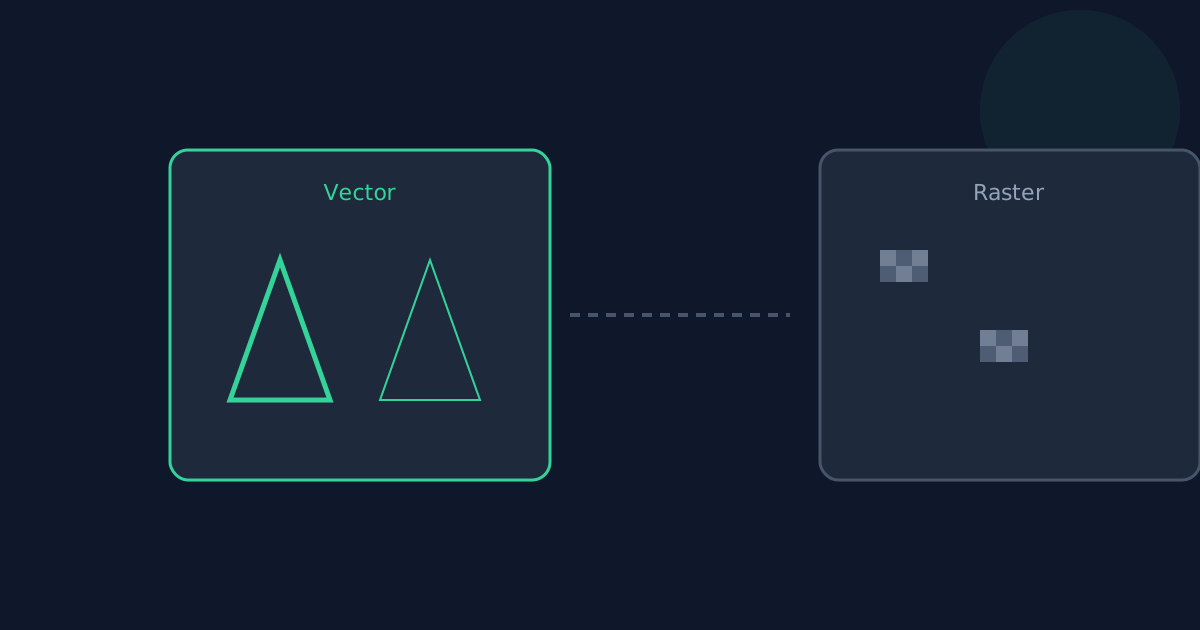
A vector PDF stores the actual paths, curves, and text as drawing instructions — zoom in as far as you like and edges stay crisp, and text can remain selectable. A raster PDF instead embeds a fixed-resolution image; zoom in far enough and you’ll see individual pixels, the same as with any photograph.
Why this tool rasterizes rather than embeds vector paths
No dependency in this project can reliably re-express arbitrary SVG — gradients, filters, masks, embedded raster images, text layout — as vector PDF drawing operations; the libraries that attempt it typically only cover a subset of the SVG specification and silently fall back to rasterizing anything outside that subset anyway. Rather than ship a converter with an inconsistent, format-dependent quality tier, this tool renders every SVG the same way: through the browser’s own SVG engine, which already implements the full specification correctly.
What you gain from rasterizing
Consistent, predictable output regardless of which SVG features the file uses — complex gradients, filters, and embedded images all render correctly, because the browser is doing the actual rendering work rather than a partial reimplementation of it.
What you give up
The PDF won’t stay perfectly crisp at extreme zoom the way a true vector PDF would, text inside the artwork can’t be selected or searched, and the file is somewhat larger than an equivalent vector PDF would be for simple artwork.
When you need true vector PDF instead
If you need infinitely scalable output for professional print production, or you need to reopen and edit the paths later in Illustrator or Inkscape, export directly to PDF from the application that created the SVG — most vector design tools have a native "Export as PDF" that preserves real vector paths. This tool is built for the more common case: turning an SVG into a shareable, printable PDF without needing that software installed.
SVG to PDF Vector vs Raster FAQ
- Will my PDF look pixelated if I zoom in a lot?
- At extreme zoom, yes — rasterized output has a fixed resolution, unlike true vector output. At normal viewing and printing sizes it looks sharp.
- Can I edit the shapes in the PDF afterward?
- No. Once rasterized, the artwork is a single image — individual shapes and paths are no longer separate, editable objects.
- Does rasterizing change the colors?
- No. Colors, gradients, and opacity render exactly as the browser displays them; only the underlying representation (pixels instead of paths) changes.
- Why not add a vector-embedding library instead?
- Any such library would still need to rasterize the SVG features it can’t represent as vectors, producing inconsistent quality depending on which features a given file happens to use — a single rasterization path is simpler and more predictable.
- Is rasterizing less secure than vector embedding?
- No — either way the SVG is sanitized and stripped of scripts and external references before anything is rendered; rasterization is a rendering choice, not a security trade-off.
Related guides
- How to Convert SVG to PDFConvert an SVG graphic into a PDF document sized to the artwork’s own dimensions, entirely in your browser. Covers the conversion steps and what to expect from the rasterized output.
- SVG to PDF Transparency and SizingHow an SVG’s width, height, and viewBox determine the PDF page size, and why rendering to PNG (not JPEG) keeps a transparent background transparent.


