PDF guides
SVG to PDF: How Transparency and Page Sizing Work
Two mechanical questions come up constantly when converting SVG to PDF: what size will the PDF page be, and will a transparent background survive? This guide covers exactly how Looty Tools’ SVG to PDF converter answers both.
Ready to try the tool this guide describes?
How the PDF page size is determined
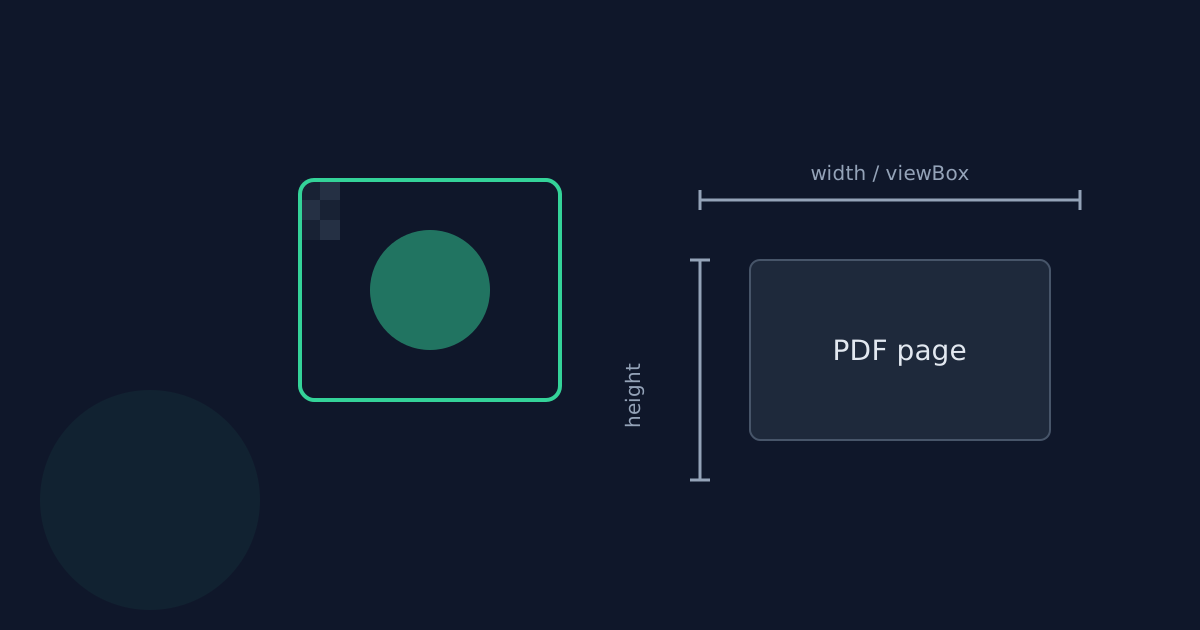
The converter reads the SVG root element’s width and height attributes first. If both are present with an absolute unit, the PDF page is sized to match exactly, preserving the aspect ratio. If width/height are missing, or set as a percentage (which has no absolute meaning outside a browser layout), the converter falls back to the viewBox attribute’s width and height, treated as CSS pixels — the same interpretation a browser uses when it renders an SVG with only a viewBox.
Supported length units
Width and height values in px, pt, in, cm, and mm all convert correctly to PDF points (72 points per inch — for example, 96px converts to 72pt, matching the standard 96-CSS-pixels-per-inch reference used across browsers).
What happens with no usable size information
An SVG with neither absolute width/height nor a viewBox has no basis for a sensible page size — defaulting to an arbitrary size would just produce a confusing, wrongly-proportioned PDF, so the tool rejects the file with a clear error instead.
Why transparency is preserved
The SVG is rasterized to PNG, not JPEG, before being embedded in the PDF. PNG supports an alpha channel, so a transparent background in the source SVG stays transparent in the PDF page rather than being filled in with white or black.
SVG to PDF Transparency and Sizing FAQ
- My SVG only has a viewBox and no width/height — will it still convert?
- Yes. The converter falls back to the viewBox’s dimensions, interpreted as pixels, to size the page.
- What page size do I get for an SVG with width="100%"?
- A percentage has no fixed size on its own, so the converter ignores it and falls back to the viewBox if one is present — or rejects the file if there’s no viewBox to fall back to.
- My PDF shows a checkerboard-transparent logo as solid white — why?
- The PDF page itself preserves transparency correctly (it has no background fill unless the SVG draws one). Some PDF viewers render transparent regions against a white canvas by default in their preview — the transparency is still present in the underlying image data.
- Can I control the output resolution?
- Not directly — the tool renders at a fixed multiple of the SVG’s own size, chosen to stay sharp at normal viewing and printing sizes without producing an unnecessarily large file.
- Does a very small declared size (like width="1") produce a tiny PDF page?
- No — the converter clamps extremely small or large declared sizes to a sane page-size range, preserving the aspect ratio, so a mistakenly tiny or huge value doesn’t produce a useless page.
Related guides
- How to Convert SVG to PDFConvert an SVG graphic into a PDF document sized to the artwork’s own dimensions, entirely in your browser. Covers the conversion steps and what to expect from the rasterized output.
- SVG to PDF Vector vs RasterWhat it means that an SVG-to-PDF converter rasterizes rather than embeds vector paths, what that trades away, and when you actually need a true vector PDF instead.


