PDF guides
How to Convert CSV to PDF Online
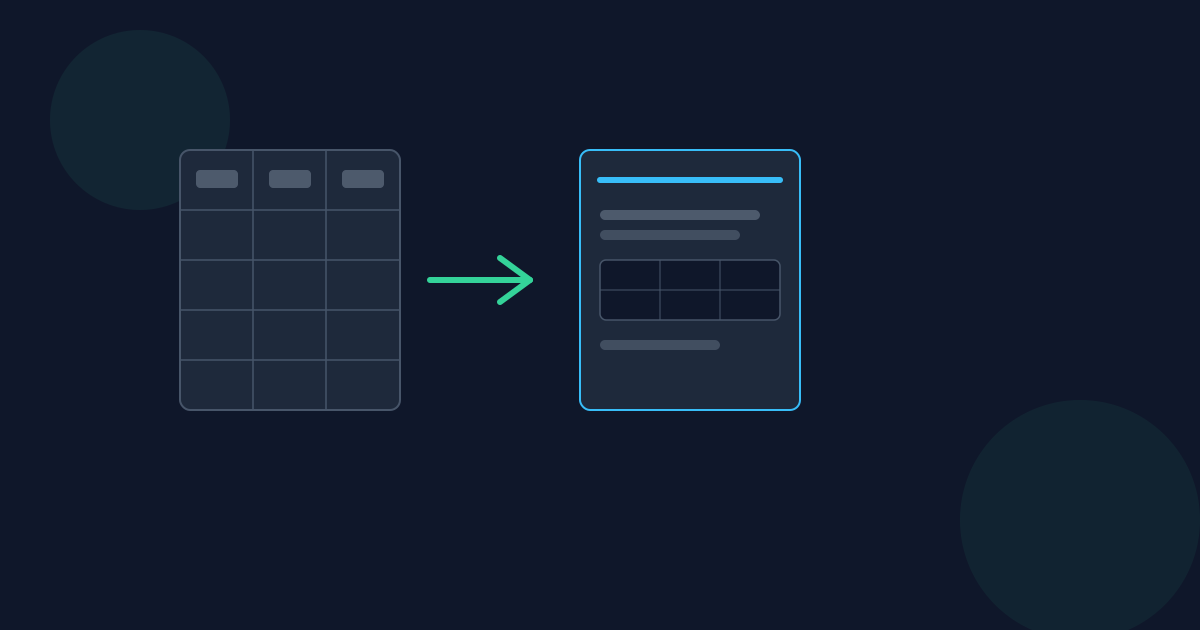
A CSV file is fast to generate but awkward to hand to someone who just needs to read it — it opens differently depending on the app, regional settings can mangle numbers, and it has no fixed page layout to print. The Looty Tools CSV to PDF converter turns a CSV export into a bordered, paginated PDF table with real, selectable text, entirely in your browser. This guide covers the steps, and when a PDF is actually the better format to send than the raw CSV or an Excel file.
Ready to try the tool this guide describes?
How to convert CSV to PDF on Looty Tools
- Open the CSV to PDF tool at /tools/csv-to-pdf.
- Choose or drop a CSV file.
- Select Convert to PDF.
- Download the resulting .pdf file.
When PDF is the right choice over Excel
- Sending a data export to someone who just needs to read or print it, not edit it — a PDF looks the same on every device and cannot be accidentally reordered or overwritten.
- Archiving a snapshot of data at a point in time — unlike a spreadsheet, a PDF will not silently recalculate or reformat itself if reopened later in a different app or locale.
- Printing tabular data cleanly — the layout is already paginated with repeating headers, instead of relying on a spreadsheet app’s print-preview settings.
What you actually get
- Real, embedded PDF text — not a screenshot of a table — so the output stays selectable, searchable, and copyable.
- The header row (when the CSV has more than one row) repeats at the top of every page, so a multi-page table never loses its column labels.
- Wide tables automatically switch to a landscape page and shrink the font in steps before any text is truncated — see csv-to-pdf-wide-table-formatting for the exact mechanism.
Limits
- Maximum file size: 25 MB.
- Maximum size: 5,000 rows and 60 columns.
- Quoted fields, commas and line breaks inside quoted cells, and escaped ("") quotes are all parsed correctly.
How to Convert CSV to PDF FAQ
- Is my CSV uploaded anywhere?
- No. Conversion runs locally in the browser, so the CSV file is not uploaded to Looty Tools.
- Will the PDF text be selectable and searchable?
- Yes. The table is drawn as real, embedded PDF text, not an image, so it stays selectable, searchable, and copyable.
- What delimiter does it expect — does it have to be a comma?
- The delimiter is auto-detected from the file (comma, semicolon, tab, or pipe), using the same detection logic used elsewhere on Looty Tools for CSV files.
- What happens with a very wide spreadsheet export?
- The page switches to landscape and the font shrinks in steps to fit more columns. See csv-to-pdf-wide-table-formatting for the exact algorithm.
- Can I edit the PDF afterward like a spreadsheet?
- No — a PDF is a fixed, one-way snapshot. If the recipient needs to edit the data, send the CSV itself instead. See csv-to-pdf-printing-and-sharing-guide.
- What are the file size and row/column limits?
- Up to 25 MB, 5,000 rows, and 60 columns.
Related guides
- CSV to PDF Wide Table FormattingThe actual layout algorithm behind CSV to PDF for wide spreadsheets: automatic landscape pages, a four-step font-shrink sequence from 9pt to a 6pt floor, and when a cell is truncated instead of shrunk further.
- CSV to PDF Printing & SharingWhy a fixed-layout PDF is often the better format for printing or emailing tabular data than a raw CSV or spreadsheet file — and the honest tradeoff of turning editable data into a one-way snapshot.
- How to Convert PDF Tables to CSVPull table-like data out of a PDF into a downloadable CSV file in your browser — and an honest look at why this is best-effort table extraction, not a guaranteed spreadsheet reconstruction.


