PDF guides
CSV to PDF: How Wide Table Formatting Works
A CSV can have far more columns than a person would ever format by hand for printing — a raw database or reporting export easily runs to 15, 30, or more columns. CSV to PDF has to make that fit on a page without becoming either illegibly tiny or uselessly cut off. This guide explains the actual layout algorithm, not just the visible result.
Ready to try the tool this guide describes?
Why the page automatically switches to landscape
Before choosing a font size, the tool takes a rough measurement of the table’s overall width versus its height at a default font size. When that width-to-height ratio is wide enough, the page orientation is set to landscape instead of portrait — the same auto-orientation rule Excel to PDF already uses on this site. A narrow, tall CSV (few columns, many rows) stays portrait; a wide, short CSV (many columns) becomes landscape automatically, with no setting for you to toggle.
The four-step font-shrink sequence
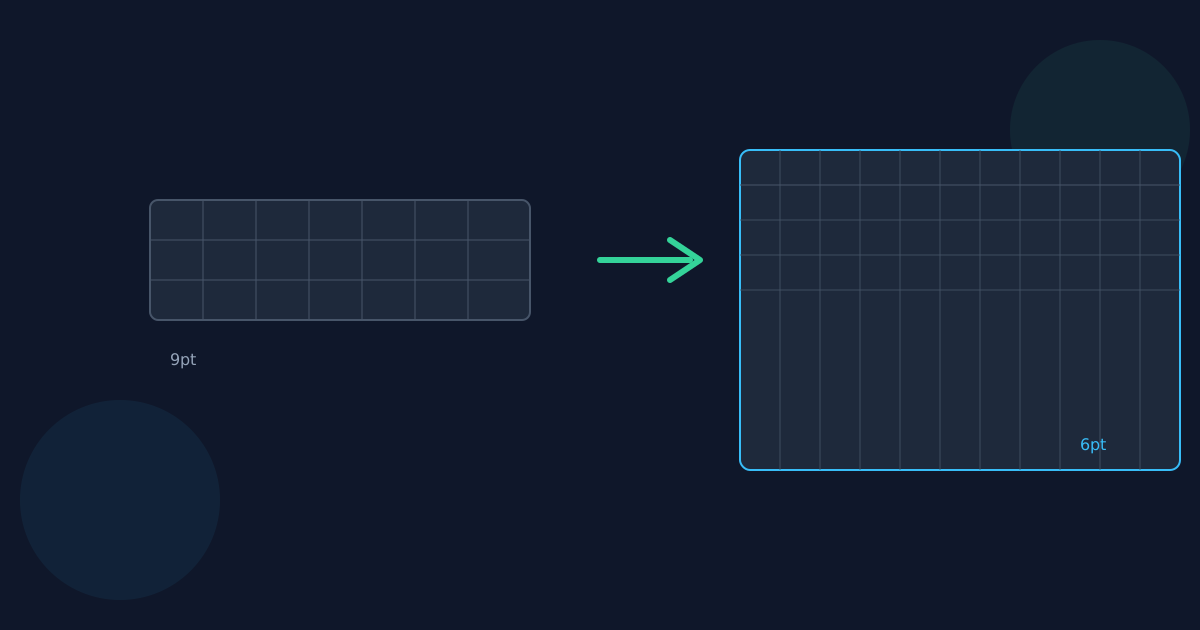
Column widths are measured using the actual embedded font’s glyph widths (not a fixed average-character-width guess), so a column exactly fits its longest sampled cell before any minimum/maximum column-width clamp is applied. The default font size is 9pt. If, after scaling every column to fit the page, the average column would work out to less than roughly six characters of readable space, the layout is thrown away and remeasured one step smaller — 8pt, then 7pt, then a hard floor of 6pt.
The tool always tries the largest font size first and only drops a step when the previous size genuinely would not fit reasonably — a table that already fits comfortably at 9pt is never shrunk “just in case.”
A worked example: 15 columns
A CSV with 15 short columns (single words, short codes) will usually still fit at 9pt on a landscape US Letter page, since 15 modestly-sized columns divide reasonably across roughly 720 usable points of landscape width. Add several long text columns to that same 15-column export — full names, email addresses, multi-word descriptions — and the average available column width per cell drops below the six-character bar at 9pt, so the layout steps down to 8pt and remeasures. This repeats automatically; you do not choose a font size yourself.
When truncation happens instead of shrinking further
The font never shrinks below 6pt, because text smaller than that stops being genuinely readable regardless of how well it fits the column grid. If a table is still too wide for its columns at the 6pt floor, individual cells are truncated with a trailing ellipsis (…) rather than the font continuing to shrink — this mirrors the same accept-truncation-over-illegibility tradeoff Excel to PDF already makes, just with real glyph-width measurement instead of a fixed character-count estimate.
CSV to PDF Wide Table Formatting FAQ
- Do I control the font size or page orientation myself?
- No — both are chosen automatically based on the CSV’s actual column count and content width. There is no manual override.
- What is the smallest font size CSV to PDF will use?
- 6pt. Below that, text is truncated with an ellipsis rather than shrunk further, since smaller text stops being genuinely readable.
- Why does my CSV render in landscape instead of portrait?
- The page orientation is chosen automatically from the table’s width-to-height ratio — a wide table (many columns) becomes landscape; a narrow, tall one stays portrait.
- Does column width use a fixed character-count guess?
- No — it measures the actual embedded font’s glyph widths for each cell, which is more accurate for proportional text than a fixed average-character-width heuristic.
- What happens to a cell that is still too wide at 6pt?
- It is truncated with a trailing ellipsis (…) rather than the font shrinking further, since illegibly small text is a worse outcome than a shortened cell.
- Does a narrow, simple CSV also go through this shrinking process?
- The check always runs, but a table that already fits comfortably at the default 9pt size is left at 9pt — nothing is shrunk unnecessarily.
Related guides
- How to Convert CSV to PDFTurn a CSV export into a clean, printable PDF table with real selectable text in your browser, and see when a fixed PDF beats sending the raw CSV or an Excel file.
- CSV to PDF Printing & SharingWhy a fixed-layout PDF is often the better format for printing or emailing tabular data than a raw CSV or spreadsheet file — and the honest tradeoff of turning editable data into a one-way snapshot.
- PDF to CSV Table DetectionThe detection rules behind PDF to CSV's output: the recurring-column heuristic used to find a table, why multiple tables are concatenated with labeled rows instead of one being silently discarded, and why cells are always plain text.


