Image guides
How to Convert BMP to JPG in Your Browser
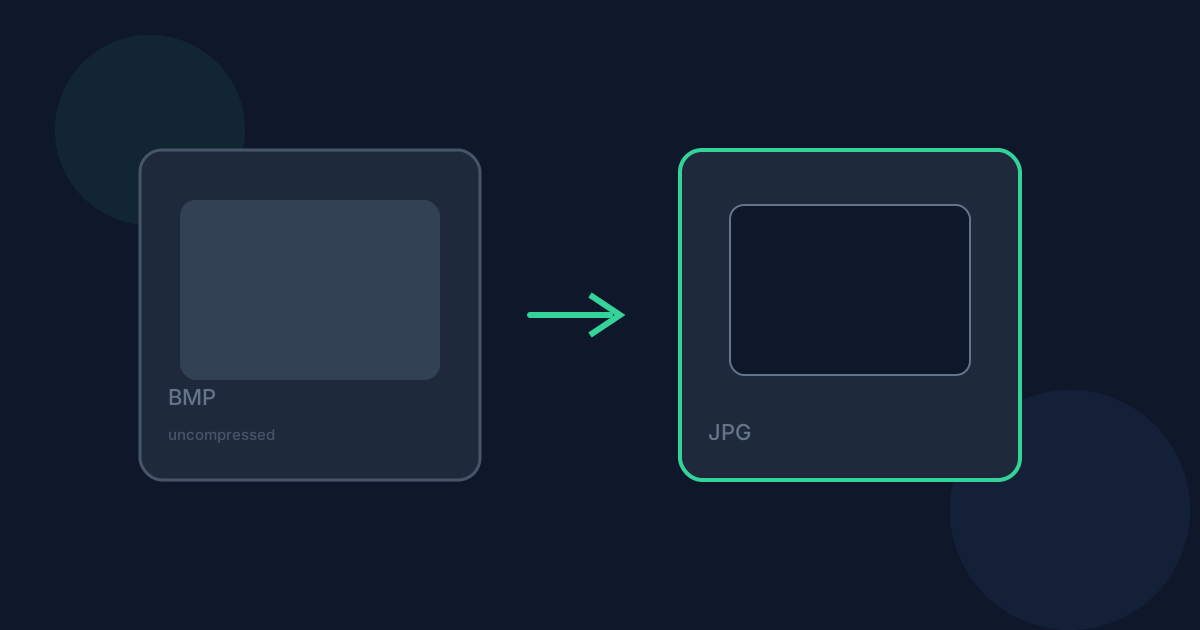
BMP stores images with no compression at all, so converting to JPG is mostly about shrinking a needlessly large file — not a quality upgrade, since JPEG’s compression is lossy. This guide covers what that trade actually looks like and when it is worth it.
Ready to try the tool this guide describes?
How BMP becomes JPG
The browser’s native image decoder — no special BMP library needed, since BMP is a browser-supported format — reads the uncompressed bitmap and re-encodes it as a JPEG at the quality level you choose, 90% by default.
What changes when you convert
File size typically drops sharply, often to a small fraction of the source, because JPEG’s lossy compression replaces BMP’s total lack of compression; the trade is a small amount of visible detail loss controlled by the quality setting. Any transparency an unusual BMP variant carries is flattened onto white, since JPEG has no alpha channel. Pixel dimensions stay unchanged.
When JPG is the right choice — and when it isn’t
JPG is the right target whenever you want to share, upload, or store a photo-like BMP anywhere space or compatibility matters — it opens everywhere BMP might not, at a fraction of the size. Keep the BMP instead if you need an exactly lossless, uncompressed copy for further editing or a workflow that specifically expects that format.
Limitations and privacy
Some uncommon or corrupted BMP variants may not decode in every browser — a current version of Chrome, Edge, Firefox, or Safari covers the common cases. Conversion runs locally; no BMP-specific download is required since browsers read BMP natively, and the file is not uploaded to Looty Tools servers.
Convert BMP to JPG FAQ
- Does this preserve the original BMP’s dimensions?
- Yes. The output JPG keeps the same pixel dimensions as the source BMP.
- Can I control how much the file shrinks?
- Yes, via the quality setting — lower quality produces a smaller file at the cost of more visible compression.
- What if my BMP has transparency?
- It is flattened onto a white background, since JPEG has no alpha channel to carry it.
- Why might a BMP fail to convert?
- An uncommon variant or corrupted file the browser can’t decode. Re-exporting the file or trying a different current browser usually resolves it.
- Is my file uploaded anywhere?
- No. Conversion runs locally in your browser and does not upload your file to Looty Tools servers.
Related guides
- BMP vs JPGCompare BMP and JPG for file size, compression, and compatibility, and see when converting BMP to JPG is the better choice.
- BMP to JPG Without UploadingLearn how Looty Tools converts BMP to JPG privately in your browser using native browser image decoding, with no file upload.
- Convert BMP to PNGConvert a BMP (bitmap) image to PNG locally: choose the file and download a lossless, more broadly supported image.


