PDF guides
How to Compare Two PDF Versions Online
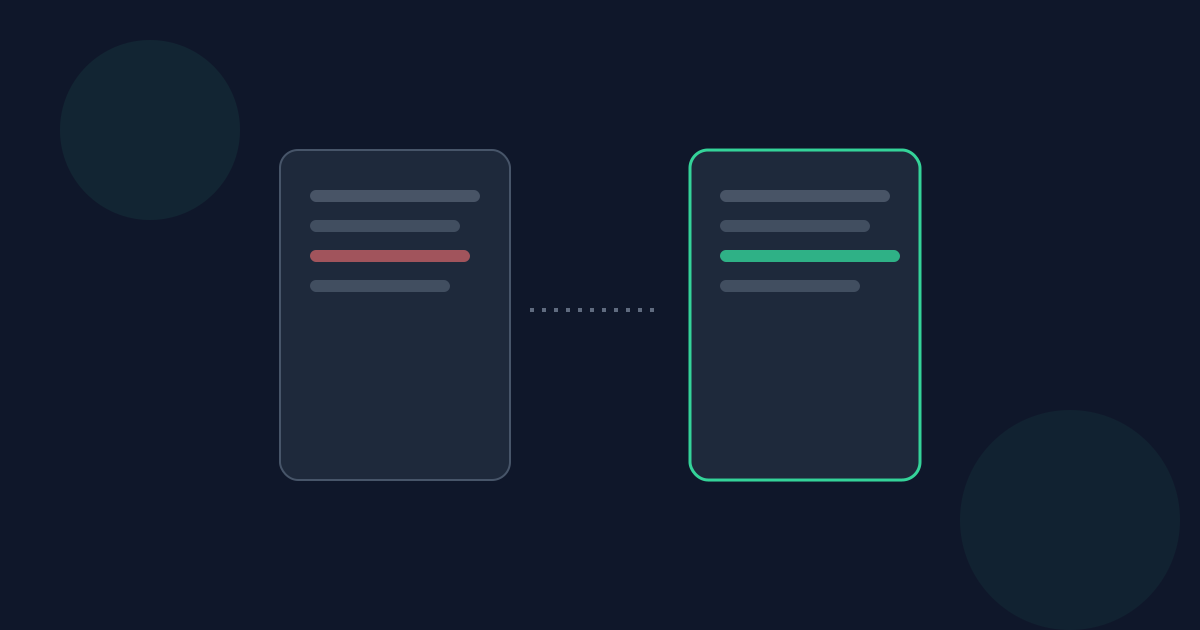
Compare PDF checks two versions of a document against each other and tells you exactly what changed — page by page, and line by line where the text itself differs.
Ready to try the tool this guide describes?
Before you start
Both files must be PDFs, up to 30 pages and 25 MB each. There is no requirement that both PDFs have the same page count — that’s exactly the case Compare PDF is built to handle correctly.
Step-by-step
- Upload the Original PDF and the Revised PDF.
- Select Compare.
- Browse the numbered page strip, color-coded by status.
- Use Next change / Previous change to jump straight between the pages that actually differ.
- Open the "What changed" panel on any Changed page for the specific detail.
Reading the status chips
Each compared page slot gets one of four statuses: "No detected changes" (the page matched with no meaningful difference), "Changed" (matched to a corresponding page, but that page differs), "Page added" (present only in the revised file), or "Page removed" (present only in the original).
Using the "What changed" panel
On a Changed page, the panel shows the specific added and removed lines when the page’s text itself changed. If the text is identical but the page still shows as Changed, that means the underlying image or graphic differs — the panel will say so directly instead of showing an empty line list.
How to Compare Two PDFs FAQ
- Do both PDFs need the same number of pages?
- No — Compare PDF is specifically designed to correctly detect pages that were added or removed rather than requiring matching page counts.
- Are my files uploaded?
- No. Comparing runs locally in your browser.
- What if I upload a scanned PDF instead of a text PDF?
- Scanned or image-only pages fall back to a visual-only comparison automatically — see the companion guide on comparing scanned vs. text PDFs.
- Can I see an inline highlight of exactly which words changed within a line?
- Not in this version — the "What changed" panel lists added and removed lines, not a character-level inline highlight.
- What happens if one PDF fails to load?
- An error message identifies which file — Original or Revised — had the problem, rather than a generic failure.
Related guides
- How PDF Comparison Detects ChangesThe real mechanism behind Compare PDF: how pages are matched by content rather than position so an inserted page doesn't cascade false changes, and how text and visual differences are checked independently.
- Comparing Scanned vs. Text PDFsWhy a scanned or image-only PDF can only be compared visually, not line by line, and how Compare PDF automatically switches between text-based and visual-only comparison depending on what each page contains.


