Image guides
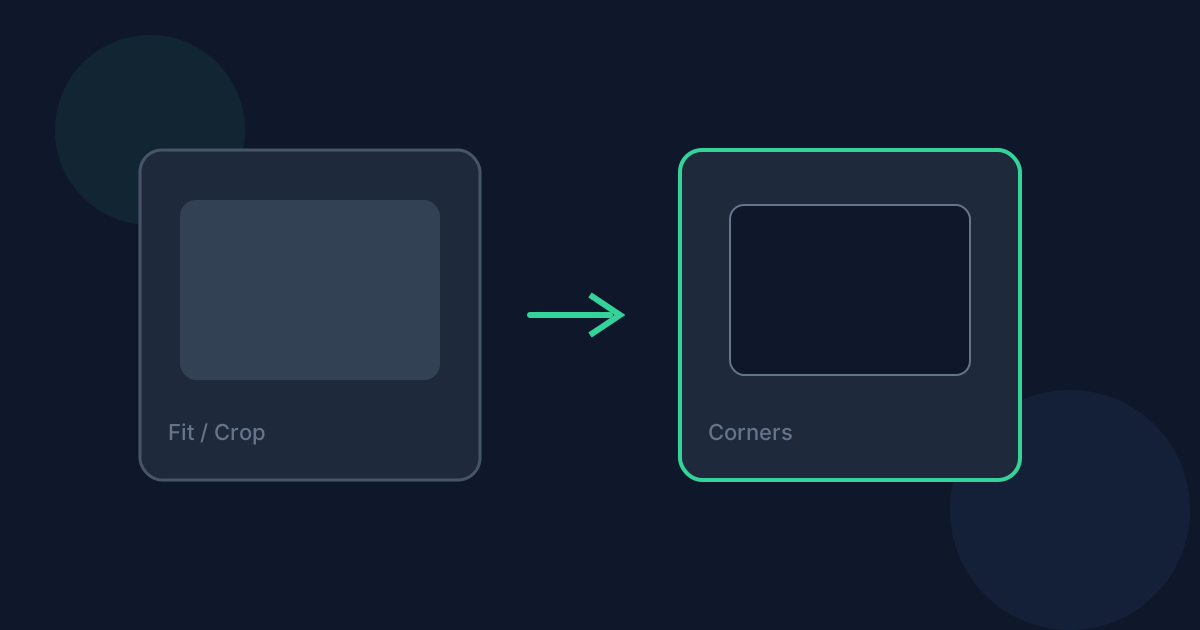
How Fit, Crop, Background, and Corner Options Work
The App Store Screenshot Resizer offers fit, crop, background, and corner controls so you can match a preset frame without guessing how pixels are placed.
Ready to try the tool this guide describes?
Fit entire image
Fit scales the screenshot to fit inside the target size. Letterboxed areas can be filled with Auto, White, Black, or Looty blue. Exports use an opaque background for App Store Connect compatibility.
Fill and crop
Fill and crop scales the screenshot to cover the target and crops overflow so every output pixel is filled by image content. Background options are not used in this mode.
Corners and formats
Corner style can be Square or Rounded. Rounded corners are composited onto an opaque white background. Download as PNG for sharp UI screenshots, or JPG/JPEG for a smaller photo-style export.
Fit, Crop, Background, Corners FAQ
- Does the tool crop by default?
- No. The default resize mode is Fit entire image. Choose Fill and crop when you want cropping.
- Can it add a background?
- Yes when using Fit entire image. Background options are Auto, White, Black, and Looty blue.
- Can it create rounded corners?
- Yes. Select Rounded under Corner style.
- Are exports opaque?
- Yes. App Store exports are saved with an opaque background.
- Does this guarantee App Store acceptance?
- No. Correct dimensions and styling help, but Apple’s review rules still apply.
Related guides
- Resize App Store ScreenshotsResize iPhone or iPad screenshots to Looty Tools preset dimensions, choose fit or crop, and export PNG or JPEG locally in your browser.
- App Store Screenshot SizesSee the iPhone and iPad screenshot pixel presets currently implemented by the App Store Screenshot Resizer, and why Apple’s rules can still change.
- Convert Images Without UploadingLearn what browser-local image conversion means on Looty Tools, what stays on your device, and how Image Converter avoids a conversion upload.
Open the tool
Jump into App Store Screenshot Resizer when you are ready to process your files.


