Audio guides
How to Convert Audio Without Uploading It
Browser-local tools can convert audio without sending file contents to a conversion server. This guide explains what that means for Audio Format Converter on Looty Tools.
Ready to try the tool this guide describes?
What stays on your device
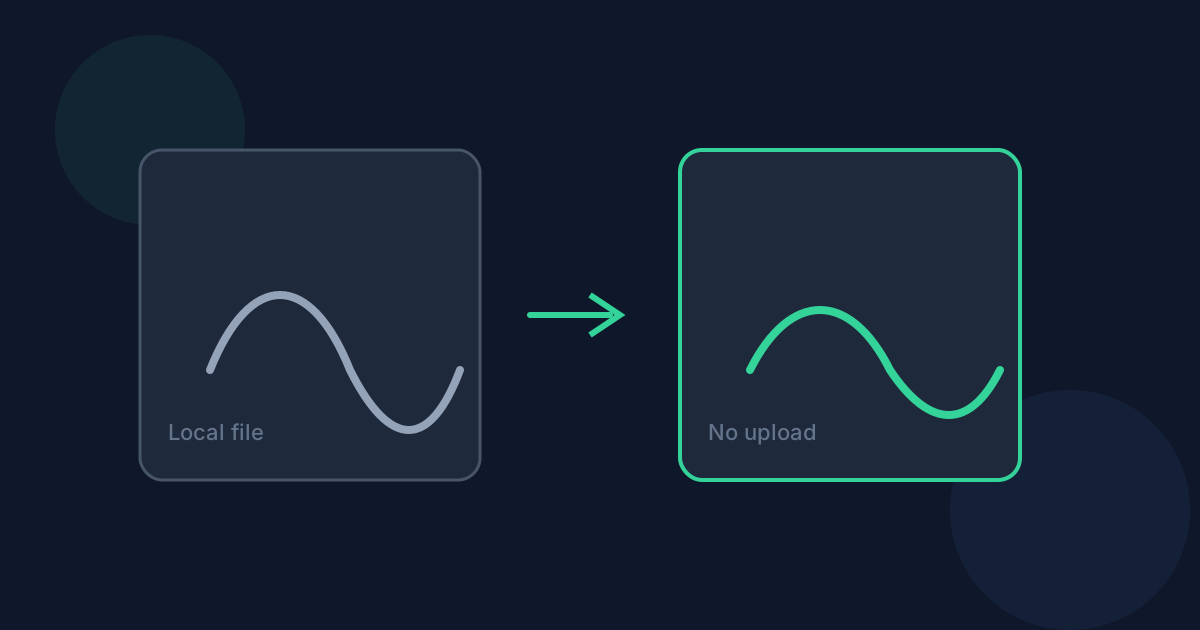
Audio Format Converter reads the file you choose, runs FFmpeg in the browser, and triggers a download. There is no Looty Tools conversion endpoint that receives your audio contents for this workflow.
What still happens in the browser
JavaScript and WebAssembly must run. Large files may use significant memory. Some codecs depend on what FFmpeg can decode in the browser. Those limits are local resource and capability limits, not upload limits.
Limits that still apply
Inputs must be 25 MB or smaller. Supported inputs are MP3, WAV, FLAC, M4A, AAC, and OGG. Outputs are MP3, WAV, and FLAC. Closing the tab stops an in-progress conversion.
Convert Audio Without Uploading FAQ
- Is my audio uploaded?
- No. Conversion runs locally in your browser for this tool.
- Does local processing mean unlimited size?
- No. The maximum input size is 25 MB, and large files can still stress browser memory.
- Is analytics the same as uploading my audio?
- Successful-use tracking records that a conversion completed. It does not upload the audio contents for conversion.
- Does this include YouTube downloading?
- No. YouTube to Audio is a separate upcoming tool. Audio Format Converter only converts audio files you already have.
- Where do I start?
- Open /tools/audio-format-converter, choose a supported file under 25 MB, pick an output format, and download the result.
Related guides
- How to Convert Audio FormatsConvert MP3, WAV, FLAC, M4A, AAC, or OGG to MP3, WAV, or FLAC in your browser with FFmpeg, a 25 MB limit, and clear quality expectations.
- MP3 vs WAV vs FLACCompare MP3, WAV, and FLAC for file size, quality, and compatibility so you can choose the right Audio Format Converter output.
- Browser-Based File PrivacyUnderstand local browser processing, when files stay on your device, practical privacy checks, and how Looty Tools discloses different processing models.
Open the tool
Jump into Audio Format Converter when you are ready to process your files.


